JavaScript is not currently enabled, but is required for full
CodeSonar manual search and browse functionality.
If you are viewing this file in your hub's Web GUI, enable
JavaScript in your browser: you will also need it for GUI
functionality.
If you opened this file directly from disk, your browser may be
directly suppressing JavaScript functionality: certain browsers
perform this suppression on local files (but not files delivered by
web servers) for security reasons.
-
If you access the manual through the hub's Web GUI, the
functionality will not be suppressed because the hub is a web
server.
-
Alternatively, your browser may allow you to explicitly
disable the security setting that suppresses functionality. See
the CodeSonar
FAQ for more information.
GUI Reference: Settings; Admin Settings
View various settings; modify them if you have sufficient
permissions. These settings include:
- Properties of your own hub user
account.
- HTTP and SMTP configuration for the hub.
- Default settings for new warnings.
- Display properties for the web GUI.
The CodeSonar GUI provides two slightly different page types for
managing settings. "Admin Settings" and
"Settings" provide identical functionality, but differ in
their handling of cases where the user does not hold sufficient
permissions to access particular pieces of functionality.
- "Settings" only displays functionality that is
available to the user: functionality that requires permissions
that the user does not hold is not displayed at all.
- "Admin Settings" displays all functionality, but
disables those pieces that are not available and marks them with
a
 icon.
icon.
Since the same functionality is available from both
"Settings" and "Admin Settings, and is subject to
the same restrictions in both cases, you can use whichever page you
prefer. In particular, while this manual generally refers to the
Settings page when describing how to access the functionality
contained on these pages; the Admin Settings page is always an
acceptable alternative.
Important Note:
the CodeSonar Web GUI makes extensive use of JavaScript. Make sure
JavaScript is enabled in your web browser.
Note that both Settings and Admin Settings are
only available to signed-in users. If you attempt to access either
page while not signed in, you will be directed via a Sign In screen.
| Settings |
From any page: |
Click the Settings icon  in the
page header. in the
page header. |
| By URL: |
http://hub_location/settings.html
|
| Admin Settings |
By URL: |
http://hub_location/admin_settings.html
|
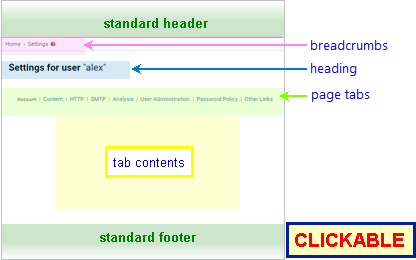
The following annotated screenshot shows the various parts of a
Settings page.
The Account tab contains fields for changing password and email
settings for the hub user account that is currently signed in.
To change settings for a different hub user account, use the
corresponding Account
Editor.
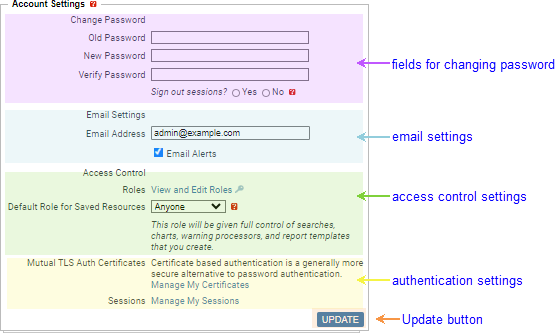
To change the account password, fill
in these fields and click Update.
This functionality requires G_CHANGE_OWN_PASSWORD permission.
Administrator only: Note that
changing the Administrator password
will also change the password for special PostgreSQL user
cshubuser.
| Old Password |
Enter the old password in this field. |
| New Password |
Enter the new password in this field. |
| Verify Password |
Re-enter the new password in this field. Must match the
password entered in the New Password field.
If the password entered in this field does not match the one
in the New Password field, CodeSonar will print a
warning instead of creating a new account when Update is
clicked.
|
| Sign out sessions? |
Select Yes to delete all user sessions
associated with your hub user account when you click
Update to change the password. Select No to keep
all your existing sessions.
If you are changing your password because of a security
breach or similar, we recommend also deleting your user
sessions. In other cases, you might decide that it is
convenient to keep existing sessions.
All of your user sessions will be deleted except the
GUI session you are using to perform the password change.
|
| Roles |
Click View and Edit Roles to navigate to the User Roles page for the account. |
| Default Role for Saved
Resources |
The default
role for the account.
To modify, select a role from the menu and click the
Update button. Note that the menu only contains roles that
are currently assigned to the account. No permissions are
required to change your own default role. |
| Mutual TLS Auth Certificates |
Click Manage My Certificates to navigate to the
User Certificates page
for the account.
This field is only available if HTTPS is enabled. |
| Sessions |
Click Manage My Sessions to navigate to the User Sessions page for the
account. |
Click to save any changes made to this tab.
Functionality on this tab requires G_ADMINISTER_CONTENT_SETTINGS and G_LIST_PROPERTIES permissions.
The Settings page will not include the tab at all if the signed-in
user does not have these permissions.
These settings apply to all hub users.
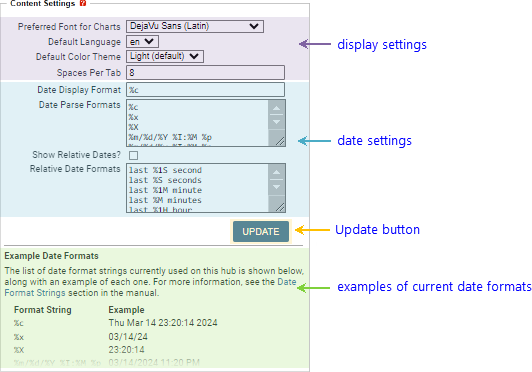
Functionality on this tab requires G_ADMINISTER_HTTP_SETTINGS permission.
The Settings page will not include the tab at all if the signed-in
user does not have this permission.
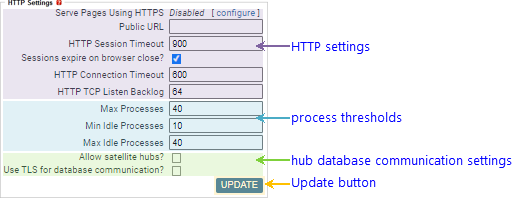
These settings apply hub-wide.
| HTTP Settings
|
| |
Serve Pages Using HTTPS |
Reads Disabled if HTTPS is currently disabled (in
which case all pages will be served using HTTP), Enabled
if HTTPS is currently enabled. Click configure to navigate to the Configure HTTPS page. |
| |
Public
URL
|
A URL of the form http://hostname:port
(or https://hostname:port,
if HTTPS is enabled).
This is used in several contexts.
- When the hub sends email to users, the Public URL will be
used as the base URL when referring to individual warning
reports and other GUI pages.
- If you configure a single sign-on (SSO) hub
authentication service, the SSO SAML
authentication plug-in will use your Public URL to
generate information that will identify your hub to the SSO
service.
- (HTTPS hubs only) If you are using a hub server
certificate, its Subject Common Name must match the
Public URL if a Public URL is specified.
The same requirement applies to the hub
client authentication certificate.
|
| |
HTTP Session Timeout
|
User
sessions and anonymous
sessions will terminate after this many seconds of
inactivity. This setting is particularly useful for ensuring that
abandoned anonymous sessions will eventually time out and become
available to other users.
If a session is started with a specific Expires
value, it will take precedence over this setting. |
| |
Sessions expire on browser close?
|
When selected, user
sessions and anonymous
sessions that are browsing the web GUI will terminate if the
user closes the corresponding browser, unless the browser
prevents this. |
| |
HTTP Connection Timeout |
HTTP connections will disconnect after this many seconds of
inactivity. It is not recommended that users alter this
value. |
| |
HTTP TCP Listen Backlog |
If there are this many connection requests waiting to be
serviced, further connection requests will be rejected. |
| Hub Process Thresholds
|
| |
Max
Processes
|
If this many hub slaves are
running, the hub master will
not start any further slaves.
If the setting is too high, the hub
processes may exhaust the free memory on the hub machine.
If this setting is too low relative to the volume of HTTP
requests on your hub the hub may not be able to service all
requests. If this occurs, you will see a Warning: The web
server's process pool was exhausted... message above
the footer in all Web GUI
pages.
To estimate a suitable Max Processes value for your hub,
allow for a worst case of 700MB of RAM per hub process.
If you prefer to experiment rather than estimate, we recommend
that you run the hub under typical load for a week or more in
order to get representative measurements. New hub processes
typically use less memory, so a snapshot of memory usage for a
newly-started hub will not provide sufficient information.
|
| |
Min Idle Processes
|
If the number of idle hub slaves is
below this value, and fewer than Max
Processes hub slaves are running, the hub master will
start one hub slave at a time until either the number of idle
hub slaves reaches this value or the total number of hub slaves
reaches Max Processes.
|
| |
Max Idle Processes
|
If the number of idle hub slaves exceeds
this value, the hub master will end
one idle slave process at a time until this is no longer the
case. |
| Hub Database Communication Settings
|
| |
Allow satellite hubs?
|
When selected, satellite
hubs can connect to the hub database. When not selected, only
one hub (the primary
hub) can be connected to the hub database.
This option is only present on primary hubs that are using the
database shipped with CodeSonar. |
| |
Use TLS for database communication?
|
When selected, the hub will connect to the hub database with a
certificate and traffic between hub and database will be
encrypted. This may slow down database communication.
Certificate and key files hubdir/client.crt, hubdir/client.key, and hubdir/root.crt will be used, where
hubdir is the hub directory. If any of
these are not present, CodeSonar will generate them when the
hub is started or restarted.
- To use your own versions of these files, copy them to the
hub directory.
- If you are using TLS for database communication and have
one or more
satellite hubs, make sure you copy these three files from
the primary hub directory to the satellite hub directory for
each satellite hub.
When not selected, the hub will connect to the hub database
with a password, and traffic between hub and database will not
not be encrypted.
This option is only present on primary hubs that are using the
database shipped with CodeSonar.
|
| Update button
|
Click to save your changes. |
Set up email for the hub.
Functionality on this tab requires G_ADMINISTER_SMTP_SETTINGS permission.
The Settings page will not include the tab at all if the signed-in
user does not have this permission.
If you are configuring SMTP settings for the hub, make sure that
Public URL is set to a suitable value: this
ensures that email messages sent by the hub contain valid URLs.
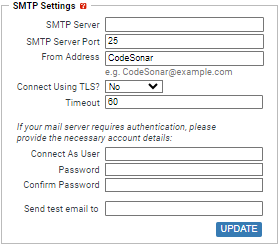
| SMTP
Server
|
The address of the SMTP server that the hub will use to send
email to users. |
| SMTP Server Port |
The port on SMTP Server on which
the server runs. The conventional SMTP port is 25. |
| From Address |
The email address that will be used in the From: line of
email messages from the hub. |
| Connect Using TLS? |
When this option is selected, the hub will communicate with
the SMTP server using TLS. |
| Timeout |
The number of seconds the SMTP client will wait for network
operations to complete. |
| Connect As User
|
If your SMTP server requires authentication, enter the
account name for the server in this field. |
| Password |
If you entered an SMTP server account name in the Connect As User field, enter the
corresponding password here. |
| Confirm Password |
If you entered an SMTP server account name in the Connect As User field, re-enter the
corresponding password here. |
| Send test email to |
The CodeSonar hub will send a test email using the specified
settings. Use this field to specify a recipient for the test
email. |
| Update button |
Click to save your changes and send a test email. |
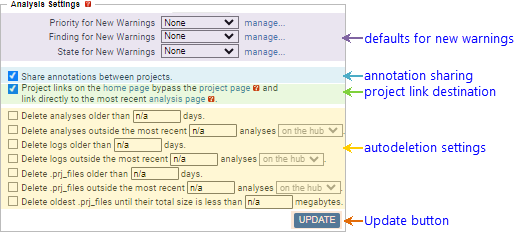
Set up defaults for new warnings, and configure automatic analysis
deletion.
Functionality on this tab requires the following permissions.
The Settings page will not include the tab at all if the signed-in
user does not have all these permissions.
The User Administration tab contains a menu of links to useful
user administration information and functionality.
Functionality on this tab requires G_ADMINISTER_USERS permission.
The Settings page will not include the tab at all if the signed-in
user does not have these permissions.
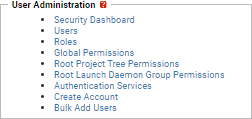
The following table describes the links available in this tab,
including the permissions required for each. The "Settings"
page will not display any links for which the corresponding
permissions are not held; the "Admin Settings" page will
display all links and mark those that are unavailable with a
icon.
The Password Policy tab contains security settings for
password-based hub authentication.
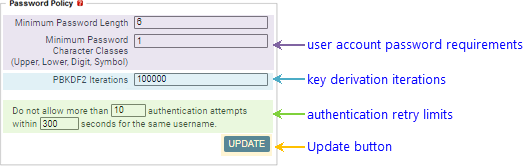
These settings apply hub-wide.
| User Account Password Requirements
|
These settings specify constraints that are checked when a
hub
user account password is changed.
|
| |
Minimum Password Length
|
The password must contain at least this many characters
Must be a non-negative integer.
|
| |
Minimum Password Character Classes
|
The password must contain at characters from at least this
many character classes, where the set of character classes is
{Upper, Lower, Digit, Symbol}.
Must be an integer in the range 0-4, inclusive. |
| PBKDF2 Iterations
|
The number of iterations of PBKDF2 (Password-Based Key
Derivation Function 2) that will be applied to a password to
create the password hash. A higher value will generally confer
a higher degree of security.
This setting directly affects the CPU cost of password-based
hub authentication (including authentication for analyses and
other authenticated
operations). On a fast machine, a setting of 100000 corresponds
to an authentication time of about one second.
Password hashes are stored with their iteration counts:
changing this value will not affect hashing for passwords set
before the change.
|
| Authentication Retry Limits
|
Specify limits on the number of unsuccessful
password-based authentication attempts a single user may make
within a specified time frame. Limits are managed on a
per-specified-username basis, whether or not the specified
username is associated with an existing hub user account. |
| Update button
|
Click to save your changes. |
The Other Links tab contains a menu of links to useful
administrative information and functionality.
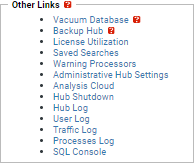
The following table describes the links available in this tab,
including the permissions required for each. The "Settings"
page will not display any links for which the corresponding
permissions are not held; the "Admin Settings" page will
display all links and mark those that are unavailable with a
icon.