 icon. These links are available in tables of
resources, pages about individual resources, and certain other
locations, as shown in the following table.
icon. These links are available in tables of
resources, pages about individual resources, and certain other
locations, as shown in the following table.JavaScript is not currently enabled, but is required for full CodeSonar manual search and browse functionality.
If you are viewing this file in your hub's Web GUI, enable JavaScript in your browser: you will also need it for GUI functionality.
If you opened this file directly from disk, your browser may be directly suppressing JavaScript functionality: certain browsers perform this suppression on local files (but not files delivered by web servers) for security reasons.
| CodeSonar® 9.2p0 | CONFIDENTIAL | CodeSecure Inc |
This page allows users to view and edit the resource role-permission assignments for an individual securable resource on the hub.
To view and edit global role-permission assignments, use the Global Role-Permissions page.
See also the section on recommended combinations for resource role-permissions.
Important Note: the CodeSonar Web GUI makes extensive use of JavaScript. Make sure JavaScript is enabled in your web browser.
Links to Resource Role-Permissions pages are
marked with a icon. These links are available in tables of
resources, pages about individual resources, and certain other
locations, as shown in the following table.
| Resource Type | URL |
|
|---|---|---|
| Analysis | /analysis/analysis_id-permissions.html |
|
| Launch Daemon | /launchdaemon/launchd_id-permissions.html |
|
| Launchd Group | /launchdaemongroup/ldgroup_id-permissions.html |
|
| Named Search | /namedsearch/search_id-permissions.html |
|
| Project | /project/project_id-permissions.html |
|
| Project Tree | /projecttree/ptree_id-permissions.html |
|
| Report Template | /reporttemplate/template_id-permissions.html |
|
| Role | /role/role_id-permissions.html |
|
| Saved Chart | /savedchart/schart_id-permissions.html |
|
| Warning Processor | /warningprocessor/wproc_id-permissions.html |
|
The following annotated screenshot shows the various parts of a Resource Role-Permissions page.
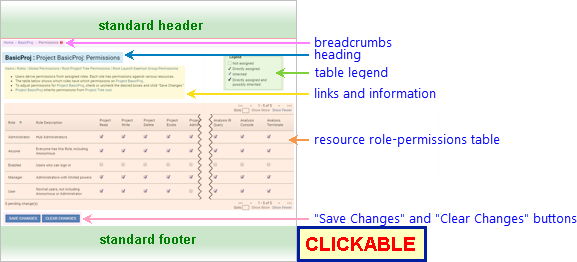
See GUI Reference: Standard Header.
[Resource_Breadcrumbs >] Resource_Type Resource_Name : Permissions
Where Resource_Breadcrumbs depend on the resource type, and Resource_Type and Resource_Name are the type and name of the resource, respectively.
| Resource_Type | Resource_Breadcrumbs | Resource_Type Resource_Name links to |
|---|---|---|
| Analysis | as for Analysis page breadcrumbs | Analysis |
| Launch Daemon | Home > Analysis Cloud [> Other_LDGroup_Ancestors] | no link |
| Launchd Group | as for Launchd Group page breadcrumbs | Launchd Group |
| Named Search | Home > Saved Searches | no link |
| Project | as for Project page breadcrumbs | Project |
| Project Tree | as for Project Tree page breadcrumbs | Project Tree |
| Report Template | Home | Report Template Editor |
| Role | Home > Settings | Roles |
| Saved Chart | Home | Chart |
| Warning Processor | Home | no link |
Resource_Type Resource_Name: Permissions
Where Resource_Type and Resource_Name are the type and name of the resource, respectively.
Links to other RBAC-related pages:
A table with one row for each role and one column for each applicable permission for the resource. Click a role name, ID, or description to navigate to the corresponding Role Users page.
The table has standard pagination controls.
The available table columns are as follows. All columns except Role ID are displayed by default.
| Column Label | Column Data |
|---|---|
| Role ID | Role ID |
| Role | Role Name |
| Role Description | Role Description |
| Permissions |
One column for each applicable
permission for the resource.
Cell contents for these columns depend on whether the corresponding role is assigned the corresponding permission, and if so, by what means:
The table
legend shows how each of these cases is rendered in the
table. Note that for performance reasons, role-permissions with only direct assignment are frequently rendered as "directly assigned and possibly inherited". To add or remove a direct role-permission assignment, click the corresponding table cell to add or remove the bold ("directly assigned") checkmark, then click Save Changes. (Any resulting changes to indirect assignments will be shown after you click Save Changes.)
|
If you have clicked in one or more of the table cells to add or remove direct role-permission assignments, the "<num> pending change(s)" notification under the table will update to show how many changes you have made since you loaded or reloaded the page.
Click Save Changes to save your changes and reload the page to show the effects of your changes on the role-permissions for this resource.
Click Clear Changes to restore the table to the state it was in when you loaded or reloaded the page.
See GUI Reference: Standard Footer.
| to Global Role-Permissions | Click Global Permissions in the link bar (under the page heading). |
|---|---|
| to Roles | Click Roles in the link bar (under the page heading). |
| to Role Users | Click the role name, ID, or description in the table. |
| to Users | Click Users in the link bar (under the page heading). |
To report problems with this documentation, please visit https://support.codesecure.com/.
