(PTREE_EXISTS/PROJECT_EXISTS)
(when Visible Projects is set to 'all')
 My Team Team
X
My Team Team
X Project Q
root
My Team
Team X
My Subteam
Other Subteam
Subteam Y
Subteam Z
 Other Subteam Project P
Other Subteam
JavaScript is not currently enabled, but is required for full CodeSonar manual search and browse functionality.
If you are viewing this file in your hub's Web GUI, enable JavaScript in your browser: you will also need it for GUI functionality.
If you opened this file directly from disk, your browser may be directly suppressing JavaScript functionality: certain browsers perform this suppression on local files (but not files delivered by web servers) for security reasons.
| CodeSonar® 9.2p0 | CONFIDENTIAL | CodeSecure Inc |
The Home page is the home page for the CodeSonar Web GUI.
A Project Tree page displays information about a project tree on the hub.
Both page types include the following.
The main differences between the Home page and Project Tree pages are that the Home page is available to all users (with contents and functionality depending on user permissions), and its table of projects and project trees has a broader set of contents.
Home and Project Tree pages can be reached in any of the following ways.
| Home | From any page | Click the CodeSonar logo in the GUI page header. |
|---|---|---|
| By URL | http://hub_location/index.html | |
| Project Tree | From Home or Project Tree |
Several navigation options:
|
| From Project or Analysis | Click a project tree name in the breadcrumbs. | |
| By URL | http://hub_location/projecttree/ptree_id.html |
| Output formats | CSV, JSON, XML (home.xsd) | ||||||
|---|---|---|---|---|---|---|---|
| Visibility Filter Applied | Visible Projects | ||||||
| RBAC Permissions Needed | Home:
|
The Home page and Project Tree pages have very similar contents and functionality, so are documented together. The differences between the two are summarized in the following table.
| Home | Project Tree page for Project Tree T | |
|---|---|---|
| URL | http://hub_location/index.html | http://hub_location/projecttree/ptree_id.html Where ptree_id is the PTree ID for T. |
| Available To | All users. | Users with PTREE_READ permission for T. |
| Subject Project Tree | The hub's root project tree. | T |
| Table Contents |
Projects and project trees for which:
|
Projects and project trees whose parent project tree is T, and for which the user has PROJECT_EXISTS or PTREE_EXISTS permission, respectively. |
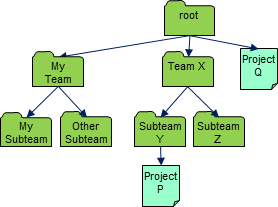
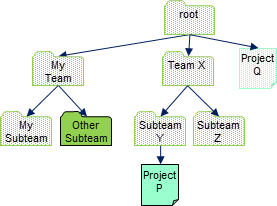
For example, consider a hub with several project trees and two users. User A has a broad set of permissions that include PTREE_EXISTS permissions for all project trees and PROJECT_EXISTS permissions for all projects. User B has far more restrictive permissions: they only have PTREE_EXISTS permission for one of the project trees, and PROJECT_EXISTS permission for one project from a different project tree. Both users can access the Home page (because all users can always access the Home page), but the displayed items are different. User A can access all Project Tree pages; User B can only access the Project Tree page for one project tree. These differences are summarized in the following table.
| User | Elements with EXISTS permission (PTREE_EXISTS/PROJECT_EXISTS) |
Contents of Home Page table (when Visible Projects is set to 'all') |
Accessible Project Tree pages |
|---|---|---|---|
| A |
|
My Team Team
X Project Q |
(Home) root My Team Team X My Subteam Other Subteam Subteam Y Subteam Z |
| B |
|
Other Subteam Project P |
(Home) Other Subteam |
The following annotated screenshot shows the various parts of the Home and Project Tree pages.
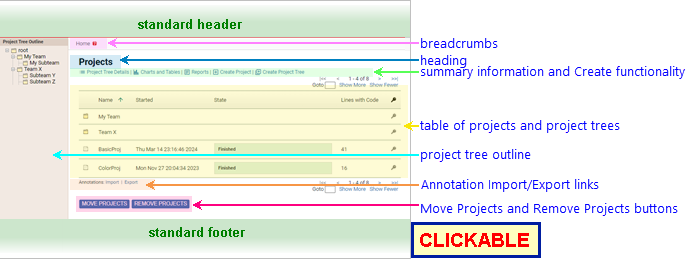
See GUI Reference: Standard Header.
| Home; Project Tree for root project tree | Home |
|---|---|
| Project Tree for other project trees |
Home >
[Other_ProjectTree_Ancestors >]
PTree_Name where
|
| Home | Projects |
|---|---|
| Project Tree (including root project tree) |
PTree_Name :
Projects where PTree_Name is the project tree name |
Three sections with further information about the project trees:
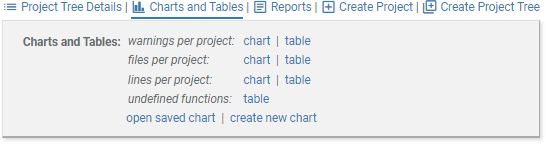
Project Tree Details, Charts and Tables, Reports.
Two sections for creating new hub elements: Create Project and Create Project Tree.
All are hidden by default.
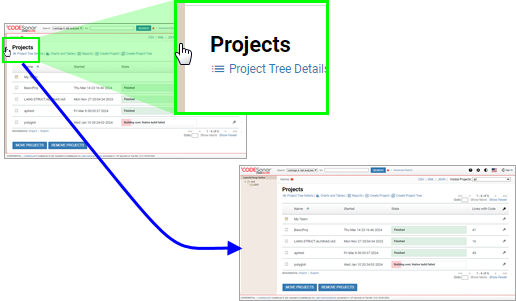
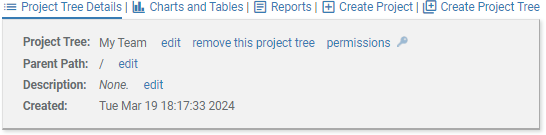
| Project Tree Details |
Click for general information about the project tree.
|
||||||||
|---|---|---|---|---|---|---|---|---|---|
| Charts and Tables |
Click to expand the Charts and Tables section.
|
||||||||
| Reports |
Click to expand the Reports section.
|
||||||||
| Create Project | Use this link to create a new, empty CodeSonar project as a
child of the current project tree. For detailed instructions, see
Task: Create a
New, Empty Project. (Not available on Home page for users without PTREE_READ permission for the root project tree.) |
||||||||
| Create Project Tree | Use this link to create a new, empty CodeSonar project
tree as a child of the current project tree. For detailed
instructions, see Task: Create a New,
Empty Project Tree. This is the only location that provides functionality for creating a new project tree. (Not available on Home page for users without PTREE_READ permission for the root project tree.) |
A table describing the projects and project trees that are
children of the current project tree.
On the Home page, the table also includes projects and project trees
whose parent project tree is some tree for which the user does
not have PTREE_EXISTS permission.
| Column Label | Column Data | ||
|---|---|---|---|
| Project Entry | Project Tree Entry | ||
| Entry Type | none |
|
|
| Project / Project Tree Information | Name * | Project.Name | Project Tree.PTree Name |
| ID | Project.Project ID | Project Tree.PTree ID | |
| Description | Project.Project Description | Project Tree.PTree Description | |
| Parent Name | Project.Parent Project Tree.PTree Name | Project Tree.Parent Project Tree.PTree Name | |
| Parent ID | Project.Parent Project Tree.PTree ID | Project Tree.Parent Project Tree.PTree ID | |
| Path | Project.Project Path | Project Tree.PTree Path | |
| Created | Project.Created | Project Tree.Created | |
| Custom Auto-Deletion Rules | Project.Project-Wide Auto-Deletion? | - | |
| Analysis Information for Last Analysis of Project (shown for projects only) |
Last Analysis ID | Analysis ID | - |
| Last Analysis | Analysis | - | |
| Last Analysis Description | Analysis Description | - | |
| Last Analysis Protected from Auto-deletion | Protected? | - | |
| Started * | Started | - | |
| Linking Started | Linking Started | - | |
| Finished | Finished | - | |
| Modified | Modified | - | |
| State * | State | - | |
| Username | Analysis Launch Daemon . System User | - | |
| Hub User | Analysis Launch Daemon . Hub User | - | |
| Machine | Analysis Launch Daemon . Machine | - | |
| Address | Analysis Launch Daemon . Address | - | |
| Install | Analysis Launch Daemon . Installation | - | |
| Warning Count | Warning Count | - | |
| File Count | File Count | - | |
| Dry Run | Dry Run? | - | |
| .prj_files Location | Analysis Directory . prj_files Location | - | |
| Every built-in and user-defined analysis-granularity metric class present in at least one analysis that has taken place on the hub (subject to ANALYSIS_READ permission), each labeled with the metric class description. Lines With Code (LCode) is displayed by default. | - | ||
| Every user-assigned property that is associated with at least one analysis that has taken place on the hub (subject to ANALYSIS_READ permission), each labeled with the property key. If a property value contains a URL, the URL is displayed as a hyperlink. By default, no user-assigned properties are displayed. | - | ||
| Role-Permissions |  * *("Permissions Link") |
Click  to navigate to the corresponding Project
Role-Permissions page. to navigate to the corresponding Project
Role-Permissions page. |
Click to navigate to the corresponding Project Tree
Role-Permissions page. |
An Export link is always available on the Home page. If warning group sharing is ON, an Import link is also available. See Importing and Exporting Annotations for full details.
Click to delete one or more of the projects or project trees in the table from the hub. See Task: Delete Multiple Projects or Project Trees (or both) for detailed instructions.
Click to move one or more of the projects or project trees to a different parent project tree. See Task: Move Multiple Projects or Project Trees (or both) for detailed instructions.
See GUI Reference: Standard Footer.
The Project Tree Outline provides an overview of the hub's project tree hierarchy for orientation and navigation.
In its collapsed state, the Project Tree Outline is indicated by a shaded bar at the left of the Home page and all Project Tree pages. It is expanded by default if it has contents other than the root project tree.
The outline includes all project trees on the hub for which the user has PTREE_EXISTS permission, along with all ancestors of such trees (regardless of the ancestor permissions). The trees and subtrees are always ordered so that the project tree path to the current project tree is at the top of the display, and the current project tree is highlighted.
| expanding | To expand the Project Tree Outline from its collapsed state, click the shaded bar. |
|---|---|
| resizing | To resize, drag on the right edge of the Project Tree Outline. |
| collapsing | To collapse it from its expanded state, drag the right edge to narrow the Project Tree Outline until the shaded bar reappears. |
For example, consider a hub with several project trees and two users. User A has a broad set of permissions that include PTREE_EXISTS permissions for all project trees, while User B has far more restrictive permissions and only has PTREE_EXISTS permission for one of the project trees. The two users are presented with different Project Tree Outline contents, as shown in the following table.
| User | Elements with EXISTS permission (PTREE_EXISTS/PROJECT_EXISTS) |
Project Tree Outline Contents (fully expanded) |
|---|---|---|
| A |
|
The user has PTREE_EXISTS permissions for all project trees, so the entire hierarchy is displayed. |
| B |
|
The user has PTREE_EXISTS permission for the project tree named "Other Subteam", so that project tree and all its ancestors are displayed. The user has no other PTREE_EXISTS permissions, so no other project trees are included. |
| view more information about a project |
Locate the desired project in the table and click anywhere in
that line.
|
|---|---|
| view more information about a project tree | Locate the desired project tree in the table and click anywhere in that line. |
| view a summary table or chart for the hub | Expand the Charts and Tables section, then select the desired chart or table link. |
| view the undefined functions report for the hub | Expand the Charts and Tables section, then select table link next to undefined functions. |
To report problems with this documentation, please visit https://support.codesecure.com/.
 to navigate to
the
to navigate to
the