JavaScript is not currently enabled, but is required for full CodeSonar manual search and browse functionality.
If you are viewing this file in your hub's Web GUI, enable JavaScript in your browser: you will also need it for GUI functionality.
If you opened this file directly from disk, your browser may be directly suppressing JavaScript functionality: certain browsers perform this suppression on local files (but not files delivered by web servers) for security reasons.
| CodeSonar® 9.2p0 | CONFIDENTIAL | CodeSecure Inc |
A Launchd Group page displays information about a launchd group on the hub.
The Analysis Cloud page is a special case of the Launchd Group page type: it is available to all users (with contents and functionality depending on user permissions), and its table of launch daemons and launchd groups has a broader set of contents.
Both page types include the following.
Important Note: the CodeSonar Web GUI makes extensive use of JavaScript. Make sure JavaScript is enabled in your web browser.
| Analysis Cloud | From Settings: | click the Analysis Cloud link in the Other Links tab. |
|---|---|---|
| From Analysis Cloud Active Jobs | click the View breakdown by machine link (above the table of active jobs). | |
| From Launchd Group | click the Analysis Cloud link in the page breadcrumbs. | |
| By URL | http://hub_location/manage_launchd.html | |
| Launchd Group | From Analysis Cloud or Launchd Group |
Several navigation options:
|
| By URL | http://hub_location/launchdaemongroup/ldgroup_id.html |
| Output formats | CSV, JSON, XML (launchd.xsd) | ||||||
|---|---|---|---|---|---|---|---|
| Visibility Filter Applied | none | ||||||
| RBAC Permissions Needed | Analysis Cloud:
|
The Analysis Cloud page and Launchd Group pages have very similar contents and functionality, so are documented together. The differences between the two are summarized in the following table.
| Home | Launchd Group page for Launchd Group G | |
|---|---|---|
| URL | http://hub_location/manage_launchd.html | http://hub_location/launchdaemongroup/ldgroup_id.html Where ldgroup_id is the LDGroup ID for G. |
| Available To | All users. | Users with LAUNCHDGROUP_READ permission for G. |
| Subject Launchd Group | The hub's root launchd group. | G |
| Table Contents |
Launch daemons and launchd groups for which:
|
Launch daemons and launchd groups whose parent launchd group is T, and for which the user has LAUNCHD_EXISTS or LAUNCHDGROUP_EXISTS permission, respectively. |
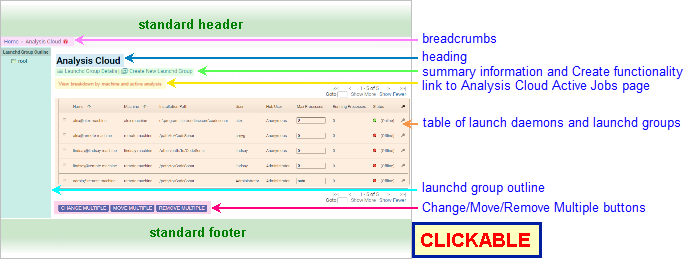
The following annotated screenshot shows the various parts of the Analysis Cloud and Launchd Group pages.
See GUI Reference: Standard Header.
| Analysis Cloud; Launchd Group for root launchd group |
Home > Analysis Cloud |
|---|---|
| Launchd Group for other launchd groups |
Home > Analysis Cloud >
[Other_LDGroup_Ancestors >]
LDGroup_Name where
|
| Analysis Cloud | Analysis Cloud |
|---|---|
| Launchd Group (including root launchd group) |
LDGroup_Name: Analysis
Cloud where LDGroup_Name is the launchd group name. |
Two sections, both hidden by default: Details and Create New Launchd Group.
| Launchd Group Details |
Click for general information about the launchd group.
|
||||||||
|---|---|---|---|---|---|---|---|---|---|
| Create New Launchd Group | Use this link to create a new, empty launchd group as
a child of the current launchd group: enter the new name in the
text field, then click Create.
Launchd group names must be unique.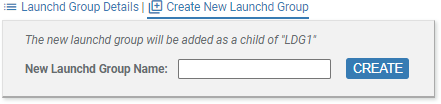 This is the only location that provides functionality for creating a new launchd group. (Not available on Analysis Cloud page for users without LAUNCHDGROUP_READ permission for the root launchd group.) |
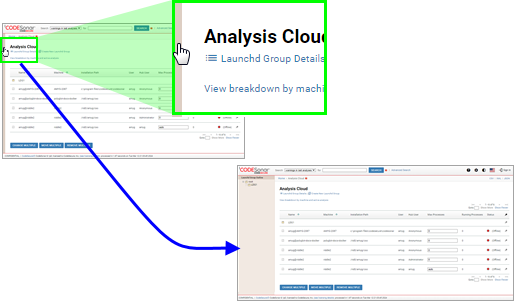
Click View breakdown by machine and active analysis to navigate to the hub Analysis Cloud Active Jobs page.
A table describing the launch daemons and launchd groups that are
children of the current launchd group.
On the Analysis Cloud page, the table also includes launch daemons
and launchd groups whose parent launchd group is some group for which
the user does not have LAUNCHDGROUP_EXISTS permission.
| Column Label | Column Data | |
|---|---|---|
| Launch Daemon Entry | Launchd Group Entry | |
| none | 
|

|
| ID | Launch Daemon.Launch Daemon ID | Launchd Group.LDGroup ID |
| Name * | Launch Daemon.Launch Daemon.Derived Name | Launchd Group.LDGroup Name |
| Machine * | Launch Daemon.Machine | - |
| Installation Path * | Launch Daemon.Installation | - |
| User * | Launch Daemon.System User | - |
| Hub User * | Launch Daemon.Hub User | - |
| Path | Launch Daemon.LDPath | Launchd Group.LDGroup Path |
| Max Processes * |
Launch Daemon.Process
Limit
You can use this page to change the process limits for launch daemons for which you have LAUNCHD_WRITE permission. To change the process limit for a single launch daemon:
|
- |
| Running Processes * | The number of current processes for the launch daemon. | - |
| Status * | Launch Daemon.Status | - |
| Address | Launch Daemon.Address | - |
| Protocol Version | Launch Daemon.Protocol Version | - |
| Key | Launch Daemon.Key | - |
| Space Quota | Launch Daemon.Space Quota (in MB) | - |
| Space Used | Launch Daemon.Space Used (in MB) | - |
| Disk Space Available | The amount of free space (in MB) on the disk that contains the Home Directory. | - |
| Home | Launch Daemon.Home Directory | - |
 * *("Permissions Link") |
Click  to navigate to the corresponding Launch Daemon
Role-Permissions page. to navigate to the corresponding Launch Daemon
Role-Permissions page. |
Click to navigate to the corresponding Launchd Group
Role-Permissions page. |
There are three buttons under the table, providing various operations on the launch daemons and launchd groups in the table.
| Change Multiple | Set Max Processes for multiple launch daemons at once. |
| Move Multiple | Move one or more launch daemons or launchd groups (or both) to a different parent launchd group. |
| Remove Multiple | Delete one or more launch daemons or launchd groups (or both) from the hub. |
For more information, see Operations on Child Launch Daemons and Launchd Groups, below.
See GUI Reference: Standard Footer.
The Analysis Cloud and Launchd Group pages provide several operations on the launch daemons and launchd groups in the table.
Follow these steps to set the process limit for multiple launch daemons at once.
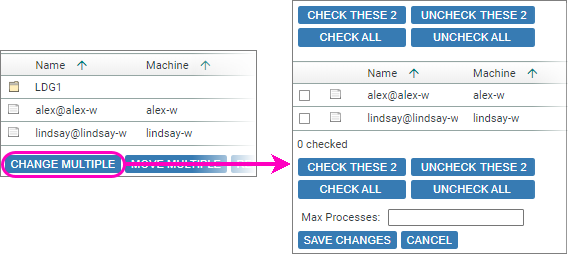
| Table rows | The table will contents will update to show only those launch daemons for which you have LAUNCHD_WRITE permission. | ||||||||
|---|---|---|---|---|---|---|---|---|---|
| Checkboxes | The table now includes a column of checkboxes. Click in a checkbox to select the corresponding launch daemon, click again to deselect. | ||||||||
| Check/Uncheck Buttons |
|
CodeSonar will update the analysis cloud register entries for the selected launch daemons, then reload the page to show the updated information along with a confirmation message.
From time to time, you may wish to change the organization of the launchd group/launch daemon hierarchy and move launchd groups and launch daemons around by changing their parent launchd groups, as described here.
As part of the move procedure, you will specify the path to
the destination launchd group. This must be the full LDGroup
Path: a /-separated sequence of LDGroup
Name, with a leading / representing the root
launchd group.
For example:
| / | The root launchd group. |
|---|---|
| /GroupA | A launchd group named GroupA, whose own parent is the root launchd group. |
| /GroupA/SubgroupB | A launchd groupnamed SubgroupB, whose parent is GroupA; the parent of GroupA is the root launchd group. |
If there are multiple launchd groups that match the specified
path and for which you have LAUNCHDGROUP_EXISTS permission, CodeSonar
will display a table of the matching launchd groups and ask you
to select one.
(Otherwise, the move will take place without this step.)
CodeSonar will print progress messages as it moves the launch daemons and launchd groups. When it has finished, there will be a confirmation message for each item that has been moved, along with a Continue link.
Deleting a launch daemon D from the hub removes all the information associated with D from the hub's analysis cloud register. Similarly, deleting a launchd group G will recursively delete all the launchd groups and launch daemons for which G is an ancestor, as well as deleting all information about G.
You will only be able to delete elements for which you have sufficient deletion permissions:
| Element Deleted | Permissions Required |
|---|---|
| launchd group G | LAUNCHDGROUP_DELETE G LAUNCHDGROUP_DELETE F for all launchd groups F in the subhierarchy under G LAUNCHD_DELETE L for all launch daemons L in the subhierarchy under G |
| launch daemon L | LAUNCHD_DELETE L |
The procedure for deleting one or more launchd groups or launch daemons is as follows.
CodeSonar will print progress messages as it removes the launchd groups and launch daemons. When it has finished, there will be a confirmation message for each item that has been removed, along with a Continue link.
The Launchd Group Outline provides an overview of the hub's launchd group hierarchy for orientation and navigation.
In its collapsed state, the Launchd Group Outline is indicated by a shaded bar at the left of the Analysis Cloud page and all Launchd Group pages. It is expanded by default if it has contents other than the root launchd group.
The outline includes all launchd groups on the hub for which the user has LAUNCHDGROUP_EXISTS permission, along with all ancestors of such groups (regardless of the ancestor permissions). The outline is always ordered so that the launchd group path to the current launchd group is at the top of the display, and the current launchd group is highlighted.
| expanding | To expand the Launchd Group Outline from its collapsed state, click the shaded bar. |
|---|---|
| resizing | To resize, drag on the right edge of the Launchd Group Outline. |
| collapsing | To collapse it from its expanded state, drag the right edge to narrow the Launchd Group Outline until the shaded bar reappears. |
The launchd group outline is analogous to the Project Tree Outline provided on Home and Project Tree pages: it operates on the launchd group hierarchy, while the project tree outline operates on the project tree hierarchy. In particular, you may want to look at the project tree outline example: two users with different sets of LAUNCHDGROUP_EXISTS permissions will similarly see different Launchd Group Outline contents.
| to Analysis Cloud Active Jobs: | Click the View breakdown by machine and active analysis link (above the table of processes). |
|---|---|
| to Launchd Group: | Click a launchd group entry in the table, or click a launchd group name in the Launch Group Outline. |
To report problems with this documentation, please visit https://support.codesecure.com/.

 to navigate to
the
to navigate to
the