JavaScript is not currently enabled, but is required for full CodeSonar manual search and browse functionality.
If you are viewing this file in your hub's Web GUI, enable JavaScript in your browser: you will also need it for GUI functionality.
If you opened this file directly from disk, your browser may be directly suppressing JavaScript functionality: certain browsers perform this suppression on local files (but not files delivered by web servers) for security reasons.
| CodeSonar® 9.2p0 | CONFIDENTIAL | CodeSecure Inc |
This page displays information about a CodeSonar project:
Several operations can be carried out on this page:
The Project page is available for all projects, independent of the language or languages involved.
Important Note: the CodeSonar Web GUI makes extensive use of JavaScript. Make sure JavaScript is enabled in your web browser.
The Project page can be reached in any of the following ways.
| From Analysis | Click the project name in the breadcrumbs. |
|---|---|
| From Warning Report | Click the project name in the breadcrumbs. |
| From Source Listing | Click the project name in the breadcrumbs. |
| From Home or Project Search Results or Project Tree |
If the hub analysis
settings have been changed so that the Project links...
checkbox is deselected, table rows in the tables of
projects in Home, Project Search Results, and
Project Tree pages will also link to
the corresponding Project pages. Otherwise, and by default, rows in these tables link to the Analysis page for the most recent CodeSonar analysis of the corresponding project. |
| By URL | http://hub_location/project/project_id.html |
| Output formats | CSV, JSON, XML (project.xsd) | ||||
|---|---|---|---|---|---|
| Visibility Filter Applied | Visible Analyses | ||||
| RBAC Permissions Needed |
|
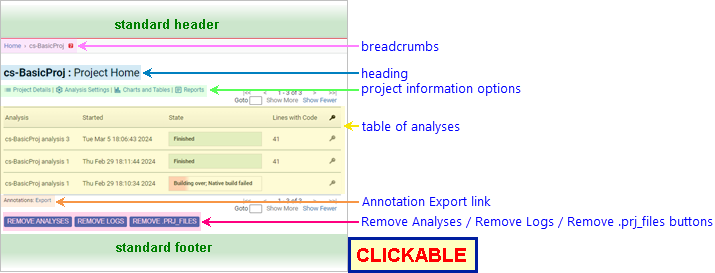
The following annotated screenshot shows the various parts of a Project page.
| Standard Header | See GUI Reference: Standard Header. | |||||||||||||||||||||||||||||||||||||||||||||||||||||||||||||||||||
|---|---|---|---|---|---|---|---|---|---|---|---|---|---|---|---|---|---|---|---|---|---|---|---|---|---|---|---|---|---|---|---|---|---|---|---|---|---|---|---|---|---|---|---|---|---|---|---|---|---|---|---|---|---|---|---|---|---|---|---|---|---|---|---|---|---|---|---|---|
| Breadcrumbs |
Home > [Other_ProjectTree_Ancestors >]
Project_Name where
|
|||||||||||||||||||||||||||||||||||||||||||||||||||||||||||||||||||
| Page Heading | Project_Name : Project Home | |||||||||||||||||||||||||||||||||||||||||||||||||||||||||||||||||||
| Project Information Options | Five sections with further information about the project: Project Details, Analysis Settings, Charts and Tables, and Reports. All are hidden by default. | |||||||||||||||||||||||||||||||||||||||||||||||||||||||||||||||||||
| Project Details |
Click for general details about the project.
|
|||||||||||||||||||||||||||||||||||||||||||||||||||||||||||||||||||
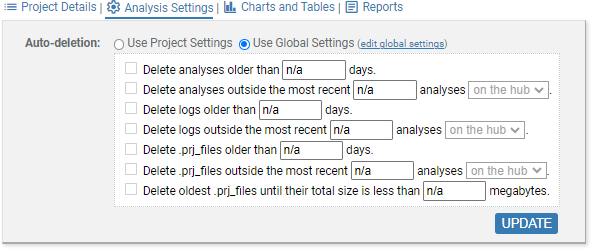
| Analysis Settings |
Click the link to expand the Analysis Settings section.
This section allows you to view and modify the analysis auto-deletion settings for the current project. In particular, you can:
Note also that individual analyses in the project can be protected from auto-deletion. |
|||||||||||||||||||||||||||||||||||||||||||||||||||||||||||||||||||
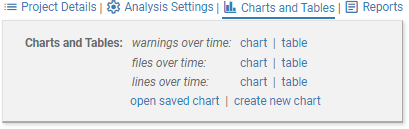
| Charts and Tables |
Click the link to expand the Charts and Tables section.
The section provides access to various summary information about the project: |
|||||||||||||||||||||||||||||||||||||||||||||||||||||||||||||||||||
| Reports |
Click the link to expand the Reports section.
|
|||||||||||||||||||||||||||||||||||||||||||||||||||||||||||||||||||
| Analysis Table |
A table describing all analyses of the project.
|
|||||||||||||||||||||||||||||||||||||||||||||||||||||||||||||||||||
| Annotation Import/Export links | An Export link is always available on the Project page. If warning group sharing is OFF, an Import link is also available. See Importing and Exporting Annotations for full details. | |||||||||||||||||||||||||||||||||||||||||||||||||||||||||||||||||||
| Remove Analyses button | Click to delete one or more of the project analyses from the hub. See Delete Analyses for full instructions. | |||||||||||||||||||||||||||||||||||||||||||||||||||||||||||||||||||
| Remove Logs button | Click to delete the logs from one or more of the project analyses. See Remove Logs for full instructions. | |||||||||||||||||||||||||||||||||||||||||||||||||||||||||||||||||||
| Remove Logs button | Click to delete the project analysis directory and all contents from one or more of the project analyses. See Remove Project Analysis Directories for full instructions. | |||||||||||||||||||||||||||||||||||||||||||||||||||||||||||||||||||
| Standard Footer | See GUI Reference: Standard Footer. | |||||||||||||||||||||||||||||||||||||||||||||||||||||||||||||||||||
Follow these steps to remove all information related to one or more analyses from the hub database.
Removing analysis A requires ANALYSIS_READ A, ANALYSIS_DELETE A, and ANALYSIS_TERMINATE A.

| Table rows | The table contents will update to show only
those analyses for which you have ANALYSIS_DELETE permission.
If there are no such analyses, CodeSonar will display a
message instead of the table. Note that table contents are still affected by the Visible Analyses setting: you may need to change this setting in order to see the analyses you want to delete. |
||||||||
|---|---|---|---|---|---|---|---|---|---|
| Checkboxes | The table now includes a column of checkboxes. Click in a checkbox to select the corresponding analysis, click again to deselect. | ||||||||
| Check/Uncheck Buttons |
|
CodeSonar will print progress messages as it removes the analyses. When it has finished, there will be a confirmation message for each analysis that has been removed, along with a Continue link.
Follow these steps to remove all logs for one or more analyses. The remaining information about the analyses will still be available: deleting the logs can be useful if you are trying to reduce the size of the hub database and do not anticipate any future need for the information in the logs.
Removing logs for analysis A requires ANALYSIS_READ A and ANALYSIS_DELETE A.
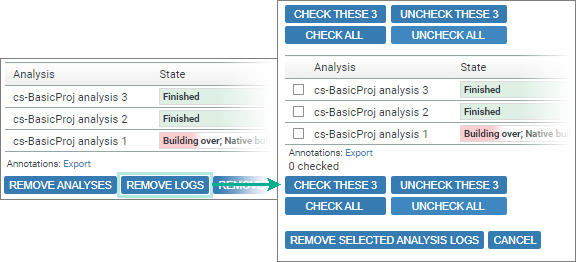
| Table rows | The table contents will update to show only
those analyses for which you have ANALYSIS_DELETE permission.
If there are no such analyses, CodeSonar will display a
message instead of the table. Note that table contents are still affected by the Visible Analyses setting: you may need to change this setting in order to see the analyses you want to delete. |
||||||||
|---|---|---|---|---|---|---|---|---|---|
| Checkboxes | The table now includes a column of checkboxes. Click in a checkbox to select the corresponding analysis, click again to deselect. | ||||||||
| Check/Uncheck Buttons |
|
CodeSonar will print progress messages as it removes the logs. When it has finished, there will be a confirmation message for each analysis whose logs have been removed, along with a Continue link.
Follow these steps to remove project analysis directories (pfilesname.prj_files/) from their respective analysis machines. Analysis information stored on the hub will remain intact. You may wish to do this if you are trying to make space available on the analysis machines and do not anticipate any future need for any information from the project analysis directories. In particular, do not remove a project analysis directory if you want to preserve access to any of the following.
Removing a project analysis directory for analysis A requires ANALYSIS_READ A, ANALYSIS_DELETE A, and ANALYSIS_TERMINATE A.

| Table rows | The table contents will update to show only
those analyses for which you have ANALYSIS_DELETE permission.
If there are no such analyses, CodeSonar will display a
message instead of the table. Note that table contents are still affected by the Visible Analyses setting: you may need to change this setting in order to see the analyses you want to delete. |
||||||||
|---|---|---|---|---|---|---|---|---|---|
| Checkboxes | The table now includes a column of checkboxes. Click in a checkbox to select the corresponding analysis, click again to deselect. | ||||||||
| Check/Uncheck Buttons |
|
The corresponding analysis launch daemon must be running in order to delete a project analysis directory. If a required launch daemon is offline, deletion for the affected directory or directories will be delayed until it is online again.
CodeSonar will print progress messages as it removes the directories. When it has finished, there will be a confirmation message for each analysis whose directories have been removed or scheduled for removal, along with a Continue link.
| view ancestor project tree information | Click on the project tree name in the page breadcrumbs. |
|---|---|
| view an analysis page for this project | Click the corresponding line in the table of Analyses. |
| view/edit project role permissions for the project | Click the permissions link or  icon in the Project Details section. icon in the Project Details section. |
| view/edit analysis role permissions for an analysis in the table | Click the  icon in the corresponding table line. icon in the corresponding table line. |
To report problems with this documentation, please visit https://support.codesecure.com/.


 *
*