JavaScript is not currently enabled, but is required for full CodeSonar manual search and browse functionality.
If you are viewing this file in your hub's Web GUI, enable JavaScript in your browser: you will also need it for GUI functionality.
If you opened this file directly from disk, your browser may be directly suppressing JavaScript functionality: certain browsers perform this suppression on local files (but not files delivered by web servers) for security reasons.
| CodeSonar® 9.2p0 | CONFIDENTIAL | CodeSecure Inc |
Full information about a single warning that has been issued by one or more CodeSonar analysis runs.
Central to each warning report is an annotated code excerpt that is interactive and navigable.
For descriptions of all the information stored about a CodeSonar warning, see Properties of a Warning.
Warning reports are available for all warnings, independent of the language or languages involved.
Important Note: the CodeSonar Web GUI makes extensive use of JavaScript. Make sure JavaScript is enabled in your web browser.
The Warning Report page for a specific warning can be reached in any of the following ways.
| From Analysis: | Click any line in the warning table to navigate to the corresponding Warning Report. The Warning Report will include browse sequence navigation links, and the originating Analysis page is the establishing page for the browse sequence. |
|---|---|
| From Warning Search Results: | Click any line in the warning table to navigate to the corresponding Warning Report. The Warning Report will include browse sequence navigation links, and the originating Warning Search Results page is the establishing page for the browse sequence. |
| From Warning Report (within a warning browse sequence): |
Click the <Prev (or Next>) browse sequence navigation link to navigate to the Warning Report for the previous (or next) warning in the sequence. |
| From Explore Callers: | Click the View Path button. |
| From Search Callers results: | Select warning report from an expanded table entry. |
| By URL: |
Two URL forms:
|
| Output formats | SARIF, XML (warning_report.xsd), text |
|---|---|
| Visibility Filter Applied | Visible Warnings |
| RBAC Permissions Needed |
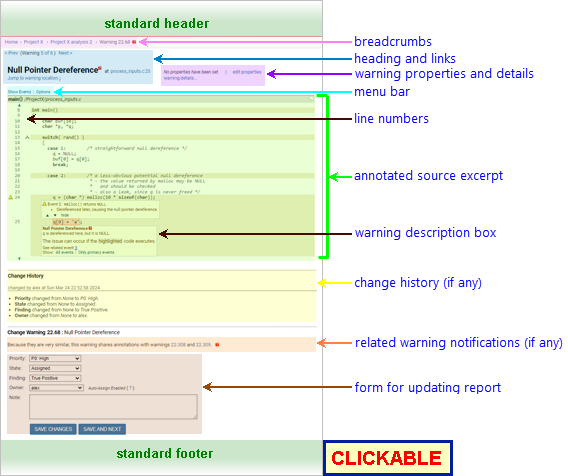
The following annotated screenshot shows the various parts of a Warning Report page.
See CodeSonar GUI Reference: Standard Header. The highlight legend is available.
Home > [Other_ProjectTree_Ancestors >] Project_Name > Analysis_Name > Warning Warning_ID
| Home | Links to the GUI Home page. |
|---|---|
| Other_ProjectTree_Ancestors | Together with the Home link (corresponding to the root project tree), represents the project tree ancestors of the analyzed project as a >-separated sequence of project tree names. Each name links to the corresponding Project Tree page. |
| Project_Name | Links to the GUI Project page for Project_Name, which is the project that was analyzed. |
| Analysis_Name | Links to the GUI Analysis page for Analysis_Name. |
| Warning_ID | The identifier for the warning: unique within the hub. |

| Browse Sequence Navigation Links | < Prev (Warning numw of
numtotal) Next > Provide navigation within the current warning browse sequence. If the Warning Report does not belong to a browse sequence, these links are not shown. For full details, see Warning and File Browse Sequences: Navigating Browse Sequences. |
|---|---|
| Page Heading |
Warning_Class at
File_Name:line_num where:
|
| Warning Location Link | jump to warning location ↓ is another link to line line_num of file File_Name in the annotated code excerpt. |

In its unexpanded form, this part of the page consists of two lines.
| Categories | The warning class categories. Use warning category filtering to show only the categories you are interested in. |
||||||||||||||
|---|---|---|---|---|---|---|---|---|---|---|---|---|---|---|---|
| Warning ID | |||||||||||||||
| Procedure | |||||||||||||||
| Explore Callers |
Links to various mechanisms for examining the sequence of
calls leading to the warning.
|
||||||||||||||
| Similar Warnings | If the analysis contains other warning instances in the the same warning group, their Warning IDs will be listed here. The list is not sensitive to the Visible Warnings setting. | ||||||||||||||
| Last Modified |
Click show details to see
additional information about the analysis and warning:
|
The menu bar provides two menus: Show Events and Options.
| Show Events Menu |
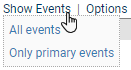
Select an item from this menu to expand the specified set of annotations (and hide all others).
|
|---|---|
| Options Menu |
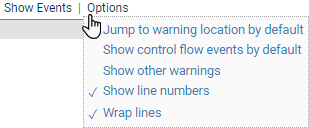
The Options menu items are as follows.
With the exception of Show other warnings, CodeSonar will remember your settings and apply them to all warning reports. If you are logged in, the settings will be associated with your username and will still be applied the next time you log in. Otherwise, they will be applied for the remainder of your user session. |
The annotated code excerpt shows the context in which the warning was issued. CodeSonar provides additional information to explain the conditions leading to the warning and aid in diagnosis:
| Path Name | Provided at the top of the excerpt. Click to navigate to the Source Listing for the file. |
|---|---|
| Line Numbers | Correspond directly to line numbers in the file. Visibility is controlled by Show line numbers in the Options menu. |
| Explanation Information |
Significant locations in the excerpt are annotated.
|
| Source Coloring and Interaction |
The code excerpt includes standard source coloring and hyperlinking.
Along with syntax coloring, the source excerpt has background coloring to aid in interpreting the warning.
|
| Information Window | The Information Window is available and will interact with any function, variable, macro, or type name in the source excerpt. |
The sequence of comments attached to this warning (shared by all warnings in a group). These consist of all the user Notes added to the group, plus all the messages automatically generated by CodeSonar when a user changes the Priority, State, Finding, or Owner for the warning group.
To add a new comment, scroll to the Change Warning form and proceed as described below.
Notifications and links for other warnings related to this one. Two kinds of relationship are described: warning groups and warning clusters.
| Warning Groups |
There are three possible warning group membership cases.
|
|---|---|
| Warning Clusters |
There are two possible warning
cluster membership cases.
|
You can do any combination of the following with the Change Warning form.
Note: You must be signed in to edit a Warning Report page. If you are not already signed in, you will be asked to sign in after you click Save changes.
| Priority, State, Finding |
Select new values from the pull-down menus.
To specify a new, custom value for Priority, State, or Finding:
|
|---|---|
| Owner | Select a new value from the pull-down menu. If you are modifying a previously-unmodified warning and do not set an Owner, the warning will be assigned to you unless automatic assignment is disabled. |
| Warning Processors |
If any warning
processors are available for application, a labeled
checkbox for each processor will be displayed after the
Priority, State, Finding, and Owner menus. Check the box next to
each processor you want to apply.
|
| Note | Enter a new note in the Note field. |
When automatic assignment is enabled and a user makes changes to a warning that has never previously been modified, that user will be made the Owner of the warning unless their modifications include setting an Owner.
By default, automatic assignment is enabled. To disable automatic assignment:
To re-enable, follow the same process but select the checkbox.
Disabling for automatic assignment is managed through browser cookies with an expiry time of 7 days. Therefore:
See CodeSonar GUI Reference: Standard Footer.
Warning Reports have annotations at program points that are particularly relevant to the warning, along with annotations for locations in the code excerpt that are important for reasons unrelated to the warning. These annotations are described in GUI Reference: Warning Report Annotations.
Code excerpts in warning reports provide the following functionality in addition to the standard Source Coloring and Interactivity provided in the CodeSonar GUI.
| Element | Interaction |
|---|---|
| Function call sites |
For warnings associated with paths, function call sites along
the path can be expanded to show the code for the called
function.
Click the [+] symbol to expand the associated call site inside the current page; click the [-] symbol to collapse an expanded item.
Call site expansion is not provided for library functions and undefined functions. |
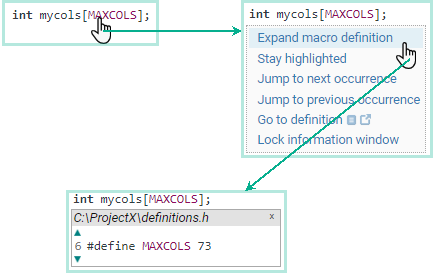
| Macros |
To expand a macro definition, click the macro name and select
Expand macro definition from
the menu that opens. Click the [hide] link in the top right
corner of the expansion box to close it, or click the macro
name a second time and deselect Expand macro definition.
|
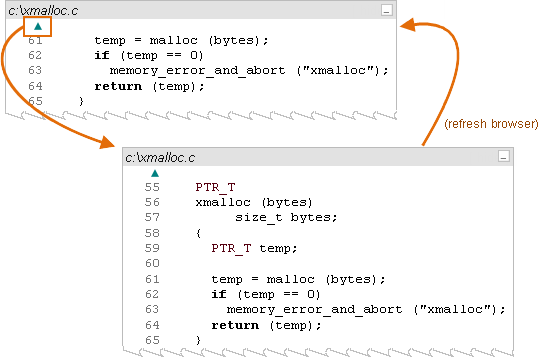
 and and  |
When CodeSonar is displaying only part of a file, and links allow you to
extend the excerpt further back and forward, respectively. This
is especially useful if you want to see additional context.
|

|
CodeSonar will sometimes elide code from inside an excerpt,
replacing it with a note stating which lines have been removed.
Lines on the warning's core path
will never be elided.
Click the
|
| navigate within the code fragment | See Interaction and Navigation above, along with Source Coloring and Hyperlinking. |
|---|---|
| view the full source listing for the file containing the warning | Click the file name at the top of the annotated code excerpt. |
| view a CWE weakness description on the CWE web site | Click the CWE ID in the Categories field of the expanded warning details table. |
| view the warning class description in the CodeSonar manual |
Click one of the following.
|
| navigate within the current warning browse sequence (if any) | See Warning and File Browse Sequences: Navigating Browse Sequences. |
| explore the warning's call paths in the explore callers page | Click the graphical (lite) link in the in the Explore Callers field of the expanded warning details table. |
| explore the warning's call paths in the search callers page | Click the tabular link in the in the Explore Callers field of the expanded warning details table. |
| view the warning cluster page associated with the warning | (Only available if the warning belongs to a non-singleton cluster.) Click the view all related link in the cluster notification. |
To report problems with this documentation, please visit https://support.codesecure.com/.