JavaScript is not currently enabled, but is required for full
CodeSonar manual search and browse functionality.
If you are viewing this file in your hub's Web GUI, enable
JavaScript in your browser: you will also need it for GUI
functionality.
If you opened this file directly from disk, your browser may be
directly suppressing JavaScript functionality: certain browsers
perform this suppression on local files (but not files delivered by
web servers) for security reasons.
-
If you access the manual through the hub's Web GUI, the
functionality will not be suppressed because the hub is a web
server.
-
Alternatively, your browser may allow you to explicitly
disable the security setting that suppresses functionality. See
the CodeSonar
FAQ for more information.
GUI Reference: Auto-Deletion for Analyses, Analysis Logs, and
Project Analysis Directories
Users can configure the CodeSonar hub to automatically delete
analyses that are no longer of interest: older than a fixed
threshold, superseded by some number of more-recent analyses, or a
combination of the two.
Using a similar process, users can configure the hub to
automatically delete analysis logs
only: other analysis information such as analysis results and
user-provided descriptions are retained, but the analysis logs are
deleted from the hub database.
You can also configure the hub to automatically delete the
project analysis directory (pfilesname.prjfiles). This is primarily
useful for CodeSonar SaaS, where analyses are managed remotely on
machines provided as part of the CodeSonar SaaS deployment and so
it is not possible to manage project analysis directories using
your regular system tools.
The conditions for automatic deletion can be specified on a
hub-wide or per-project basis, and individual analyses can be
exempted from automatic deletion.
Analysis auto-deletion is available for all analyses, regardless
of the language or languages involved.
The auto-deletion functionality behaves as follows.
- By default, auto-deletion is not enabled:
- An analysis on the hub will be stored indefinitely unless
the
analysis is explicitly removed or the project to which it
belongs is explicitly removed.
- Similarly, all logs for an analysis on the hub will be
stored with the analysis unless explicitly removed from the
analysis.
- The hub will not delete the project analysis directory
(pfilesname.prjfiles)
unless explicitly
instructed to do so. For a CodeSonar SaaS analysis you will
not have direct access to the file system on the machines where
remote analyses are performed, so removing the project analysis
directory through the hub (manually or via auto-deletion) is
the only option. For an analysis performed within your
organization's network, any user with sufficient file
system permissions can delete the project analysis directory at
any time.
- When hub-wide analysis auto-deletion is enabled, the hub-wide
settings apply to all analyses of all projects, with two
exceptions:
- If project-wide auto-deletion is enabled for any project,
the specified project-wide rules are applied to the analyses of
that project (and the hub-wide rules are not).
- Analyses that are protected from auto-deletion will never
be scheduled for automatic analysis deletion, analysis log
deletion, or project analysis directory deletion.
- When project-wide analysis auto-deletion is enabled, the
project-wide settings apply to all analyses of that project, with
one exception:
- Analyses that are protected from auto-deletion will never
be scheduled for automatic analysis deletion, analysis log
deletion, or project analysis directory deletion.
- When auto-deletion settings are modified, the new settings are
applied retroactively.
- If a deletion sweep is not currently running, any analyses
that were previously scheduled for auto-deletion but no longer
meet the deletion conditions are descheduled. (If a deletion
sweep is already running, it is too late to deschedule those
analyses and they will be deleted.)
- Any existing analyses that meet the new deletion conditions
are scheduled for auto-deletion.
- Analyses and analysis logs that are scheduled for auto-deletion
are deleted when a new analysis starts on the hub.
- An analysis of project P will always trigger auto-deletion
on P.
- An analysis of project P will trigger auto-deletion on
project Q (for P ≠ Q) if and only if both P and Q are using
hub-wide auto-deletion settings.
- For project analysis directories, both scheduling and deletion
are triggered when a launch daemon connects (or reconnects) to the
hub.
When launch daemon L connects:
- All existing
project analysis directories that meet their applicable
auto-deletion criteria are scheduled for deletion.
- All project analysis directories that are scheduled for
deletion and have L as their Analysis
Launch Daemon are deleted.
At both hub-wide and project-wide scope, auto-deletion settings
are specified as multiple rules that can be independently configured
and enabled.
In particular, you may wish to auto-delete analysis logs fairly
soon after the analysis, then keep the analysis results and other
analysis information for a longer period before eventually
auto-deleting the analysis.
At both hub-wide and project-wide scope, auto-deletion settings
are specified as two rules that can be independently configured and
enabled.
| An age threshold rule |
Delete analyses older than N
days.
When this rule is enabled, analyses that are older than the
specified limit will be scheduled for deletion (unless they are
protected). The "age" of an
analysis is measured from its Started
timestamp
|
| An analysis limit
rule |
Delete analyses outside the most
recent M analyses {per project, on the hub}.
For hub-wide auto-deletion settings, the analysis limit can
be applied either "per project" or "on the
hub". Project-wide auto-deletion settings are always
"per project".
- per project: an analysis
will be scheduled for deletion (unless protected) if there are M more
recent analyses of the same project present on the hub.
- on the hub: an analysis
will be scheduled for deletion (unless protected) if there are M more
recent analyses present on the hub, regardless of which
project they belong to.
The "age" of an analysis is measured from its
Started
timestamp. Analyses in every Analysis
State count against the analysis limit M: note that
this includes "Stalled" analyses and those that are
stuck in a
"Building over; ... " phase.
|
The rules can be enabled separately or in any combination.
- Both rules enabled: analyses within the scope governed
by the settings will be automatically deleted if they satisfy
either constraint (they do not need to satisfy both).
- Only one rule enabled: analyses within the scope
governed by the settings will be automatically deleted if they
satisfy the enabled constraint.
- Neither rule enabled: automatic deletion is disabled
within the scope governed by the settings.
Analysis Log Auto-Deletion
The rules governing analysis log auto-deletion are extremely
similar to those for
analysis auto-deletion, and the analyses of interest are
identified in the same way:
- Analyses of interest are identified in the same way.
- Rules can be enabled separately or in any combination, with the
same combination behavior.
The only difference is that only the logs are deleted from
analyses that match the specified constraints.
| Age threshold rules |
Delete logs older than N
days.
|
| An analysis limit
rule |
Delete logs outside the most recent
M analyses {per project, on the hub}.
|
Project Analysis Directory (.prj_files) Auto-Deletion
The rules governing project analysis directory auto-deletion are
similar to those for
analysis auto-deletion, and the analyses of interest are
identified in the same way:
- Analyses of interest are identified in the same way.
- There is a third rule type: size limit.
- Rules can be enabled separately or in any combination.
| Age threshold rules |
Delete .prj_files older than
N days.
|
| An analysis limit
rule |
Delete .prj_files outside the most
recent M analyses {per project, on the hub}.
|
| A size limit rule |
Delete .prj_files larger than
P megabytes.
When this rule is enabled, project analysis directories that are
larger than the specified size will be scheduled for deletion
(unless they are protected). |
Hub-wide auto-deletion settings are provided in
the Settings page.
The required permissions are listed below.
- Navigate to the Analysis tab of
the Settings page.
The hub-wide auto-deletion settings are
displayed in the lower part of the tab.

- Edit the auto-deletion criteria
according to your requirements.
- You can enable and configure any combination of rules
(including no rules).
- If a rule is enabled but no value is specified, the rule
will be treated as disabled.
- Click Update.
CodeSonar will analyze and apply your changes, then display a
feedback message at the top of the page. The message will notify
you if any analyses or logs on the hub match the deletion
criteria. For example:

The message structure and button text will vary depending on
whether you are changing auto-deletion settings for analyses,
logs, or both.
- If there are analyses, logs, or project analysis directories
that match the deletion criteria, you can click the button to
schedule them for immediate deletion. Otherwise, CodeSonar will
automatically delete them the next time an analysis starts on the
hub.
Project auto-deletion settings are provided in the Analysis Settings section of
the Project page.
The required permissions are listed below.
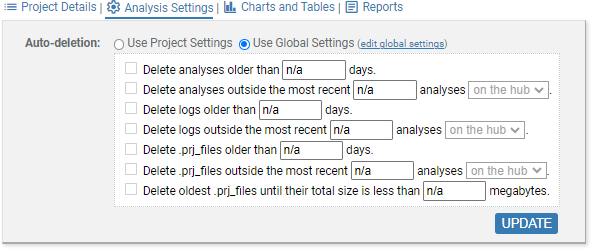
- Decide whether the project will use the hub-wide auto-deletion
settings or its own, project-wide settings.
-
hub-wide:
- Select Use Global
Settings.
The page will now display the current hub-wide
auto-deletion settings (with the input fields greyed out to
indicate that global settings cannot be modified from the
Project page).
- If you are satisfied with the current hub-wide
auto-deletion settings, go on to the next step. Otherwise:
- If you want to change the hub-wide auto-deletion
settings, click the edit
global settings link and follow the instructions above. When you have
finished, go on to the next step.
- If you have changed your mind and want to specify
project-wide settings, proceed as specified for
project-wide
settings.
-
project-wide:
- Select Use Project
Settings.
The page will now display candidate project-wide settings
for the project.
- If the project is already using project-wide
settings, the displayed values are the current
settings.
- If the project is currently using hub-wide settings
but had project-wide settings at some point in the
past, the displayed values reflect the most recent
project-wide settings applied to this project.
- Otherwise, the displayed values correspond to
disabled auto-deletion.
- Edit the auto-deletion criteria
according to your requirements.
- You can enable and configure any combination of
rules (including no rules).
- If a rule is enabled but no value is specified, the
rule will be treated as disabled.
- Click Update.
CodeSonar will analyze and apply your changes, then display a
feedback message at the top of the page. The message will notify
you if any existing analysis, logs, or project analysis
directories match the deletion criteria. For example:
- If there are analyses, logs, or project analysis directories
that match the deletion criteria, you can click the button to
schedule them for immediate deletion. Otherwise, CodeSonar will
automatically delete them next time an analysis starts on the
hub.
To view hub-wide auto-deletion settings:
- Navigate to the Analysis tab of
the Settings page.
- The current hub-wide auto-deletion settings are displayed
in the lower part of the tab, as described above.
To view the auto-deletion settings for a particular project:
- Navigate to the corresponding Project page.
- Expand the Analysis Settings section.
- If the project is using its own auto-deletion settings,
Use Project Settings will be
selected and the current project auto-deletion settings will be
displayed.
- If the project is currently using the hub-wide
auto-deletion settings, Use Global
Settings will be selected and the current hub-wide
auto-deletion settings will be displayed.
To check whether a particular analysis is protected from auto-deletion:
- Navigate to the corresponding Analysis page.
- Expand the Analysis Details section.
- If the Protect analysis from
auto-deletion checkbox is selected, the analysis is
protected from auto-deletion. Otherwise, it is not protected
from auto-deletion.
An analysis is protected from auto-deletion if and only if the
Protect analysis from auto-deletion
checkbox is selected on the corresponding Analysis page.
- By default, analyses are not protected: protection must
be specifically enabled.
- A protected analysis will never be automatically deleted,
regardless of its age or the number of newer analyses on the
hub.
There is one exception: if an unprotected analysis is scheduled for
deletion and a deletion sweep is already running, changing the
analysis to "protected" will not prevent it from being
deleted.
- A protected analysis remains protected until the protection is
specifically removed. In particular, protection is not affected by
changes to hub-wide or project-wide auto-deletion settings.
- Protected analyses still be manually
deleted by any signed-in,
ordinary user.
To protect an analysis from auto-deletion, proceed as
follows.
(The required permissions are listed below.)
- Navigate to the corresponding Analysis page.
- Expand the Analysis Details
section.

- Select the checkbox next to Protect
analysis from auto-deletion.
Protection is active from the time you select the checkbox.
To remove protection, follow the same steps but deselect
the checkbox.
CodeSonar
permissions apply to auto-deletion settings as follows.