
If you are already logged in, the Sign in link will not be available. In its
place will be an icon with your username:  .
.
To sign out, click this icon then click the Sign Out
link that pops up.
JavaScript is not currently enabled, but is required for full CodeSonar manual search and browse functionality.
If you are viewing this file in your hub's Web GUI, enable JavaScript in your browser: you will also need it for GUI functionality.
If you opened this file directly from disk, your browser may be directly suppressing JavaScript functionality: certain browsers perform this suppression on local files (but not files delivered by web servers) for security reasons.
| CodeSonar® 9.2p0 | CONFIDENTIAL | CodeSecure Inc |
Sign in to the hub, create a new hub user account, or reset a forgotten password.
For more information about user authentication in CodeSonar, see Authentication and Access Control.
Important Note: the CodeSonar Web GUI makes extensive use of JavaScript. Make sure JavaScript is enabled in your web browser.
The Sign In page can be reached in any of the following ways.
| From any page: |
Click the Sign In link in the GUI page header:
If you are already logged in, the Sign in link will not be available. In its
place will be an icon with your username: |
|---|---|
| By URL: | http://hub_location/sign_in.html |
| other cases: | If you try to perform an operation that is not permitted for the user account you are currently signed into (including the case where you are in an anonymous session and the operation is not permitted for special user Anonymous), CodeSonar will automatically navigate to the Sign In page and prompt you to sign in as a user with sufficient permissions. |
| Output formats | none |
|---|---|
| Visibility Filter Applied | none |
| RBAC Permissions Needed | Note that in most cases you will be visiting the Sign In page in an anonymous session, so the permissions applied will be those for special user Anonymous (rather than your own hub user account). |
The following annotated screen shot shows the various parts of the Sign In page.
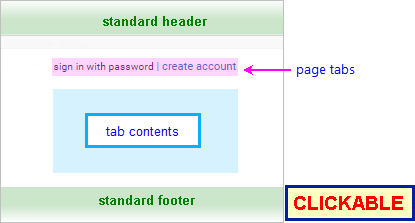
| Standard Header | See GUI Reference: Standard Header. |
|---|---|
| Breadcrumbs | The Sign In page does not have a breadcrumb trail. |
| Page Heading | The Sign In page does not have a heading. |
| Page Tabs |
The Sign In page is divided into "tabs" that group
related content. Use these links to move between the tabs. The
available tabs are sign in (the
default), enter emailed code
(not always available), and create
account.
If HTTPS is enabled and the hub permits certificate-based user authentication, there will be a tab for signing in with a certificate. If you have installed one or more Single Sign-On (SSO SAML) or OpenID authentication services, there will be an additional tab for each such service.
|
| Tab Contents | The contents of this pane depend on the selected tab - sign in (the default), forgot password, enter emailed code, or create account - as described below. |
| Standard Footer | See GUI Reference: Standard Footer. |
For signing in when you already have a hub user account.
Functionality for signing in with a username and password is always available.

| Authenticate with Password | Username | The username
for the account. Note that usernames are case sensitive (this is so that international character sets can be accommodated). |
|---|---|---|
| Password | The password associated with Username. This can be a hub user account password, or the password from a third-party authentication service that is configured for the hub. | |
| forgot password? | Click if you have forgotten your account password. CodeSonar will open the Forgot Password tab. | |
| Sign In button | Sign in with the username and password provided. |
Signing into a user account with a username and password is only possible for accounts that have G_SIGN_IN and G_SIGN_IN_PASSWORD permissions.
To sign in:
| If all goes well: |
You will be signed in under the specified account.
|
|---|---|
| Otherwise: |
If there is a problem with any of the information provided (see
the requirements above for details),
CodeSonar will print a warning message. At this point, the
options are as follows.
|
Signing into a user account with a TLS certificate is only possible for accounts that have :
Additionally:

To sign in:
| If all goes well: |
You will be signed in under the specified account.
|
|---|---|
| Otherwise: |
If there is a problem with certificate communication, your
browser will print an error message. At this point, the options
are as follows.
|
For creating a new hub user account.
You will only be able to access this tab if special user
Anonymous has G_CREATE_USER permission.
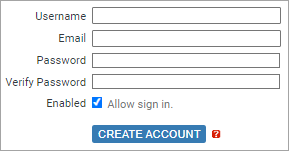
| Username | The username for the new account. Must have at least one (1) character, and must not be associated with an existing hub user account. They are case sensitive (this is so that international character sets can be accommodated). |
|---|---|
| The email address to be associated with the account. | |
| Password | A password
for the new account. Under default hub settings, the following minimum password requirements apply.
|
| Verify Password | A field for re-entering the password. Must match the password entered in the Password field. |
| Enabled | Select to assign the special Enabled role to the new user account, (in addition to assigning all roles held by the default template user). |
| Create account button | Create a new account with the information provided, where other properties are copied from the current default template user. |
The Create Account tab is very similar to the separate Create Account page, but differs in the following ways.
To create a new account:
| If all goes well: |
The new account will be created.
If the new account has G_SIGN_IN and G_SIGN_IN_PASSWORD permissions (this will depend on the permissions assigned to the default template user's roles, and on whether or not you selected Enabled), you will be signed in under that account.
|
|---|---|
| Otherwise: |
If there is a problem with any of the information provided (see
the requirements above for
details), CodeSonar will print a warning message instead of
creating the new account. At this point, the options are:
|
For requesting a forgotten password code.
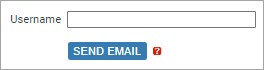
| Username | The username associated with the account. |
|---|---|
| Send Email button | Email a forgotten password code to the specified user, provided that they have G_RECOVER_OWN_PASSWORD permission. |
To request a code for resetting your password:
| If all goes well: | The forgotten password code will be emailed, and CodeSonar will display the Enter Emailed Code tab. |
|---|---|
| Otherwise: |
CodeSonar will not email a forgotten password code if:
For security reasons, CodeSonar will not notify that it is not emailing a code, nor specify the reason. If you do not receive an emailed code within a reasonable timeframe, consult your hub administrator for assistance. The administrator may need to do one or both of the following.
|
For resetting a forgotten password once you have obtained a forgotten password code.
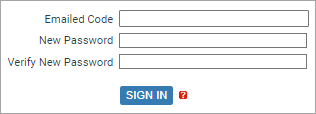
| Emailed Code | The forgotten password code received in email from CodeSonar. |
|---|---|
| New Password | A new password for the account. Under default hub settings, the following minimum password requirements apply.
|
| Verify New Password | A field for re-entering the password. Must match the password entered in the New Password field. |
| Sign In button | Change the account password and sign in. |
You will require G_RECOVER_OWN_PASSWORD permission to obtain a code, and G_CHANGE_OWN_PASSWORD permission to reset your password.
To reset a forgotten account password:
| If all goes well: |
The account password will be changed, and you will be
signed in under that account.
|
|---|---|
| Otherwise: |
If there is a problem with any of the information provided,
CodeSonar will print a warning message instead of resetting
the account password. At this point, the options are:
|
| sign in and go back to previous page (if any) | see Sign with username and password and Sign in with certificate, above |
|---|---|
| create a new account, sign in under that account, and go back to previous page (if any) | see Creating a New Account above |
| reset a forgotten account password, sign in under that account, and go back to previous page (if any) | see Obtaining a forgotten password code and Resetting a Password, above |
To report problems with this documentation, please visit https://support.codesecure.com/.