JavaScript is not currently enabled, but is required for full
CodeSonar manual search and browse functionality.
If you are viewing this file in your hub's Web GUI, enable
JavaScript in your browser: you will also need it for GUI
functionality.
If you opened this file directly from disk, your browser may be
directly suppressing JavaScript functionality: certain browsers
perform this suppression on local files (but not files delivered by
web servers) for security reasons.
-
If you access the manual through the hub's Web GUI, the
functionality will not be suppressed because the hub is a web
server.
-
Alternatively, your browser may allow you to explicitly
disable the security setting that suppresses functionality. See
the CodeSonar
FAQ for more information.
Importing and Exporting Annotations
CodeSonar's annotation import/export functionality enables
users to copy user-editable warning fields (Priority,
State,
Finding,
Owner, and
Notes)
between corresponding warnings on different hubs.
Important Note:
the CodeSonar Web GUI makes extensive use of JavaScript. Make sure
JavaScript is enabled in your web browser.
warning
annotation
(or simply annotation) |
refers to the setting of one or more of a warning group's
user-modifiable fields: Priority,
State,
Finding,
Owner,
Notes. |
| an annotation
tuple |
is a tuple
(project, fingerprint, comment_index, comment_text,
created)
that captures all annotations on a single warning
group.
|
| a nontrivial annotation tuple |
is an annotation tuple that reflects at least one
modification to Priority,
State,
Finding,
Owner, or
Notes. |
The annotation files imported and exported by CodeSonar contain
sets of annotation tuples in CSV (comma-separated value) format
compliant with RFC 4180.
Use cases for CodeSonar's annotation import/export
functionality include the following.
-
Mirror annotations across multiple hubs in multiple
directions.
On a regular basis (say, weekly):
- Regularly export annotations from each hub.
- When exporting is finished, import into each hub the
annotations from all other hubs.
Task: Set Up
Automated Annotation Mirroring provides step by step
instructions for one approach to this procedure.
-
Allow annotations to follow branching and merging in the code
base.
- Analyze different branches on separate hubs.
- When merging branch B into branch A, export all the branch
B annotations, then import them into the branch A hub.
or
- Set warning group sharing to OFF before any branches of the
project are analyzed (including the trunk).
- Analyze different branches under different project
names.
- When merging branch B into branch A, export the annotations
from the project associated with branch B, then import them
into the project associated with branch A.
-
A lightweight alternative to performing a full hub backup.
User annotations are typically the most valuable information
on a hub: in some cases you may prefer to export annotations
instead of carrying out the full backup operation.
- Export annotations from the hub home page to capture all user annotations
on the hub.
- In the event that the hub needs to be restored, import the
annotations into the new hub. CodeSonar will attach them to the
appropriate warnings once the same projects have been
analyzed.
-
Perform a one-time annotation encoding update for a hub that
has been upgraded directly or gradually from CodeSonar 6.0 or
earlier.
CodeSonar 6.1 introduced UTF8 encoding for all hub
annotations. Hubs with ASCII-only annotations will have their
annotations automatically transcoded to UTF8 as part of the
upgrade from (or past) CodeSonar 6.0. For hubs whose annotations
used other encodings, use the Updating Hub Annotation
Encoding process described below to ensure that all
annotations are correctly transcoded to UTF8.
[Jump to How to Export Annotations]
Exporting annotations for a set of warning groups entails writing
the corresponding set of nontrivial
annotation tuples to a file.
Warning annotations can be exported from
several GUI page types, as described in the following table.
| GUI Page |
Export link location |
Annotation tuples exported |
| Analysis: Warnings tab
|
Below the warning table. |
All nontrivial annotation tuples for all warning groups
represented by one or more instances in the table of warnings.
Note that the table contents, and therefore the exported tuples,
depend on the Visible
Warnings setting. |
| Warning
Cluster
|
Below the warning table. |
All nontrivial annotation tuples for all warning groups
represented by one or more instances in the table of
warnings. |
| Warning Search Results
|
Below the table of search results. |
All nontrivial annotation tuples for all warning groups
represented by one or more instances in the result table. Note
that the table contents, and therefore the exported tuples,
depend on the Visible
Warnings setting as well as the executed search. |
| Project
|
Below the table of project analyses. |
All nontrivial annotation tuples for all warning groups for
which the project has an extant warning instance.
- Depending on hub settings and other analyses on the hub,
these warning groups may be all hub-scoped, all
project-scoped, or a combination of the two.
- Because of the procedure for
warning group assignment, every tuple in the exported set
will have a unique fingerprint.
- Because of the requirement for extant warning instances,
no annotations will be exported if all the project analyses
have been deleted.
|
| Home
|
Below the table of projects. |
All nontrivial annotation tuples for all global-scoped and
project-scoped warning groups on the hub (including those for
which no warning instances currently exist). |
- Determine the set of warning groups for which you want to
export annotations.
- Navigate to the GUI page corresponding to your chosen set of
warning groups (see the table above for guidance).
- Click the Export link (under
the table on that page).
- CodeSonar will export a CSV-format file containing the
annotation tuples for your warning groups.
[Jump to How to Import Annotations]
Importing annotations for a set of warning groups entails reading
the corresponding set of annotation tuples from
a file and merging those annotations with a hub's existing
annotations.
The availability of annotation import functionality depends
on the hub's current setting for warning group sharing, as
described in the following table.
| Sharing |
Import functionality |
Import link location |
Behavior |
| ON |
Home page only. |
Below the table of projects. |
For every tuple
T=(P,F,I,C,t) in the file:
- Does the hub already have a hub-scoped warning group
G corresponding to fingerprint F?
- YES: Does the user performing this import have
G_ANNOTATION_IMPORT permission?
- YES: Merge the
annotations specified by C with the existing
annotations on G.
- NO: Does the user have ANALYSIS_ANNOTATE
permission for at least one analysis that issued a
warning instance in G?
- YES: Merge
the annotations specified by C with the
existing annotations on G.
- NO: Do not import T; go on to the next
tuple.
- NO: Does the user performing this import have
G_ANNOTATION_IMPORT permission?
- YES: Create a new
hub-scoped warning group matching T.
- NO: Do not import T; go on to the next
tuple.
(Note that P is ignored during importing.)
|
| OFF |
Project pages only. |
Below the table of analyses. |
When importing on the Project page associated with project
Q:
For every tuple
T=(P,F,I,C,t) in the
file:
- Does Q have a project-scoped warning group
H corresponding to fingerprint F?
- YES: Does the user performing this import have
G_ANNOTATION_IMPORT permission?
- YES: Merge the
annotations specified by C with the existing
annotations on H.
- NO: Does the user have ANALYSIS_ANNOTATE
permission for at least one analysis that issued a
warning instance in H?
- YES: Merge
the annotations specified by C with the
existing annotations on H.
- NO: Do not import T; go on to the next
tuple.
- NO: Does the user performing this import have
G_ANNOTATION_IMPORT permission?
- YES: Create a new
Q-scoped warning group matching T.
- NO: Do not import T; go on to the next
tuple.
(Note that P and Q are not necessarily equal -
P is ignored during importing.)
|
Given a tuple T=(P,F,I,C,t), we
define a new [X-scoped] warning group matching T as a new
warning group with:
Note that a new warning group based on some imported tuple will
initially have no instances.
New tuples will only created during annotation import if the user
performing the import has G_ANNOTATION_IMPORT permission.
When an imported tuple
T=(P,F,I,C,t) corresponds
to a warning group G that already exists on the target hub,
the annotations described in T must be merged with any
existing annotations on G.
For a particular property described in T, we say that
T has
precedence over G for this property if:
Merging is carried out as follows.
| Notes |
Add the Notes described
in T to the existing Notes on
G, interleaved by timestamp.
- Exception: if any note described in T is a
duplicate of an existing note on G (that is, it has
the same contents, author, and timestamp), it is not
added.
|
| Owner
|
Set the Owner for
G as follows. Let O be the Owner value specified
by C.
- Does T describe a warning group that has undergone
one or more Owner changes [*]?
- NO: Do nothing.
- YES: Do the Owner changes described in T
have precedence over any
Owner changes to G?
- NO: Do not change G's Owner. Record
the discarded Owner change in G's change
history, along with a "Property Conflict:
Discarded" statement.
- YES: Does O correspond to an existing hub
user account?
- NO: Does the user performing this import have
G_CREATE_USER
permission?
- NO: Do not change G's Owner.
Record the discarded Owner change in
G's change history, along with a
"Property Conflict: Discarded"
statement.
- YES: Create a new hub user account
for O, set G's Owner to
O, and record the Owner change in
G's change history
- YES: Set G's Owner to O;
record the Owner change in G's change
history.
|
| Priority, State, Finding
|
Set the Priority,
for G as follows.
State
and Finding are
analogous.
- Does T describe a warning group that has undergone
one or more changes to Priority [*]?
- NO: Do nothing.
- YES: Do the Priority changes described in T
have precedence over any
Priority changes to G?
- NO: Do not change G's Priority. Record
the discarded change in G's change
history, along with a "Property Conflict:
Discarded" statement.
- YES: Is V an existing hub Priority value?
Note: If
T describes a Priority (State, Finding) change that
- has precedence over G,
- with a resulting Priority value that is not present in
the hub's Priority (State, Finding) set, and
- the importing user does not have G_PRIORITY_ADD (G_STATE_ADD, G_FINDING_ADD) permission,
Then the merge of Priority, State, and Finding for T
is handled as follows.
- G's Priority, State, and Finding values are not
modified. Any changes specified by T are marked with
"Property Conflict: Discarded".
- The hub's Priority, State, and Finding sets are not
modified (even if this would otherwise have been permitted
for one or more of the sets).
|
| First Detected |
If the First
Detected value for G is later than t, change it
to t. |
| Change History |
All change history events associated with this import
operation are marked with an "Imported by..." statement
that specifies the user who performed the import operation, the
date, and the time. |
In some situations the annotations on group G and the
annotations encoded by tuple T may reflect some shared
history. This can be due to
- previous merging, or
- analysis
branching, or
- T having actually been exported from G in the
first place.
In this case, a warning group is considered to have
"undergone one or more Priority changes" if its Priority
has changed since the most recent shared Priority change.
(State, Finding, and Owner are analogous).
In some circumstances, new hub user
accounts will be created during annotation merging.
Properties for these new accounts are initialized as follows.
Note also that the user performing the annotation import must have
G_ANNOTATION_IMPORT or G_CREATE_USER permission for new accounts to be
created during import. Otherwise, Owner changes that do not
correspond to an existing hub user account will be marked with
"Property Conflict: Discarded".
- Are you importing annotations that you exported from a hub
running CodeSonar 6.0 or earlier?
- NO: Go on to the next step.
- YES: Are you importing the annotations into a hub running a
newer version of CodeSonar? (version 6.1 or later)?
- NO: Go on to the next step.
- YES: Do the following to ensure that all annotations
are encoded consistently.
- Ensure that annotations on the destination hub are
correctly encoded.
If necessary, work through the steps for updating hub
annotation encoding
- Run the following command to update the encoding on
the annotations you are importing.
codesonar transcode_annotations.py
path/to/exp_anns.csv
path/to/transcoding_output.csv
[encoding]
where:
| path/to/exp_anns.csv
|
is your existing file of exported
annotations. |
| path/to/transcoding_output.csv
|
is the output file produced by changing the
encoding of path/to/exp_anns.csv.
This is the file you will import into your
hub. |
| [encoding]
|
specifies the encoding of the exported
annotations: one of (case insensitive)
ASCII,
Big5,
EUC-JP,
EUC-KR,
EUC-TW,
HZ-GB-2312, GB2312/GB18030,
IBM855,
IBM866,
ISO-2022-CN,
ISO-2022-JP,
ISO-2022-KR,
ISO-8859-1,
ISO-8859-2,
ISO-8859-5,
ISO-8859-5,
ISO-8859-7,
ISO-8859-8,
KOI8-R,
MacCyrillic,
SHIFT_JIS,
TIS-620,
UTF-16,
UTF-32,
UTF-8,
and
windows-1251, windows-1250, windows-1251, windows-1252, windows-1253, windows-1255.
If not specified, transcode_annotations.py
will attempt to deduce the encoding and prompt
you for confirmation.
|
- Navigate to the appropriate GUI page.
- If group sharing is ON, you can only import from the
Home page.
- If group sharing is OFF, choose the project for which you
wish to import annotations and navigate to the corresponding
Project page.
- Click the Import link (under
the table on that page). A dialog will open:

- Specify an annotation file for importing by clicking
Choose File and using the file
selection dialog that opens.
- Decide how you want merge
conflicts to be resolved, and select or deselect the overwrite checkbox accordingly.
- deselect overwrite to
resolve conflicts by using the existing hub values. This is the
default behavior.
- select overwrite to
resolve conflicts by using the values specified in the imported
annotation file.
- If you have a Template User
menu, select the user account that you want to use as the template
for any new accounts created during
annotation import.
You will not have a Template User
menu if you don't have G_ADMINISTER_USERS permission. In this
case, any new accounts created during annotation import will be
based on the default
template user.
- Click Import File. CodeSonar
will open a page with a streaming progress report.
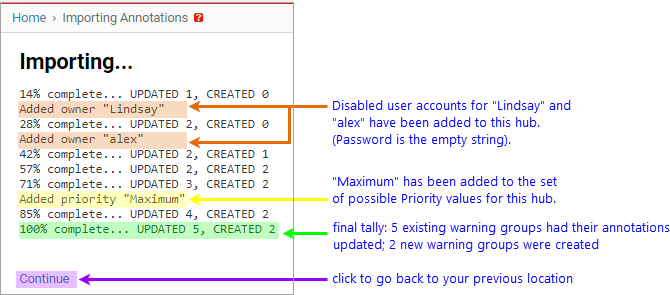
When the import is complete, the page will display a Continue link.
- Click Continue to go back to
your previous page (which will be either Home or a Project page).
Hubs undergo ASCII→UTF8 annotation transcoding as part of the
upgrade from CodeSonar 6.0 (or earlier) to a later version. If some
or all of the annotations on your hub previously used non-ASCII
encodings, perform the following steps to ensure all existing
annotations are correctly encoded. You will need G_ANNOTATION_IMPORT and G_ANNOTATION_EXPORT permissions.
If you have already performed these steps for your hub, you do not
need to perform them again.
- Inspect existing annotations on your hub to see if they are
rendering correctly.
- In particular, look at annotations that were made before
the hub was upgraded past CodeSonar 6.0.
- If annotations can occur in multiple languages, look at
examples of each.
If the inspected annotations are all correctly rendered, you
don't need to do anything further.
If there are problems with annotation rendering, proceed with the
remainder of these steps to export, transcode, and reimport the
hub annotations.
-
Export all annotations on your hub.
The export process depends on the warning group sharing
setting for your hub.
- Run the following command to update the encoding.
codesonar transcode_annotations.py annotations.csv
annotations_utf8.csv [encoding]
The optional encoding
argument specifies the encoding of the exported annotations (see
list of options above). If not
specified, transcode_annotations.py will attempt to
deduce the encoding and prompt you for confirmation.
If warning group
sharing is OFF for your hub, and so you exported multiple
annotation files in the previous step, convert each file
separately. For example, if the project named ProjectX has
ISO-8859-7-encoded annotations and you saved its exported
annotation file as annotations_ProjectX.csv:
codesonar transcode_annotations.py annotations_ProjectX.csv
annotations_ProjectX_utf8.csv ISO-8859-7
- Delete all annotations from your hub database by visiting the
following URL.
Warning: visiting this URL will instantly
delete all comments on your hub.
/sql.html?sql=update%20cs_warningreport%20set%20comments_text_xml%20%3D%27%27%2C%20comment_index_xml%3D%27%27
- Restart the
hub.
-
Import the annotations back into the hub.
The Import process depends on the warning group sharing
setting for your hub.
- Once you have completed all necessary imports, check the hub
annotations to verify that they are now all rendering
correctly.
If there are still rendering issues, contact CodeSecure support.
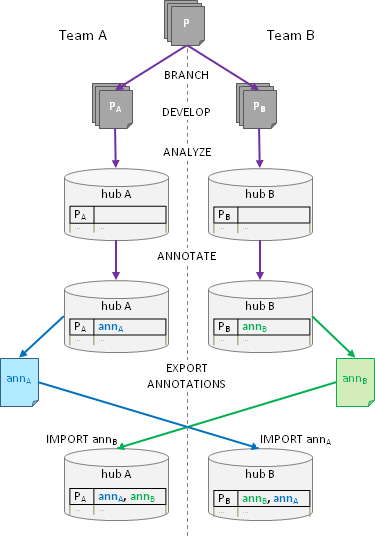
The following diagram illustrates a typical use case. Project P
has two development branches: branch PA is developed by
team A and analyzed on hub A, branch PB is developed by
team B and analyzed on hub B. Exporting annotations between the two
hubs once a week allows the teams to avoid duplicating effort in
resolving shared problems.
One might reasonably ask why teams A and B need separate hubs at
all. In fact, they don't. If the two teams now decide that they
wish to share hub A, only two steps remain:
- Ensure that hub A has warning group sharing ON.
- Analyze PB on hub A.

CodeSonar
permissions apply to annotation import and export as follows.
| Operation |
Permissions required |
Notes |
| Annotation Import
|
G_ANNOTATION_IMPORT
|
Users with G_ANNOTATION_IMPORT permission can
always import annotations. This permission is also sufficient
to create any warning
groups that are present in the imported annotation set but
not on the hub.
|
| otherwise |
For users without G_ANNOTATION_IMPORT:
These constraints mean that some or all of the tuples in the
imported set may be ignored.
|
| Annotation Export
|
G_ANNOTATION_EXPORT
|
Users with G_ANNOTATION_EXPORT permission can export
annotations at all scopes. Note that this permission allows a
user to export annotations for all warnings on the hub, even if
the user does not otherwise have access to the analyses that
issued some or all of those warnings. |
| otherwise |
Users without G_ANNOTATION_EXPORT can export annotations
from analyses for which they have ANALYSIS_WARNING_EXISTS permission. |