JavaScript is not currently enabled, but is required for full CodeSonar manual search and browse functionality.

If you are viewing this file in your hub's Web GUI, enable JavaScript in your browser: you will also need it for GUI functionality.

If you opened this file directly from disk, your browser may be directly suppressing JavaScript functionality: certain browsers perform this suppression on local files (but not files delivered by web servers) for security reasons.

CodeSonar® 9.2p0 CONFIDENTIAL CodeSecure Inc
General

GUI Reference: Logs: Parse Log / Parse Error Log

A Parse Log logs the parsing activities of CodeSonar. If parse errors are encountered, they will be displayed on this page.

For example, if your compiler supports a keyword that CodeSonar doesn't understand, you will see a parse error on this page (but not in the build log). When you see parse errors on this page, you should attempt to resolve them; otherwise the quality of the CodeSonar analysis may be adversely affected.

Parse Log pages only contain logging information and links when configuration parameter SEND_HOOK_LOG_TO_HUB is set to Yes.


Filters

The parse log has two filtering options. The default filter is errors only, in which only failed compilations are displayed. The alternative is all compilations. The errors only filter is useful when you want to examine errors that occurred, or want a quick overview of the parse phase. The all compilations filter is useful when you want to confirm that all expected compilations took place.

Navigating To

From any log page: Click show logs (on the Finished line) to expand the list of logs, then click one of the links on the codesonar parse line. If the logs for the analysis have been deleted, the show logs link will not be active.
From Analysis: Expand the Analysis Details section, then click one of the links on the Logs codesonar parse line. If the logs for the analysis have been deleted, the Logs section will contain a "logs have been deleted" notification instead of a table of links.
  • If the state is Building, you can also click on the Analysis State progress bar to navigate to the Parse Log.
  • If there are any parse errors, the "num Parse Errors" Alert will link to the Parse Error Log.
From Source Listing: Expand the File Details section, click show logs (on the Finished line) to expand the list of logs, then click one of the links on the codesonar parse line. If the logs for the analysis have been deleted, the show logs link will not be active.
by URL: The URL depends on the log view and filter required:
Full errors only
http://hub_location/analysis/analysis_id-parse_log.html
all
http://hub_location/analysis/analysis_id-parse_logshowall.html
Streamed Full errors only
http://hub_location/analysis/analysis_id-parse_logstream.html
all
http://hub_location/analysis/analysis_id-parse_logstreamshowall.html
Tail errors only
http://hub_location/analysis/analysis_id-parse_logtailnum.html
all
http://hub_location/analysis/analysis_id-parse_logshowalltailnum.html
Streamed Tail errors only
http://hub_location/analysis/analysis_id-parse_logstreamtailnum.html
all
http://hub_location/analysis/analysis_id-parse_logstreamshowalltailnum.html
Where num in the Tail and Streamed Tail URLs specifies the number of rows to retrieve from the log database for display (or initial display, if the log is streamed).

Page Properties

Output formats XML (log_parse.xsd), text
Visibility Filter Applied none
RBAC Permissions Needed
Page AccessANALYSIS_READ

Contents and Usage

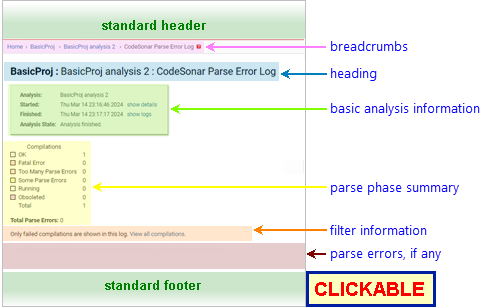
The following annotated screenshot shows the various parts of a Parse Log page with the default errors only filter.

Note that if SEND_HOOK_LOG_TO_HUB=No, the page will not contain any logging information: the parse phase summary will show zero counts for all result types, and there will be no log entries.

Annotated Screenshot: Parse Log Page with ERRORS ONLY filter standard header breadcrumbs page heading basic analysis information parse phase summary filter information the parse log standard footer

The changes when the filter is changed to all compilations are shown in the following annotated screenshot.
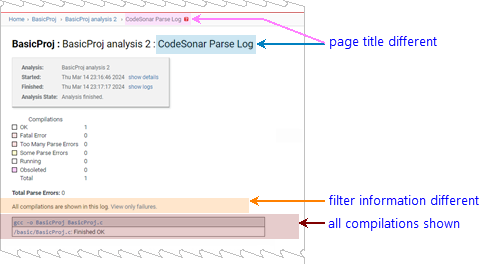
Annotated Screenshot: Parse Log Page with ALL COMPILATIONS filter breadcrumbs heading basic analysis information parse phase summary filter information the parse log

Standard Header See GUI Reference: Standard Header.
Breadcrumbs Home > [Other_ProjectTree_Ancestors >] Project_Name > Analysis_Name > CodeSonar Parse [Error] Log
where
  • "Error" is included if the errors only filter is applied.
  • Home links to the GUI Home page.
  • Together with the Home link (corresponding to the root project tree), Other_ProjectTree_Ancestors represents the project tree ancestors of the analyzed project as a >-separated sequence of project tree names. Each name links to the corresponding Project Tree page.
  • Project_Name is the name of the analyzed project, and links to the corresponding Project page.
  • Analysis_Name is the value of the Analysis property for this analysis, and links to the corresponding Analysis page.
Page Heading Project_Name : Analysis_Name : CodeSonar Parse [Error] Log
Basic Analysis Information A table of basic information about the analysis:
Project Description (if any) for the project analyzed.
Analysis  
Analysis Description (if any)
Started click show details to view the analysis Username, Machine, and Address.

screenshot fragment: show details expansion

Finished click show logs for links to the analysis Build Log, CodeSonar Parse Log, and CodeSonar Analysis Log.

screenshot fragment: show logs expansion

If logs for this analysis have been deleted, a "logs have been deleted" notification will be displayed instead of the table of links. (Logs can be deleted from the Analysis page.)
Analysis State A progress bar if the CodeSonar analysis is still running; "Analysis finished" if the analysis has completed.
Parse Phase Summary Summarizes the status of the compilation units in the project. If the parse phase is still in progress, numbers reflect the compilations that have occurred so far: reload the page to update the numbers.
  • OK: unit compiled with no errors.
  • Too Many Parse Errors: the total number of errors that occurred in compiling the unit is greater than ERROR_LIMIT_PER_COMPILATION (includes compilations that are currently running but have already experienced this many errors). The entire compilation unit will be dropped from the analysis.
  • Some Parse Errors: at least one error occurred in compiling the unit, but the total number of errors is less than or equal to ERROR_LIMIT_PER_COMPILATION.
    • If the compilation is still running, the number of errors is currently less than or equal to this limit: more errors may be encountered in the remainder of the compilation unit, and if too many are encountered then the status will eventually change to Too Many Parse Errors when you reload).
    • If the compilation is finished, the compilation unit will be included in the analysis.
  • Fatal Error: one of Crashed, Failed, MIA.
  • Running: unit is currently compiling, and no errors have been experienced so far.
  • Obsoleted: there was a more recent compilation of the same unit.
  • Total: the total number of compilation units, which will be the sum of the OK, Too Many Parse Errors, Some Parse Errors, Fatal Error, Running, and Obsoleted numbers.
  • Parse Errors: the number of parse errors encountered during the parse phase.
    Note that no compilation unit will contribute more than ERROR_SUBMISSION_LIMIT_PER_COMPILATION errors to this count.

A color key at the far left of the parse phase summary shows how compilation unit lines in the log are colored to reflect their status.

screenshot: color key in parse phase summary

Note: if SEND_HOOK_LOG_TO_HUB=No, the parse phase summary will show zero counts for all result types, regardless of the actual number of compilations and their outcomes.

If logs for this analysis have been deleted, a deletion notification will be displayed instead of this and the remaining page sections.

Filter Information Specifies which filter is currently applied, and provides a link for changing to the other filter.
Log The parse log is structured as a series of entries, where each entry represents a single compiler invocation issued by the hooked build command.
  • Which entries are displayed depends on the filter:
    • errors only filter: only entries for compiler invocations in which errors occurred are displayed, and only those parts of the entry that pertain to compilation units that experienced at least one error.
    • all compilations filter: all parts of all entries are displayed.
  • Each entry is displayed in its own box.
  • The box header displays the compiler invocation, and links to the associated native compilation details log.
  • Each line in the box body lists the name of a compilation unit generated by the compiler invocation, and links to the associated parse details log.
    • The line is color-coded to indicate the overall parse status of the compilation unit. If the compilation is complete, it also includes a short textual description of the status. The color key is provided in the parse phase summary.
    • The lines displayed depend on the filter:
      • errors only filter: a line is displayed for every compilation unit in which an error was encountered.
      • all compilations filter: a line is displayed for every compilation unit.
  • If CodeSonar encounters any problems in parsing a compilation unit, the name of the compilation unit will be followed by a section listing the issues encountered. Each issue is color-coded as follows.
    • red: parse error
    • yellow: parse warning
    • green: parse diagnostic
Note:
Standard Footer See GUI Reference: Standard Footer.

Navigating From

view the analysis build or analysis log or see a different view of the parse log Click show logs, then select the desired log and view from the list of links.
view the native compilation details log for a compilation unit Click the compiler command line in the header of the associated log entry.
view the parse details log for a compilation unit Click the compilation unit name in the body of the associated log entry.
switch between filters Use the link in the filter information section, as described above.

Related Tasks


To report problems with this documentation, please visit https://support.codesecure.com/.
