JavaScript is not currently enabled, but is required for full
CodeSonar manual search and browse functionality.
If you are viewing this file in your hub's Web GUI, enable
JavaScript in your browser: you will also need it for GUI
functionality.
If you opened this file directly from disk, your browser may be
directly suppressing JavaScript functionality: certain browsers
perform this suppression on local files (but not files delivered by
web servers) for security reasons.
-
If you access the manual through the hub's Web GUI, the
functionality will not be suppressed because the hub is a web
server.
-
Alternatively, your browser may allow you to explicitly
disable the security setting that suppresses functionality. See
the CodeSonar
FAQ for more information.
Code Coloring and Interaction
Source code in the CodeSonar source listing and warning report pages is enriched with
syntax highlighting and extensive interaction functionality. This
section describes these enrichments.
Code coloring and interaction are available for analyzed
tier 1
(C, C++ and tier
2 (Java, C#) code only.
They are not available for:
Code appears in warning
reports and in source
listings. In both these cases, CodeSonar uses coloring to reflect
program syntax, information about warnings, and other important
features.
| if (x>0){ return
x; }
|
C/C++ language keywords are displayed in bold text. |
| MACRONAME
|
Macro names are colored wherever they are used. Click the
macro name to expand the macro definition, as described below. |
|
|
All comment text (including comment delimiters) is greyed out
and italicized. |
| # preprocessed
away
|
Any part of the file that was left out of compilation by a
preprocessor directive such as #ifdef is greyed out and italicized. |
| int
unreachable_func(void){return 1;}
|
Functions that have been identified as unreachable from the
REACHABILITY_ROOTS are greyed out. If no
REACHABILITY_ROOTS are
specified, all functions are considered to be reachable. |
This information is also available through the GUI highlight legend.
| if (x>0){ return
x; }
|
Java language keywords are displayed in bold text. |
|
|
All comment text (including comment delimiters) is greyed out
and italicized. |
| if (x>0){ return
x; }
|
C# language keywords are displayed in bold text. |
|
|
All comment text (including comment delimiters) is greyed out
and italicized. |
The source code presented in the following page types is highly
interactive.
| Element |
Interaction |
| All
tokens
|
Hover over any token to highlight all occurrences of that token
in the source. This feature covers:
- variable, parameter, type, and field names
- reserved words
- numeric and character constants
- tokens within string constants
- tokens in code comments
- labels
- tokens in either tab of the information window.
Click the token to display a menu of options. (The menus for
identifiers have additional options: see below.)
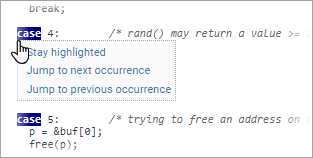
| Stay highlighted
|
Makes the token highlighting 'sticky'. If
tokens with different names are highlighted, each will be
given a different color.To remove sticky highlighting from
a token, click any instance of that token and deselect
Stay highlighted. |
| Jump(Go) to next
occurrence
|
Navigate to the next occurrence of the name in the
code. If neither option is provided, there are no further
occurrences. |
| Jump(Go) to previous
occurrence
|
Navigate to the previous occurrence of the name in the
code. If neither option is provided, there are no previous
occurrences. |
For both Jump(Go) to next occurrence and Jump(Go)
to previous occurrence, "Jump" indicates that you
will be navigating to a new location within the current page;
"Go" that you will be navigating into a different
source listing page.
|
| Identifier
|
Hover over any procedure, variable, macro, or type name in the
listing to view its definition and cross-referencing
information in a information window.
Click the identifier to open a menu of options.
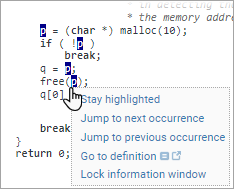
The menu provides the options provided for
all tokens, plus additional contents
as described in the following table.
| Go to definition
|
Navigate to the definition location. There are three
navigation options:
 Navigate in the
current tab. Navigate in the
current tab. Navigate in a new tab.
- [anywhere else on the menu item] Navigate in
the code tab of the information window.
If this list item is not present, the definition is not
available.
|
| Lock information
window
|
Lock the contents of the information window with the
current token occurrence as the subject. |
|
| File names |
Click any file name to navigate to the corresponding source listing. |
| Line
numbers
|
| warning report |
Click any line number to navigate to the corresponding
line in the corresponding source listing. |
|
| Macros
|
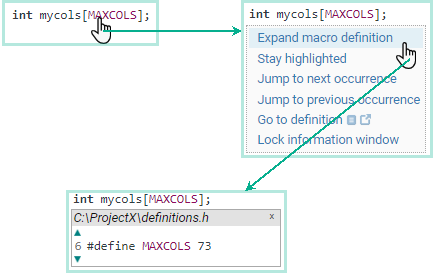
[C/C++ only] To expand a macro definition, click the macro name
and select Expand macro
definition from the menu that opens. Click the [hide]
link in the top right corner of the expansion box to close it,
or click the macro name a second time and deselect Expand macro definition.
|
| Tainted Values
|
[C/C++ only] Tainted
values, and operations and function calls that introduce or
transfer taint, are highlighted using a scheme that supports
discrimination between different kinds of taint. You can
customize the highlighting scheme in the highlight legend: by default, tainted
values are underlined in red.
- Hover over any identifier with taint highlighting to view
the taint
kind associated with the identifier.
- For any tainted subject, the info
tab of the information window
will indicate that taint is present and provide links for
exploring the origin of the taint.
Tainted value highlighting is available when configuration
file parameter TAINT_HIGHLIGHTING is set to Yes (this is the factory setting).
|
The information window
provides detailed information about individual code elements.
It opens the first time you hover over a suitable token name,
as detailed below. Once it is open,
its contents will update each time you hover over one of these
elements.

The information
window is available in the following page types.
Once placed, the information window will remain in a fixed
position relative to your browser window: it will not move when you
scroll through the page. It will remain in this position until you
resize or move it, or navigate away from the page. You can leave the
information window as a floating window, or drag it against one side
of your browser tab to 'dock' it.

- Forward and
back buttons navigate through the information window history:
both tab changes and subject changes.
- There are two tabs: info and code.
- The information window has a
subject: the token occurrence whose
properties are currently described in the window. The subject name
is shown in the title bar.
- To lock the subject (and therefore the contents of both
tabs), click the padlock button in its top right corner. The
subject will remain locked until you unlock it.
- To minimize, click the [-] button in its top right
corner. The information window will remain minimized until you
restore it.
- To move the information window, click and drag on its
title bar.
- To dock against the top, bottom, left, or right of the
browser window: drag to the appropriate edge releasing when a blue
outline appears.
- To resize, click and drag on an edge or corner.
The info tab displays a
collection of cross-referencing information
about a code element and its role in the analyzed software:
- Its name and kind.
- The definition or
definitions governing the subject occurrence.
- All occurrences of the code element that are governed by at
least one of those definitions, organized by usage.
- Links for exploring the call tree to the code element.
- [C/C++ code
only] If the element is tainted, there will be a set of links
for exploring the origin of the taint within the program call
graph.
- If the code element is presented in the context of a
specific warning (for example, in a Warning Report code
excerpt), there will be a set of links for exploring the call
graph with respect to that warning.
Different mechanisms for exploration are offered, with links
labeled as follows.
- All other occurrences of code elements with the same name (that
is, all occurrences with the same name but different
definitions).
- If the code element is a function, all metric values computed for that
function.
(For Java and C# code, this functionality is only available for
elements defined in user code. Information about elements defined in
the respective language runtimes is not shown.)
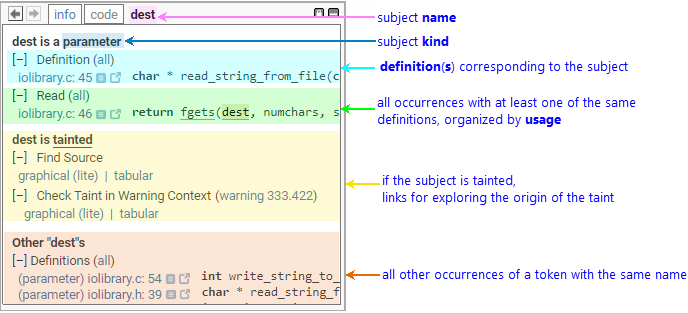
- Click [+] at the left of any heading to expand the
corresponding entry; [-] to collapse the entry.
- Click all at the right of any heading to open a code search results page showing
all the relevant token occurrences. The page will open in a new
tab.
- Click the location link (file:line) next to any
occurrence to view a listing of file, scrolled to
line.
There are three display options:
- Display in a Source Listing in the current
browser tab.
- Display
in a Source Listing in a
new browser tab.
- [anywhere else on the menu item] Display in the
code tab of the information
window.
The code tab displays a code
fragment scrolled to the definition of the code element.
(For Java and C# code, this functionality is available for
definitions in user code only. Definitions in the respective language
runtimes are not shown.)
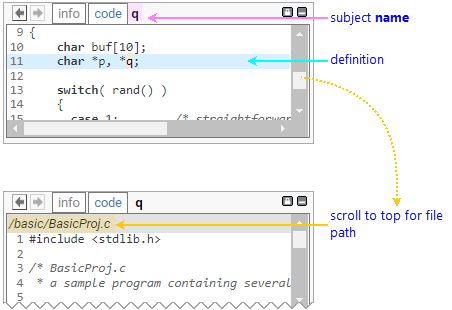
The source code in the code tab has the same interaction and navigation functionality as
described above, with two exceptions.
- Hovering over a token will not change the information window
subject. It will, however, still cause all
tokens with the same name to be highlighted.
- The pop-up menu options for identifiers are slightly different.
Lock in window is not available; new option Get
Information changed the window subject
and switches to the info tab to display the corresponding
information
The highlight legend is available in the standard header of Source Listing, Warning Report, and Tainted Value pages.
To view the highlight legend:
- Click the
 icon (located
to the right of the Visible
Warnings selector).
icon (located
to the right of the Visible
Warnings selector).
- Select show highlight legend
from the menu that pops up.
The highlight legend will be displayed at the bottom of the
browser window.

The legend is divided into three parts.
| General |
Describes the syntax coloring applied
to the code, along with the background
coloring scheme applied to code excerpts in Warning Reports. |
| User |
Describes the sequence of colors that will be used for
user-requested token highlighting. |
Taint
[C/C++ only] |
The Taint section has a line for each taint kind
present in the code currently displayed on the page, plus a
style selector.
This section is interactive, unlike the General and User
sections:
- To change the color associated with a particular taint
kind, click its color sample to open a color selector, then
choose a new color.
- To change the style used to indicate tainted values,
select a new value from the style menu.
- To disable display for a specific taint kind, deselect
its checkbox. To re-enable display, select its checkbox.
Changes take effect immediately, and are 'sticky' (but
not visible to other users).
|