JavaScript is not currently enabled, but is required for full
CodeSonar manual search and browse functionality.
If you are viewing this file in your hub's Web GUI, enable
JavaScript in your browser: you will also need it for GUI
functionality.
If you opened this file directly from disk, your browser may be
directly suppressing JavaScript functionality: certain browsers
perform this suppression on local files (but not files delivered by
web servers) for security reasons.
-
If you access the manual through the hub's Web GUI, the
functionality will not be suppressed because the hub is a web
server.
-
Alternatively, your browser may allow you to explicitly
disable the security setting that suppresses functionality. See
the CodeSonar
FAQ for more information.
CodeSonar Plug-in for Eclipse: Tutorial
This tutorial introduces you to the CodeSonar plug-in for
Eclipse using a sample program that is provided with the
product.
You will use the plug-in to build and analyze the sample
program, then to browse and interpret the analysis results.
If you have not already installed the CodeSonar plug-in for
Eclipse, install
and configure it now.
- Ensure
all prerequisites have been satisfied. (This includes
installing CodeSonar and Eclipse if they are not already
installed.)
You will need the Eclipse CDT plug-in for this tutorial, so make
sure you install
it if it is not already present.
- Install the
CodeSonar plug-in.
- Configure
the CodeSonar plug-in.
- Create a working directory for the tutorial.
- Identify the hub you will use to manage the analysis results
and ensure that it is running. For detailed instructions, see
Make Sure the Hub Is Ready.
We use the sample BasicProj.c and
Makefile files provided with the
Basic
Tutorial.
Now set up the sample Eclipse project ready for building and
analyzing with CodeSonar.
- Start Eclipse, if it is not already running.
- Create a new Eclipse project containing the tutorial files.
- Select File > New >
Project from the main menu bar.
A New Project dialog will
open.
- Click C/C++ > Makefile Project
With Existing Code to select it.
- Click the Next button.
- Enter csBasicEclipse in
the Project Name
field.
- Click the Browse button next to the Existing Code Location field, then use
the Browse For Folder
dialog that opens to select your working directory.
- Make sure the C checkbox is selected (the C++
checkbox can be either selected or deselected - it doesn't
matter).
- Select your regular toolchain from the list of Toolchain for Indexer Settings
candidates.
- Click Finish.
The csBasicEclipse project
will now be shown in the Project Explorer panel.
- Set the project's analysis
mode to Hook mode, and specify a CodeSonar hub to manage the analysis
results. You will only need to do this once for each project.
- In Project Explorer, right-click on the csBasicEclipse project.
A menu will open.
- Select CodeSonar > Properties from the
menu.
Eclipse will display the Properties dialog for the project,
with the CodeSonar
project properties selected.
- Enter your hub
location in the Hub field.
- Click the Hub settings button (to the right of the
Hub field).
The
hub connection settings dialog will open.
- Select a hub authentication mode: Anonymous only,
Password, or Certificate.
If your CodeSonar hub is configured to allow anonymous
analysis and anonymous browsing, you can select Anonymous
only. Otherwise, you will need to provide hub user
account credentials to authenticate and authorize these
operations: either username and password, or user certificate
and private key.
- Enter the additional information required for your selected
authentication mode, if any.
| Anonymous only |
no further information required. |
| Password |
select/deselect Try
Anonymous First according to your preference,
then enter the Username and Password for a
hub
user account on the hub specified in the Hub address field. |
| Certificate |
enter the Certificate
location for the user
certificate you will use for hub authentication, and
the Private key
location for the private key corresponding to
that certificate. If the private key requires a password,
enter the Private key
password. |
- Click OK to go back to the Properties dialog.
- Select one of the analysis management radio buttons at the
bottom of the Properties dialog. This setting depends on
whether or not you are using CodeSonar SaaS.
| CodeSonar SaaS: |
SaaS Analysis
|
| otherwise: |
Local Analysis
|
- Click Apply and Close.
- Right-click on the project again, and select CodeSonar
> Enable > Hook Build from the menu (if it is not
already selected).
A dialog will open, explaining that enabling hook build will
trigger a clean on the selected project.
- Click the OK button in the dialog.
A small CodeSonar icon will appear on the project, indicating
that CodeSonar has been enabled.

The Eclipse project is now set up to work with CodeSonar.
- In the Project Explorer, right-click on the csBasicEclipse project.
A menu will open.
- Select CodeSonar > Build/Analyze Project from the
menu.
The Analysis
Report view will open to show the progress and current
results of the analysis.
You m ay be prompted to perform one or more of the
following.
| Accept the CodeSonar
License |
If this is the first time you are building a project and
you have not yet accepted
the CodeSonar license agreement, CodeSonar will print
the text of the agreement and ask whether you want to
accept it.
- Accept the license to proceed with the build.
(If you accidentally click the wrong button, causing
CodeSonar to abandon the build, just re-run the build
command.)
|
| Provide hub user account
credentials |
If you specified Password- or Certificate-based
authentication for the project while setting up but did not provide
credentials for an account with sufficient permissions, you
will be prompted to provide them. |
| User Account Control |
If User Account Control is enabled, your system may request
permission for cs_uac_daemonize.exe from CodeSecure,
Inc to continue.
- Click Continue to proceed.
|
| Service Authentication |
[Windows only] If you are running CodeSonar with
services, you may be asked |
The Analysis Report view will look (something) like the
following.

Initially the view will show the Overview
tab.
We will look at some the warnings issued by the analysis.
- Switch to the Warnings
tab.

- If necessary, resize the columns so you can read the table
contents comfortably.
- Double-click the table entry for the "Null Pointer
Dereference" warning that occurs on line 17.
- The source listing for BasicProj.c will open, and scroll to the
warning location.
- The Warning
view for the warning will open.
- Look at the source listing.
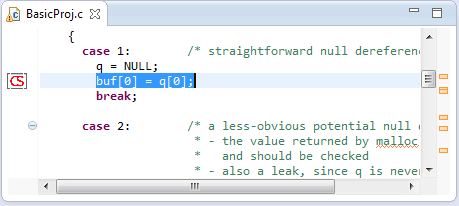
Information
about the warning is overlaid on the listing.
- The source code at the warning location is
highlighted.
- A warning marker is shown in the left margin at the
warning location.
- Orange markings to the right of the scrollbar show warning
locations within the file (including the location of the
current warning).
- Look at the Warning
view.
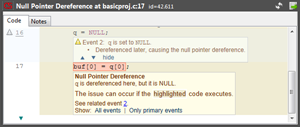
- The Warning view header contains basic identifying
information about the warning, in the following format.
- Initially the view will show the Code
tab, which contains an annotated code excerpt that shows
the context in which the warning was issued.
- Scroll through the Warning view to see its contents.
- Try hovering and clicking on various elements to see what
happens. For example:
- macro
names such as NULL
- line numbers
- control
flow markings
 ,
,  , and
, and  (in the left
margin, to the right of the line numbers)
(in the left
margin, to the right of the line numbers)
- data
event markings
 (in the left
margin, to the left of the line numbers)
(in the left
margin, to the left of the line numbers)
- the source file path (at the top of the excerpt)
- excerpt expansion links
 and
and  (at the top and bottom of the
excerpt)
(at the top and bottom of the
excerpt)
- "See related event" links
- Switch to the Notes
tab.
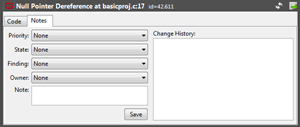
- Use the pull-down menus to specify a Priority,
State,
Finding, and
Owner
for this warning.
- Enter a note in the
Note field.
- Click the Save button. The Change History will
update to include a notification for the changes you just
made.
These changes were made on the CodeSonar hub, so all hub users will
be able to see them.
- Click
 (at the top right of the
Warning view).
(at the top right of the
Warning view).
The web GUI Warning
Report page for this warning will open in your web
browser.
- Check to confirm that your updated warning annotations are
displayed in the web GUI.
This is the end of the Eclipse Tutorial. If you like, you can
go to the tutorial index and
choose another tutorial exercise.
The following sections provide detailed information about
installing and using the CodeSonar plug-in for Eclipse.