JavaScript is not currently enabled, but is required for full CodeSonar manual search and browse functionality.
If you are viewing this file in your hub's Web GUI, enable JavaScript in your browser: you will also need it for GUI functionality.
If you opened this file directly from disk, your browser may be directly suppressing JavaScript functionality: certain browsers perform this suppression on local files (but not files delivered by web servers) for security reasons.
| CodeSonar® 9.2p0 | CONFIDENTIAL | CodeSecure Inc |
Configuration for the CodeSonar plug-in for Eclipse takes place at two levels of granularity.
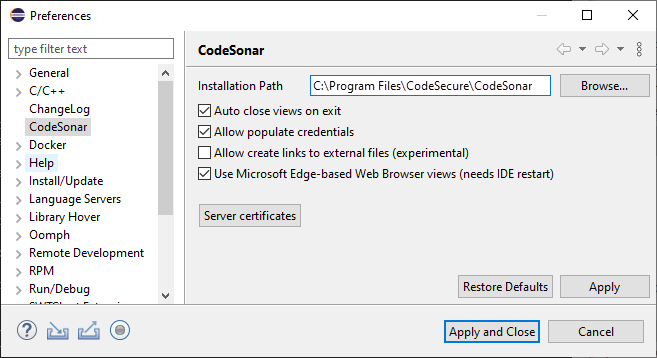
Overall CodeSonar preferences are available from the CodeSonar menu in the main Eclipse menu bar.
To view the CodeSonar preferences:
Eclipse will display the Preferences dialog, with the CodeSonar preferences selected.
There are two preferences available.
| Installation Path | The full path to the CodeSonar installation that will be used to build and analyze projects. |
|---|---|
| Auto close views on exit | When selected, any Analysis Report and
Warning views that
are open when you exit Eclipse will be closed next time you start
Eclipse. When deselected, those views will be reopened the next time you start Eclipse. |
| Allow populate credentials | When selected, you will need to enter hub user credentials
only once per project per Eclipse instance. The plug-in will keep
a record of the credentials you enter and use them to authorize
every subsequent project operation that requires them. When deselected, you will need to enter hub user credentials every time you perform an operation that requires them (for example, performing a new analysis ). If you are performing CodeSonar operations as special user Anonymous, you will not need to supply credentials and this setting will have no effect. |
| Allow create links to external files | When selected, warning markers will be
placed in all source files for which warnings are issued,
including system files included by other files. When deselected, warning markers will be placed only in source files that have been explicitly added to the project. This feature is currently experimental. |
| Use Microsoft Edge-based Web Browser views |
[Windows only] Select to force Eclipse to use an Edge browser
widget. Edge is required for the Warning view's Code tab The Eclipse process uses a single browser widget to manage browser views for all plug-ins.
|
The CodeSonar preferences dialog also provides access to the CodeSonar certificate manager through the Server certificates button.
To modify preferences:
The CodeSonar certificate manager lists all CodeSonar hub server certificates that have been accepted on your machine. This includes certificates accepted...
To view the certificate manager, open the CodeSonar preferences dialog and click Server certificates.

To revoke a certificate, click on the corresponding row to select it and then click Remove certificate. Note that this revokes the certificate for all CodeSonar operations on your machine.
Each project has a set of associated CodeSonar properties, describing the project's analysis mode and current analysis.
To view project properties:
Eclipse will display the Properties dialog for the project, with the CodeSonar properties selected.
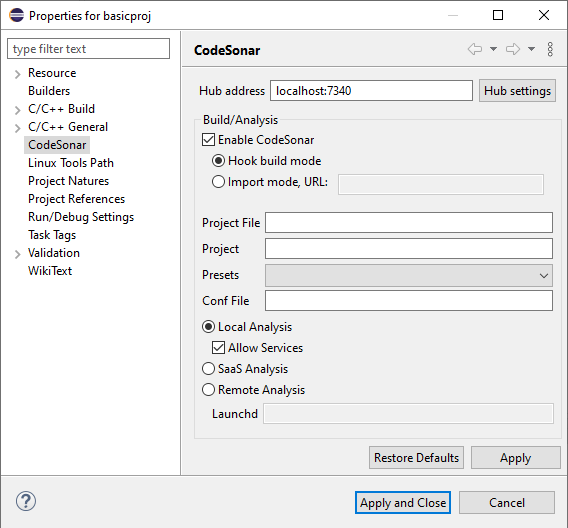
| Hub | The hub location for the project's current analysis. | ||||||||
|---|---|---|---|---|---|---|---|---|---|
| Hub Settings | Click to open the hub connection settings dialog, from which you can specify hub authentication credentials to use for the project. | ||||||||
| Enable CodeSonar |
Select to enable CodeSonar for this project, deselect to
disable. When CodeSonar is enabled, there is a small CodeSonar icon attached to the project name in the Project Explorer, and the following features are available.
|
||||||||
| Hook Build or Import analysis results |
The project's analysis mode.
|
||||||||
| Project File |
If you leave this field blank, the locally-stored CodeSonar
project files will have names based on the Eclipse project
name, and the analysis
directory will be stored in
<eclipse_workspace>/.metadata/.plugins/org.eclipse.core.resources/.projects/<project_name>/com.codesonar.eclipse/<project_name>.prj_files
To specify a different project name, or to use a different
directory to store CodeSonar analysis artifacts, specify a file path in
this field.
path/to/CSOpfiles_nameThen:
Note: If you are saving CSOpfiles_name.prj in the Eclipse project directory, you will also need to add an Eclipse filter to hide the CodeSonar analysis files from the Eclipse project. |
||||||||
| Project |
Specifies the hub
project
with which this Eclipse project will be associated, as a string
with one of the following forms.
If you leave this field blank, the hub project name will be determined as follows.
|
||||||||
| Presets | Use the menu to select a configuration preset to
apply to the CodeSonar build/analysis for this project. By
default, no presets will be applied. Specifying a Presets value here is equivalent to specifying a -preset argument to the CodeSonar build/analysis command line. |
||||||||
| Conf File | Specify the path to an additional
configuration file to apply to the CodeSonar build/analysis
for this project. Relative paths are interpreted with respect to
the Eclipse project directory. Specifying a Conf File value here is equivalent to specifying a -conf-file argument to the CodeSonar build/analysis command line. |
||||||||
| analysis management |
Specify how the analysis should be managed.
Choose a radio button:
|
To modify project properties:
The hub connection settings dialog allows you to specify hub authentication type and credentials on a per-project basis.
To view hub connection settings for a project, open the project properties dialog and click Hub settings.
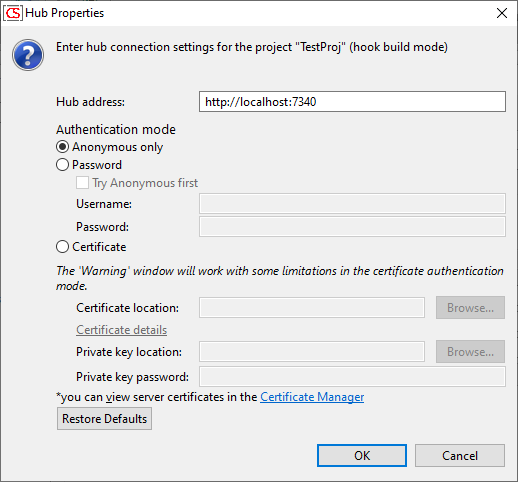
| Hub address | The hub
location for the project's current analysis. You can also set this in the main Project Properties dialog. |
|
|---|---|---|
| Authentication Mode | Anonymous only | CodeSonar will only attempt to authorize the build/analysis
as special
user Anonymous. (Corresponds to command line -auth anonymous.) |
| Password |
CodeSonar will attempt to authenticate and authorize the
build/analysis using a hub user account username and
password. (Corresponds to command line -auth default if Try Anonymous first is selected; -auth password otherwise.)
|
|
| Certificate |
CodeSonar will attempt to authenticate and authorize the
operation using a user
certificate. Corresponds to command line -auth certificate.)
Note that if you authenticate with a certificate, multimedia capabilities of some features, such as the Code Tab, may be limited. |
|
The following sections provide detailed information about installing and using the CodeSonar plug-in for Eclipse.
To report problems with this documentation, please visit https://support.codesecure.com/.