JavaScript is not currently enabled, but is required for full
CodeSonar manual search and browse functionality.
If you are viewing this file in your hub's Web GUI, enable
JavaScript in your browser: you will also need it for GUI
functionality.
If you opened this file directly from disk, your browser may be
directly suppressing JavaScript functionality: certain browsers
perform this suppression on local files (but not files delivered by
web servers) for security reasons.
-
If you access the manual through the hub's Web GUI, the
functionality will not be suppressed because the hub is a web
server.
-
Alternatively, your browser may allow you to explicitly
disable the security setting that suppresses functionality. See
the CodeSonar
FAQ for more information.
CodeSonar Plug-in for Eclipse: Build and Analyze a Project
| Install Plug-in |
If you have not already installed the CodeSonar plug-in for
Eclipse, install it now. |
| Eclipse Project |
Choose the Eclipse project you want to analyze. The project
must meet the Builder
requirements for hook mode. |
| Permissions |
The CodeSonar build/analysis can only be performed and its
results browsed by a user with the following permissions.
- Does your selected project P already exist on the hub?
(Futher ANALYSIS_* permissions are required
if you wish to annotate warnings or make other changes to
the CodeSonar hub database.)
- Global permissions G_LIST_PROPERTIES and G_LIST_USERS.
If special
user Anonymous does not
have these permissions, you will need to provide credentials
for a hub user account that does have them (and also has
G_SIGN_IN and either G_SIGN_IN_PASSWORD or G_SIGN_IN_CERTIFICATE).
- If you aren't sure whether or not you have or need a
user account, consult the hub Administrator. They may need to
create a user account for you, or to provide you with
information about an existing account that has been created
for you.
- To create a hub user account, follow the instructions in
Task: Add a
New User Account for Yourself.
|
Before you can build and analyze a project, you will need to set
the project's analysis
mode to Hook mode, and specify a CodeSonar hub to manage the analysis
results. You will only need to do this once for each project.
- In Project Explorer,
right-click on the project you want to analyze.
A menu will open.
- Select CodeSonar >
Enable > Hook Build from the menu.
A small CodeSonar icon will appear on the project, indicating that
CodeSonar has been enabled.
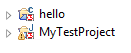
- Right-click on the project again, and select CodeSonar > Properties from the menu.
Eclipse will display the Properties dialog for the project, with
the CodeSonar
project properties selected.
- Enter your hub
location in the Hub
field.
- Click Hub Settings (to the
right of the Hub field) to open
the hub connection
settings dialog.
- Work through the following steps to establish your hub
authentication settings for the project.
- Select a hub authentication mode: Anonymous only,
Password, or Certificate.
- Enter any additional information required for the hub
authentication method you selected.
| Anonymous only |
No further information required. |
| Password |
Select/deselect Try
Anonymous First according to your preference, then
enter the Username and
Password for a hub user
account on the hub specified in the Hub address field. |
| Certificate |
Enter the Certificate location for the
user
certificate you will use for hub authentication, and
the Private key
location for the private key corresponding to that
certificate. If the private key requires a password,
enter the Private key
password. |
- Click OK in the hub
connection settings dialog.
- Click Apply, then OK in the Project Preferences dialog.
- Go on to Build and Analyze a
Project.
When the plug-in is enabled in Hook mode, it will automatically
observe all Eclipse builds of the project and accumulate CodeSonar
project components based on those builds. You can then invoke the
CodeSonar analysis on the project as needed.
The first time you perform a build or analysis, you may be
prompted to perform one or more of the following.
| Accept the CodeSonar License |
If this is the first time you are building a project and you
have not yet accepted
the CodeSonar license agreement, CodeSonar will print the
text of the agreement and ask whether you want to accept it.
- Accept the license to proceed with the build.
(If you accidentally click the wrong button, causing
CodeSonar to abandon the build, just re-run the build
command.)
|
| Provide hub user account
credentials |
If you specified Password- or Certificate-based
authentication for the project while setting
up but did not provide credentials for an account with
sufficient permissions, you will be prompted to provide
them. |
| User Account Control |
If User Account Control is enabled, your system may request
permission for cs_uac_daemonize.exe from CodeSecure, Inc
to continue.
- Click Continue to proceed.
|
| Service Authentication |
[Windows only] If you are running CodeSonar with services,
you may be asked to provide Windows service authentication. See
CodeSonar As A Windows
Service for more information. |
The relevant commands are available from the CodeSonar menu.
| Command |
Effect |
Usage |
| CodeSonar
> Build/Analyze Project |
The plug-in will execute a codesonar
build command based on the Eclipse build to accumulate
project components, then execute codesonar
analyze to finalize the CodeSonar project and run the
CodeSonar analysis. |
Use this command if you haven't built the Eclipse project
since enabling Hook
mode, or if you want the analysis to include changes that
have occurred since your last build. |
| CodeSonar
> Build Project |
The plug-in will execute a codesonar
build command based on the Eclipse build. This accumulates
CodeSonar project components but does not finalize (or analyze)
the CodeSonar project. |
This command is provided for completeness - it is
functionally equivalent to invoking the Eclipse build. |
| CodeSonar
> Analyze Project |
The plug-in will execute codesonar analyze to finalize the
CodeSonar project and run the CodeSonar analysis.
If no CodeSonar project components have been accumulated,
the plug-in will notify you when you try to invoke this
command.
|
Use this command when you have run CodeSonar >
Build Project, or the
Eclipse project has been built by some other mechanism, and there
have been no subsequent code changes that you want to include in
the analysis. |
You can configure the plug-in to run the CodeSonar build
and analysis automatically every time the Eclipse project is
built.
- In Project Explorer,
right-click on the project you want to analyze automatically
A menu will open.
- Select CodeSonar >
Analyze Automatically from the
menu.
The menu item's appearance will update to show that it is
selected.
The CodeSonar analysis requires a hub for managing analysis results, so
the plug-in stores a hub
address as part of the project properties.
- The Setting Up instructions above include
specifying a hub for the project's analysis results.
- You can change the project hub using the Properties dialog.
- If you invoke CodeSonar > Analyze Project or CodeSonar >
Build/Analyze Project on a
project that has no project hub specified, you will be prompted to
specify one.
Output from the CodeSonar build and analysis commands is presented
in Eclipse consoles as follows.
| Eclipse Console Name |
CodeSonar Output in Console |
| CodeSonar Analysis [<Project Name>] |
Analysis output (CodeSonar > Analyze Project, and the analysis
component of CodeSonar > Build/Analyze Project) from project
<Project Name>. |
| CDT Build Console [<Project Name>] |
C/C++ build output from project <Project Name>: the CDT build
command is used as a component of the CodeSonar project
build. |
| CDT Global Build Console |
Includes CodeSonar C/C++ build output from the project-level
CDT build consoles. |
| CodeSonar JavaBuilder [<Project
Name>] |
cs-java-scan output from project
<Project Name>. |
Go on to Viewing Analysis
Results.
The following sections provide detailed information about
installing and using the CodeSonar plug-in for Eclipse.