
JavaScript is not currently enabled, but is required for full CodeSonar manual search and browse functionality.
If you are viewing this file in your hub's Web GUI, enable JavaScript in your browser: you will also need it for GUI functionality.
If you opened this file directly from disk, your browser may be directly suppressing JavaScript functionality: certain browsers perform this suppression on local files (but not files delivered by web servers) for security reasons.
| CodeSonar® 9.2p0 | CONFIDENTIAL | CodeSecure Inc |
The CodeSonar build of a C# project is performed after the normal build. It uses both the C# source files and the files produced by the build. This is significantly different from the way in which CodeSonar builds a C/C++ project, which involves observing the actual normal-build process. For a C# project, the CodeSonar build collects the C# bytecode files produced by a normal build, along with the corresponding C# source code for any parts of the project for which warnings are required. The bytecode files are then analyzed, and analysis results are sent to a hub database, from which they can be viewed with an ordinary web browser.
The CodeSonar C# build/analysis can only be applied to code that is both managed and safe.
Incrementality is not supported for C#: C#-only projects (and the C# parts of mixed projects) will always be completely rebuilt and reanalyzed when you perform a CodeSonar analysis.
Important Note: CodeSonar will only report warnings for those parts of the project for which both of the following are true.
In most cases, the corresponding source code must also be available. If the associated PDB files do not provide correct source file paths, specify the paths with -include-sources.
An overview and further links about building and analyzing CodeSonar projects from software in other languages are provided in section Building.
CodeSonar C# analysis is available on 64-bit Windows only, and .NET Framework 4.7.2 or later must be installed on the machine performing the analysis.
The CodeSonar C# analysis is suitable for analyzing the following .NET versions.The following diagram shows the CodeSonar build and analysis process for C# projects.
The steps of the build and analysis process are described in Building: Overview. For projects based on C# code, the steps manifest as follows.
| 1. Observe |
The user instructs CodeSonar to observe an
operation or collection of operations that includes one or more
invocations of the form
cs-dotnet-scan -include-artifacts pattern
[remaining-options]
or
cs-dotnet-scan -include-sourceless-artifacts pattern
[remaining-options]
or
cs-dotnet-scan -msbuild-solution slnpathname
-msbuild-location mspath [remaining-options]
|
||||
|---|---|---|---|---|---|
| 2. Execute |
The designated operation or operations are executed.
Important: Only invocations of cs-dotnet-scan that take place during this execution will be represented in the project. |
||||
| 3. Recognize | CodeSonar will recognize invocations of cs-dotnet-scan. | ||||
| 4. Update |
Each time it recognizes an invocation of cs-dotnet-scan, CodeSonar updates the
project definition to incorporate the files specified by that
invocation.
The files included in the project can be divided into sources (.cs files), artifacts (.exe, .dll, .properties, sarl, and .xml files), and PDB files (.pdb).
|
Once it has finished building the project, CodeSonar can run the analysis. If you use the analyze command, the analysis will run (and send its results to the hub) after the build has finished.
The degree of parallelism in the analysis will depend on the setting of ANALYSIS_SLAVES. Additional parallelism can be achieved by executing multiple cs-dotnet-scan commands in parallel for various smaller pieces of a project.
The CodeSonar C# build/analysis can only be applied to code that is both managed and safe. It will not understand native code, including "unsafe" C# code, or account for its effects.
When you invoke cs-dotnet-scan, do not include any artifacts with native or unmanaged code. In some cases you may need to use a combination of include options and exclude options to accomplish this. Example 13, below, illustrates one such case.
If your C# analysis includes one or more components (for example,
classes) written in native or unmanaged code, the analysis will issue
a Native Component alert.
See the troubleshooting notes below
for more information.
As described in Command Line Build/Analysis: Command, the general form of the usual CodeSonar build/analysis command is
The command element is described below; the other parts of the command line are discussed in Command Line Build/Analysis: Elements.
To build a C# project, CodeSonar observes the execution of a command of one of the following forms.
There are therefore three general forms of the CodeSonar build/analysis command for C# projects:
where remaining-options is any combination of include options, exclude options, and other options.
Wildcard patterns follow the rules of the Glob library. In particular:
A pattern that matches a directory is considered to match all files with appropriate suffixes that are located in that directory or any of its (recursive) subdirectories. Suffixes are as follows.
This section describes the available options for cs-dotnet-scan, all of which can be added using configuration file settings.
As described above, there are three general forms of the CodeSonar build/analysis command for C# projects.
Where remaining-options is any combination of include options, exclude options, and other options.
The relative ordering of include and exclude options is important:
You can specify C# build options using the following configuration file parameters as an alternative to specifying them directly in the command line.
| CSHARP_FLAGS_APPEND | Specifies options to append to the list passed to the C# build/analysis command. |
|---|---|
| CSHARP_FLAGS_PREPEND | Specifies options to prepend to the list passed to the C# build/analysis command. |
There are two mechanisms for specifying inputs to the analysis in a cs-dotnet-scan command:
In most cases, each cs-dotnet-scan command will only use one or the other of these mechanisms. However, it is possible to use both. The following diagram illustrates the handling for the various specified inputs in each case. For more information on individual command line options, see Options, below.
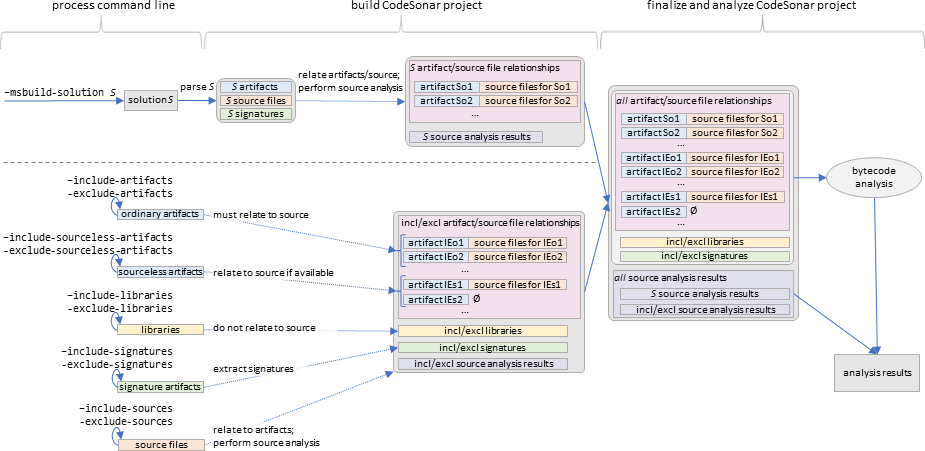
The following table lists all options understood by cs-dotnet-scan.
| Option | Default Value | Description | Can Specify More Than Once? | |
|---|---|---|---|---|
|
|
||||
Specifying an MSBuild Solution File |
||||
| -msbuild-solution <slnpathname> | none |
CodeSonar will parse the solution file (.sln) located at
<slnpathname> and add identified elements to the
project as follows.
IMPORTANT: If you have modified the project or source files, rebuild the project before invoking cs-dotnet-scan. Use the following options to supply further information.
We strongly recommend using -msbuild-project in preference
to include and exclude options when you wish to analyze
only some projects in the solution.
|
yes | |
| -msbuild-location <mspath> | -msbuild-location must be specified when -msbuild-solution is specified |
If -msbuild-solution is specified,
CodeSonar will use the MSBuild or Visual Studio installation at
<mspath> to parse the specified solution file and
identify artifacts and PDB files to add to the project.
<mspath> must be one of the following.
-msbuild-solution can only be used with Visual Studio 2017 v15.9 and later. If the installation at <mspath> is an older version, the build/analysis will fail If -msbuild-solution is not specified, this option has no effect. |
no | |
| -msbuild-project <projpath> | All projects in the solution are analyzed. |
If -msbuild-solution is specified,
CodeSonar will analyze only the (Visual Studio) project whose
project file (.csproj) is
located at <projpath>, rather than all projects in
the solution.
If <projpath> does not exist, the build/analysis will fail. If this option is specified multiple times, all the identified projects are analyzed and all other projects in the solution are not. If -msbuild-solution is not specified, this option has no effect. |
YES | |
Include OptionsThese specify files to include in the CodeSonar project. |
||||
| -include-sources <pattern> | none |
The project should include all source files (.cs) whose filename matches <pattern>.
This supersedes any previous exclusion of any of these files with -exclude-sources, but may in turn be superseded by a subsequent occurrence of -exclude-sources. Source files are not analyzed directly. Instead, they are used to present the warnings identified in the bytecode files specified with -include-artifacts. If the PDB files corresponding to your specified artifacts provide accurate source file paths, you do not need to specify any -include-sources options. |
yes | |
| -include-artifacts <pattern> | none |
The project should include all ordinary artifacts whose filename
matches <pattern>, along with their
corresponding PDB files. This supersedes any previous exclusion of any of these files with -exclude-artifacts, but may in turn be superseded by a subsequent occurrence of -exclude-artifacts. The source code corresponding to an ordinary artifact must also be available and specified with -include-sources or in PDB files, unless one or more sourceless artifacts are also specified. |
yes | |
| -include-sourceless-artifacts <pattern> | none |
The project should include all sourceless artifacts whose filename
matches <pattern>, along with their
corresponding PDB files. This supersedes any previous exclusion of any of these files with -exclude-sourceless-artifacts, but may in turn be superseded by a subsequent occurrence of -exclude-sourceless-artifacts. |
yes | |
| -include-libraries <pattern> | none |
The project should include all libraries whose filename matches <pattern>, along with their
corresponding PDB files.
This supersedes any previous exclusion of any of these files with -exclude-libraries, but may in turn be superseded by a subsequent occurrence of -exclude-libraries. |
yes | |
| -include-signatures <pattern> | none |
The project should include all signatures from all artifacts whose filename
matches <pattern>, along with their
corresponding PDB files.
This supersedes any previous exclusion of any of these files with -exclude-signatures, but may in turn be superseded by a subsequent occurrence of -exclude-signatures. |
yes | |
Exclude OptionsThese specify previously-included files that should be excluded from the CodeSonar project. |
||||
| -exclude-sources <pattern> | none |
Removes all files whose filename matches <pattern> from the set of source
files (.cs) accumulated by
earlier occurrences of -include-sources in the cs-dotnet-scan command.
Some or all of these source files may be added back by subsequent occurrences of -include-sources. |
yes | |
| -exclude-artifacts <pattern> | none |
Removes all files whose filename matches <pattern> from the set of
ordinary artifacts accumulated
by earlier occurrences of -include-artifacts in the cs-dotnet-scan command.
Some or all of these ordinary artifacts may be added back by subsequent occurrences of -include-artifacts. |
yes | |
| -exclude-sourceless-artifacts <pattern> | none |
Removes all files whose filename matches <pattern> from the set of
sourceless artifacts
accumulated by earlier occurrences of -include-sourceless-artifacts in the
cs-dotnet-scan command.
Some or all of these sourceless artifacts may be added back by subsequent occurrences of -include-sourceless-artifacts. |
yes | |
| -exclude-libraries <pattern> | none |
Removes all files whose filename matches <pattern> from the set of
libraries accumulated by earlier
occurrences of -include-libraries in the cs-dotnet-scan command.
Some or all of these libraries may be added back by subsequent occurrences of -include-libraries. |
yes | |
| -exclude-signatures <pattern> | none |
Removes all files whose filename matches <pattern> from the set of
signatures accumulated by earlier
occurrences of -include-signatures in the cs-dotnet-scan command.
Some or all of these ordinary artifacts may be added back by subsequent occurrences of -include-signatures. |
yes | |
Other OptionsThese control other aspects of the C# analysis.Note that values specified on the command line take precedence over values set with a configuration file option. |
||||
| -assembly-kind <akind> | ConsoleApplication |
Specifies the kind of assembly for all assemblies
specified with -include-artifacts. The possible values of
<akind> are those of the Microsoft.CodeAnalysis.OutputKind
enumeration: {ConsoleApplication, DynamicallyLinkedLibrary, NetModule, WindowsApplication, WindowsRuntimeApplication, WindowsRuntimeMetadata}.
This is analogous to the OutputType property used in Visual Studio .csproj files, and to the TargetType option of CSC. |
no | |
| -cs-verbosity <level> | 2 | Specifies the verbosity level for diagnostics, as an integer between 0 and 10, with 0 for no diagnostics, 10 for all diagnostics. | no | |
| -csharp-analysis-memory <num> | The value of configuration parameter CSHARP_ANALYSIS_MAX_MEMORY. | Specifies that the memory allocated for running the analysis engine is <num>MB. | no | |
| -csharp-launcher-memory <num> | The value of configuration parameter CSHARP_LAUNCHER_MEMORY. | Specifies that the memory allocated for running the process collecting the files in preparation for the analysis engine is <num>MB. | no | |
| -csharp-source-level <num> | 13.0 | Specifies that the language compliance level to be used in parsing C# source files (.cs) is <num>: one of {1, 2, 3, 4, 5, 6, 7, 7.1, 7.2, 7.3, 8.0, 9.0, 10.0, 11.0, 12.0, 13.0 }. | no | |
| -enable-assertions | The value of configuration parameter CSHARP_ANALYSIS_ENABLE_ASSERTIONS. | Specifies whether or not the C# build/analysis will treat assertion statements as if they are executed. | yes | |
| -encoding <encname> | utf-8 |
Specifies the encoding for C# source files. This will affect
parsing for all C# source files, whether specified directly or
automatically detected by the analysis. The available
<encname> values will depend on your local system
and runtime setup: see Encoding Class (microsoft.com) for more information.
We recommend using this option only to troubleshoot source file parsing for non-Unicode files. |
no | |
| -entrypoints <mode> | The value of configuration parameter CSHARP_ANALYSIS_ENTRY_POINTS_MODE. | Specifies that the runtime environment of the analyzed
application is <mode>: one of {ALL_ENTRIES, ONLY_EXPLICIT_ENTRIES,
ONLY_STANDARD_ENTRIES, LIBRARY, ALL_METHODS}. If specified multiple times, the last value specified is used. |
yes | |
| -framework <framework> | The value of configuration parameter CSHARP_ANALYSIS_FRAMEWORK. |
Specifies that the runtime environment of the analyzed
application is <framework>. One of:
net10,
net11,
net20,
net30,
net35,
net40,
net45,
net451,
net452,
net46,
net461,
net462,
net47,
net471,
net472,
net48,
netcoreapp1.0,
netcoreapp1.1,
netcoreapp2.0,
netcoreapp2.1,
netcoreapp2.2,
netcoreapp3.0,
netcoreapp3.1,
net5.0,
net6.0,
net7.0,
net8.0,
net9.0.
We strongly recommend that you specify this option if you are analyzing one or more projects with multiple target frameworks. See also -msbuild-os-target. If specified multiple times, the last value specified is used. |
yes | |
| -import-require-source | Warnings will be submitted to the hub even if there is no corresponding source code. | Specifies that warnings should only be submitted to the hub
if the corresponding source code is available and specified with
-include-sources or in PDB files. Has no effect for libraries and signatures. |
no | |
| -msbuild-os-target <os-targ> | CodeSonar will attempt to select a suitable target framework for each project in the solution. |
When -msbuild-solution
<slnpath> is specified, CodeSonar analyzes
either some or all of the projects in the solution at
<slnpath>,
depending on whether -msbuild-project is specified and
with what value or values. Within the set of analyzed projects, CodeSonar always analyzes one target framework per project.
We strongly recommend that you specifiy both -msbuild-os-target and -framework when analyzing solutions that contain one or more multiple target framework projects with OS-specific Target Framework Monikers. This option does not affect handling of single-target projects, since their one target will always be analyzed. If -msbuild-solution is not specified, this option has no effect. |
no | |
| -msbuild-property <key>:<value> | none |
If -msbuild-solution is specified,
CodeSonar will set the MSBuild project property named
<key> to <value> in the set of
MSBuild project property information extracted from each
specified solution file, replacing any previous value.
Use this option to inform cs-dotnet-scan of the property settings that were used to build your project. For example, if you performed a debug build then include -msbuild-property Configuration:Debug in your cs-dotnet-scan command. If -msbuild-solution is not specified, this option has no effect. |
yes | |
| -no-warn-empty-project | CodeSonar terminates with an error message if there are no sources or artifacts. | Normally, analyzing a project without specifying sources or artifacts will result in the analysis terminating and printing an error message. Use this flag to suppress the error message in this case. | no | |
Artifacts are files with the following extensions: .exe, .dll.
Each artifact included in a particular CodeSonar analysis belongs to one of four categories: ordinary artifacts, sourceless artifacts, libraries, and signatures. The artifact's category determines how the analysis will handle the artifact, as described in the table below.
Every artifact (of every category) must have a corresponding PDB
file located in the same directory. If there is no such PDB file, the
analysis will issue an alert.
For example, if /myfiles/project/X.dll is specified,
/myfiles/project/X.pdb must also be
present.
The following table describes the artifact categories in order of importance.
| Artifact Category | Description | Include with | Exclude with | ||||
|---|---|---|---|---|---|---|---|
| ordinary artifacts |
Artifacts for which you
The C# build/analysis will determine the corresponding source code as follows.
|
-include-artifacts or -msbuild-solution |
-exclude-artifacts (not applicable to artifacts derived from a solution file specified with -msbuild-solution) |
||||
| sourceless artifacts |
Artifacts for which you
The analysis will attempt to identify corresponding source code as described for ordinary artifacts.
|
-include-sourceless-artifacts | -exclude-sourceless-artifacts | ||||
| libraries | Artifacts that you want to include in the CodeSonar analysis, but for which you do not wish to see any warnings. | -include-libraries | -exclude-libraries | ||||
| signatures | Artifacts that you want to include in the CodeSonar analysis but only to the extent of collecting signatures, and for which you do not wish to see any warnings. Including signatures can improve analysis results, but to a lesser extent than including libraries. | -include-signatures | -exclude-signatures |
Some example CodeSonar command lines for building and analyzing C# projects.
Note: Depending on the hub configuration, you may be prompted for hub user account credentials to authenticate and authorize codesonar build and codesonar analyze commands. See Hub Authentication: Authenticated codesonar Subcommands for more information.
The first four examples below are for projects with simple structure.
Build a CodeSonar project based on the classes contained in Example.dll, located in the current working directory.
Build and analyze a CodeSonar project based on the source files in /path/to/sources and the artifacts in /path/to/binaries.
Build and analyze a CodeSonar project based on the source files in /path/to/sources and the artifacts in /path/to/classes.
Build and analyze a CodeSonar project based on the source files in /path/to/sources and the .exe file /path/to/Project.exe.
The following examples illustrate more fine-grained control of the analysis.
Build and analyze a CodeSonar project based on the artifacts in /path/to/binaries, except for the artifacts in /path/to/binaries/A.
Build and analyze a CodeSonar project based on the .exe files in the tree below /path/to/binaries, except for those that are in /path/to/binaries/A but not in /path/to/binaries/A/B.
Build and analyze a CodeSonar project based on .exe file /path/to/Project.exe, using the type signatures of the classes found inside /path/to/External.dll.
Build and analyze a CodeSonar project based on the full contents of the current directory and all its (recursive) subdirectories.
Build and analyze a CodeSonar project based on the full contents of the current directory and all its (recursive) subdirectories, excluding .dll files whose name or directory path contains "Test".
cat <<EOF > buildscan.sh
#!/bin/sh
ant
cs-dotnet-scan -include-artifacts foo -include-sources foo &
cs-dotnet-scan -include-artifacts bar -include-sources bar &
wait
EOF
chmod +x buildscan.sh
codesonar analyze foo ./buildscan.sh
Executing this shell script will build the project with ant, then run two instances of cs-dotnet-scan in parallel on different parts of the project.
Build and analyze a CodeSonar project based on path\to\SolutionX.sln (an MSBuild solution file).
Build and analyze a CodeSonar project based on MSBuild project projpath\to\ProjX5.csproj, which is part of MSBuild solution solpath\to\SolutionX.sln.
Suppose your project has a number of DLL files in directory bin\Debug\. The main artifact is called CashGrabber.dll and has associated source code; the remaining DLLs are libraries and do not have source code. Furthermore, library crypto.dll contains unmanaged code and so must be excluded from the CodeSonar C# analysis.
In general, we recommend using the command line CodeSonar build/analysis for C# projects.
| Microsoft Visual Studio integration | The Microsoft Visual Studio integration supports C# analysis, but requires some additional steps. See CodeSonar Plug-in for Visual Studio: Build and Analyze a Project for details. |
|---|---|
| Eclipse integration | There is currently no plan to support C# analysis in the Eclipse integration: if you use Eclipse for C# development and need such support, please contact CodeSecure. |
| Windows Build Wizard | If you prefer, you can use the Windows build wizard to observe cs-dotnet-scan invocations. |
The most typical alerts related to the C# build/analysis are listed below. For descriptions of all CodeSonar alerts, see Alerts.
| Red Alerts Two important alerts related to the C# build/analysis are num Missing Source Files and Miscellaneous Error. These are red (severe) alerts, because they indicate that the analysis may not be as complete as intended. |
||
| num Missing Source Files |
This indicates that CodeSonar was unable to find corresponding
source files for num of the classes specified by the
build command, so will not report warnings for those classes.
For each of these classes C:
Missing source files may be caused by "too many potential candidates" errors. |
|
| Miscellaneous Error | The analysis engine can produce a wide variety of diagnostics, that do not necessarily affect the analysis. These appear in the hub as Miscellaneous Errors. | |
| Yellow Alerts Duplicated Component, Invalid Component, and Native Component are all yellow alerts. |
||
| Duplicated Component |
The analyzed artifacts for a single cs-dotnet-scan invocation include
two or more components (for example, classes) with the same
fully-qualified name. The analysis will include the first component encountered with each name, and ignore any others.
|
|
| Invalid Component |
The analyzed artifacts include one or more components (for
example, classes) for which CodeSonar was unable to extract CLR
code.
Check the following.
|
|
| Native Component |
The analyzed artifacts include one or more components (for
example, classes) written in native code, including
"unsafe" C# code.
|
|
In some cases, you may see a parse error that looks something like the following.
For each analyzed ordinary artifact and sourceless artifact, CodeSonar attempts to identify the corresponding source file. To do this, CodeSonar iterates over those files specified with -include-sources and -exclude-sources whose basenames correspond to that of the artifact, checking each in turn to see if it is the correct match. Iteration finishes either when a match is found, or when the number of source files checked for a particular artifact exceeds the limit specified in environment variable CS_DOTNETFE_INCLUDESOURCE_LIMIT. The default value for this limit is 100.
If CodeSonar does not find the correct matching source file before reaching the iteration limit, then:
There are two options for resolving this problem.
This option is generally preferable if some of the source files with duplicate basenames are not relevant to your analysis. A more precise set of candidate source files will generally reduce the time spent on matching, and so reduce overall analysis time.
If you have a large number of artifacts with the same basename, there will necessarily be a large number of corresponding source files to iterate through for matching. In this case, you will need to increase the CS_DOTNETFE_INCLUDESOURCE_LIMIT to a value that allows all your source files to be considered.
This approach imposes additional time costs. Firstly, a higher limit means that more time can be spent on matching and so the overall analysis time is generally increased. Secondly, you will need to spend time investigating or experimenting to determine a suitable CS_DOTNETFE_INCLUDESOURCE_LIMIT setting. We recommend the following approach.
In some cases, the most convenient solution might be to split your build/analysis across two or more cs-dotnet-scan invocations, each of which covers a smaller set of artifacts and specifies a more precise set of source files. This approach may still require you to increase the CS_DOTNETFE_INCLUDESOURCE_LIMIT, but typically not to the same extent.
To report problems with this documentation, please visit https://support.codesecure.com/.