JavaScript is not currently enabled, but is required for full CodeSonar manual search and browse functionality.
If you are viewing this file in your hub's Web GUI, enable JavaScript in your browser: you will also need it for GUI functionality.
If you opened this file directly from disk, your browser may be directly suppressing JavaScript functionality: certain browsers perform this suppression on local files (but not files delivered by web servers) for security reasons.
| CodeSonar® 9.2p0 | CONFIDENTIAL | CodeSecure Inc |
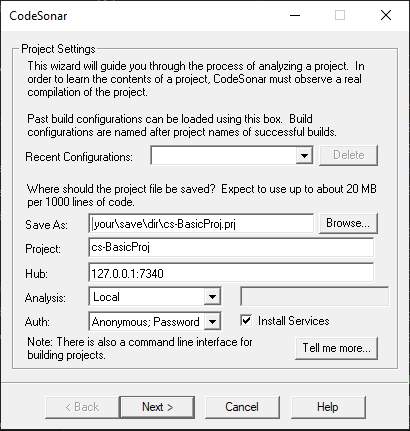
The Windows build wizard allows you to base a CodeSonar project on your usual C/C++ software build. In essence, you instruct CodeSonar to "record" the actions of your build system, then use your build system to build one or more software projects in the usual way. Once the software is built, the wizard generates a corresponding CodeSonar project, performs the analysis, and sends the results to the specified hub.
For general information, see Building and Analyzing A CodeSonar Project.
If you are building from a command line (including Cygwin), use the command line build rather than the build wizard.
The Windows build wizard is most useful for C and C++ projects. We recommend using the command line build for Java projects. If you prefer, however, you can use the build wizard to observe cs-java-scan commands instead of incorporating them in CodeSonar build or analyze command lines.
Use this method when you are analyzing C or C++ code and your normal software build is carried out from the GUI of a Windows-based IDE.
| Fields | |||||||||
|---|---|---|---|---|---|---|---|---|---|
| Recent Configurations | Provides a drop-down list of recently-used build configurations so that you can easily reproduce the settings used on a previous build. | ||||||||
| Save As |
Specifies where CodeSonar will store the local files that
it generates for this analysis. For example, if the Save
As value is C:\MyProjects\X\ProjectX.prj:
|
||||||||
| Project |
Specifies the hub project with which
this analysis will be associated, as a string with one of the
following forms.
Specifying a Project value here is equivalent to specifying a -project argument to the CodeSonar build/analysis command line: see the option documentation and hub project identification examples for more details. |
||||||||
| Hub |
The CodeSonar hub
location. Use one of the following formats.
|
||||||||
| Analysis |
How the analysis should be managed.
Choose an option from the menu:
|
||||||||
| Auth | The hub authentication mechanism to use for the analysis. For details, see Hub Authentication: Authentication in the Windows Build Wizard. Depending on your selection, you may encounter one or more authentication dialogs after you click Record on screen 2. | ||||||||
| Check Boxes | |||||||||
| Install Services | If selected, CodeSonar will run the launch daemon as a service. This will require user authentication, and means that the launch daemon will automatically restart when your machine is restarted after being shut down. | ||||||||
| Buttons | |||||||||
| Tell me more... | View the Quick Start: Command Line section of the manual. | ||||||||
| Next | Proceed to screen 2. | ||||||||
| Cancel | Exit the build wizard without building anything. | ||||||||
| Help | Bring up a web browser displaying this page. |
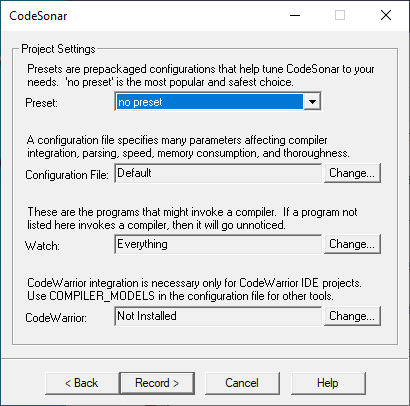
| Fields | |||||||||
|---|---|---|---|---|---|---|---|---|---|
| Preset | Select a configuration preset to use for the project build and analysis. The "no preset" option does not apply any preset. | ||||||||
| Watch |
This field specifies the processes whose behavior CodeSonar
will watch in order to build the project. If you have elected
to watch all processes, the field will display the phrase All
Processes, otherwise it will display a list of Process
Identifiers (PIDS) corresponding the the processes being
watched. To change this list (or view the processes that have
been selected) click on the Change button.
Select Processes Dialog
|
||||||||
| Configuration File | Edit the project configuration file. If you click Change, CodeSonar will start Notepad to allow you to edit the pfiles-name.conf file. | ||||||||
| CodeWarrior | Set up CodeWarrior support for the project build, if needed. For full information, see Using CodeSonar With CodeWarrior. | ||||||||
| Buttons | |||||||||
| Back | Go back to screen 1 | ||||||||
| Record | Start recording the processes specified, and proceed to screen 3. One or more dialogs may open after you click Record. | ||||||||
| Cancel | Exit the build wizard without building anything. | ||||||||
| Help | Bring up a web browser displaying this page. |
When you click Record, CodeSonar will begin the various processes involved in creating the project and communicating with the hub. This includes starting a suitable CodeSonar launch daemon if one is not already running.
One or more of the following dialogs may open.
| Delete Files? | 
|
If you have analyzed a project, then upgraded CodeSonar, then
analyzed the project again in the same location, CodeSonar may display a dialog
indicating that there are "old analysis results in a
different format".
Click OK to delete the old results and proceed with the analysis. Click Cancel to keep the old analysis results. If you want to re-analyze the project without disturbing the old results, go Back to Screen 1 and specify a different Save As location, then work through the remaining build wizard screens. |
|---|---|---|
| User Account Control | 
|
If User Account Control is enabled, your system may request
permission for the analysis to run.
|
| Service Authentication | 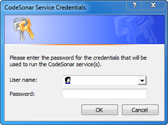
|
If you selected Install
Services and have not already set up a service to
manage interaction with the hub, your system will open a
service authentication dialog. Enter your user name and password for the Windows machine on which you are running the analysis, and click OK. If you change your mind about using services, click Cancel. CodeSonar will continue to run without services. For more information, see section CodeSonar as a Windows Service |
| Hub Password Authentication | 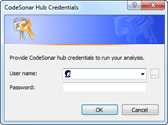
|
This dialog requests hub user account
credentials to authenticate and authorize the build/analysis.
CodeSonar will display this dialog if your Auth selection is "Password", or if your selection is "Anonymous; Password " but the analysis cannot be authorized by special user Anonymous. Enter your hub user account user name and password,
and click OK. For more information, see Hub Authentication: Authentication in the Windows Build Wizard. |
| Hub Certificate Authentication | 
|
These dialogs request a user certificate
and corresponding private key to authenticate and authorize the
build/analysis.
CodeSonar will display these dialogs if your Auth selection is "Certificate". Use the first dialog (labeled Select Certificate) to select your local copy of the user certificate you wish to present. Use the second dialog (labeled Select Private Key) to select your local copy of the certificate's private key. This will be used to sign the analysis response to the hub's challenge. It will not be uploaded to the hub. Both files must be PEM-encoded. For more information, see Hub Authentication: Authentication in the Windows Build Wizard and TLS Certificates: User Certificates. |
| HTTPS Certificate | 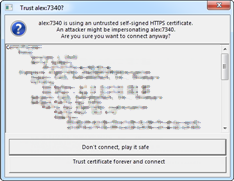
|
If your specified Hub is
configured to require secure connections but is using a
self-signed server
certificate, CodeSonar may display a dialog asking whether
you want to trust that certificate. If you are satisfied that the certificate is trustworthy, click Trust certificate forever and connect. Otherwise, click Don't connect, play it safe and consult the hub administrator to determine how to proceed. |
| Errors | 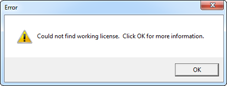
|
If your specified Hub does not
have an appropriate license key, CodeSonar will display an
error dialog.
You will not be able to perform the CodeSonar analysis on an unlicensed hub, so you have two options for analyzing the project:
|

|
If CodeSonar encounters a problem in initializing the analysis,
it will display an error dialog. Click OK for more
information about the problem.
Section Build Troubleshooting contains solutions for problems you may encounter. |
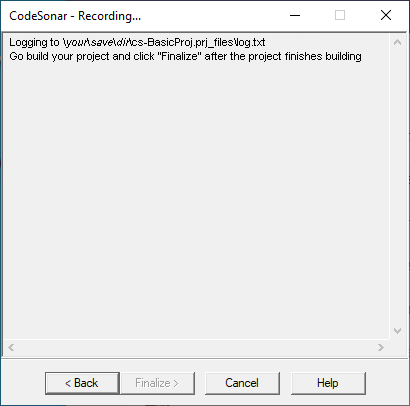
| Fields | |
|---|---|
| Recording... | Initially, indicates the location of the log file and instructs the user to perform their software build so that it can be recorded. Once the software build is underway, displays output from the build system. After the recording is finished and the Finalize button has been clicked, displays output from the CodeSonar project builder and then from the CodeSonar analysis. |
| Buttons | |
| Back | Go back to screen 2 |
| Finalize | Finish the recording, build the project, run the CodeSonar analysis and proceed to screen 4 (only available when at least one build has been recorded). |
| Cancel | Exit the build wizard without building anything. |
| Help | Bring up a web browser displaying this page. |
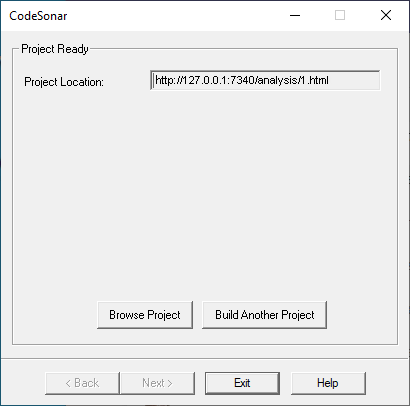
| Fields | |
|---|---|
| Project Location | Specifies the location of the CodeSonar analysis results. This will depend on the hub location specified on screen 1 of the wizard, and on the number of analyses that have previously been run on the hub. |
| Buttons | |
| Browse Project | Open the Analysis page in your web browser. |
| Build Another Project | Return to screen 1 of the wizard, ready to build another project. |
| Back | Go back to screen 3. |
| Exit | Exit the build wizard. |
| Help | Bring up a web browser displaying this page. |
To report problems with this documentation, please visit https://support.codesecure.com/.
