JavaScript is not currently enabled, but is required for full CodeSonar manual search and browse functionality.
If you are viewing this file in your hub's Web GUI, enable JavaScript in your browser: you will also need it for GUI functionality.
If you opened this file directly from disk, your browser may be directly suppressing JavaScript functionality: certain browsers perform this suppression on local files (but not files delivered by web servers) for security reasons.
| CodeSonar® 9.2p0 | CONFIDENTIAL | CodeSecure Inc |
This section explains how to build and analyze a project with the CodeSonar plug-in for Visual Studio.
If you have not already installed the CodeSonar plug-in for Visual Studio, install it now.
The CodeSonar build/analysis can only be performed and its results browsed by a user with the following permissions.
If special user Anonymous does not have these permissions, you will need to provide credentials for a hub user account that does have them (and also has G_SIGN_IN and either G_SIGN_IN_PASSWORD or G_SIGN_IN_CERTIFICATE).
Before you can build and analyze a project, you will need to set the project's analysis mode to Hook mode, and specify a CodeSonar hub to manage the analysis results. If this is a C# build project, you will also need to set up a post-build step to trigger the CodeSonar analysis.
You will only need to perform these setup steps once for each project.
| Anonymous only | no further information required. |
|---|---|
| Password | select/deselect Try Anonymous First according to your preference, then enter the Username and Password for a hub user account on the hub specified in the Hub address field. |
| Certificate | enter the Certificate location for the user certificate you will use for hub authentication, and the Private key location for the private key corresponding to that certificate. |
if exist "%CodeSonarDotNetScan%" "%CodeSonarDotNetScan%" -msbuild-location "$(MSBuildToolsPath32)" -msbuild-solution "$(SolutionPath)" -msbuild-project "$(ProjectPath)"
| %CodeSonarDotNetScan% | will expand to the full path to cs-dotnet-scan if you have hooked the build as described on this page, and to the empty string otherwise. |
| $(MSBuildToolsPath32) | is available in both Visual Studio and MSBuild
projects. Always specify the "32" form of this build macro, even if you are using 64-bit MSBuild. |
| $(SolutionPath) | is typically available in .NET projects created in
Visual Studio. Some MSBuild projects may not support this build macro, in which case you will need to adjust the -ms-build-solution argument to specify the path to your solution (.sln) file. |
| $(ProjectPath) | is typically available in .NET projects created in
Visual Studio. Some MSBuild projects may not support this build macro, in which case you will need to adjust the -msbuild-project argument to specify the path to your project file. |
When the plug-in is enabled in Hook mode, it will automatically observe all Visual Studio builds of the project and accumulate CodeSonar project components based on those builds. Users can then invoke the CodeSonar analysis on the project as needed.
The relevant commands are available from the CodeSonar menu.
| Command | Effect | Usage |
|---|---|---|
| CodeSonar > Build Project | The plug-in will execute a codesonar build command based on the Visual Studio build. This accumulates CodeSonar project components but does not finalize (or analyze) the CodeSonar project. | This command is provided for completeness - it is functionally equivalent to invoking the Visual Studio build. |
| CodeSonar > Analyze Project |
The plug-in will execute codesonar analyze to finalize the
CodeSonar project and run the CodeSonar analysis.
If no CodeSonar project components have been accumulated, the plug-in will notify you when you try to invoke this command. |
Use this command when you have run CodeSonar > Build Project, or the Visual Studio project has been built by some other mechanism, and there have been no subsequent code changes that you want to include in the analysis. |
| CodeSonar > Build/Analyze Project | The plug-in will execute a codesonar build command based on the Visual Studio build to accumulate project components, then execute codesonar analyze to finalize the CodeSonar project and run the CodeSonar analysis. | Use this command if you haven't built the Visual Studio project since enabling Hook mode, or if you want the analysis to include changes that have occurred since your last build. |
| CodeSonar > View Analysis Results | The plug-in will display the Analysis results pane with the Overview tab selected. | Use this to navigate to the Analysis results. |
Selecting CodeSonar > Analyze Automatically enables CodeSonar to always run an analysis when the project is built.
The CodeSonar analysis requires a hub for managing analysis results, so the plug-in stores a hub address as part of the project properties.
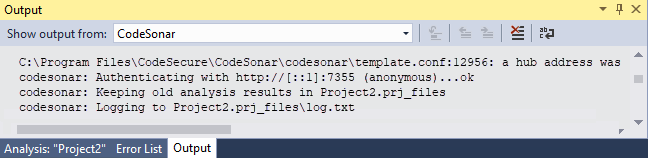
The Output tab displays build and analysis output (CodeSonar > Analyze Project, and the analysis component of CodeSonar > Build/Analyze Project) from project <Project Name>.
Go on to Viewing Analysis Results.
The following sections provide detailed information about installing and using the CodeSonar plug-in for Visual Studio.
To report problems with this documentation, please visit https://support.codesecure.com/.