codesonar config
Windows users can also select CodeSonar
> CodeSonar Configuration Tool from the Windows Start
menu.
The configuration tool main menu will be displayed.
- ... the hub host name or IP address.
- If necessary, specify the exact interface you have selected.
- ... the port number for the hub.
- Enter the port on which the hub is listening. The default is 7340.
- ... whether you have an existing user account on
the hub.
- Enter yes or
no.
- yes: you will be prompted for the hub user account username.
- no: you will be prompted for a username and email address to use in creating a new hub user account
- Enter yes or
no.
- whether analyses with this installation should use this hub
by default.
- Enter the menu option number corresponding to your preference.
- ... which kinds of C/C++ warnings to detect, that is, which
configuration presets
you want to define as default
presets for all analyses. You may enable or disable one or
more presets while connecting to the hub. Note that you may
choose to run analyses without processing the default presets
by specifying -no-default-presets
in your command.
- Enter the menu option number corresponding to your preference.
- ... your preferred analysis speed: a tradeoff against
analysis thoroughness.
- Enter the menu option number corresponding to your preference, then confirm your choice.
- [SaaS hubs only] If you are connecting to a SaaS hub, the
configuration tool will now ask if you would like to default to
performing analyses using the SaaS cloud instead of your own
resources. Enter yes or
no.
- yes: the tool will set up the hub connection and go on to the next stage.
- no: the tool will continue to collect information.
- ... the level of analysis parallelism to use
for analyses on the new hub.
- Enter the menu option number corresponding to your
preference.
Note that this setting pertains to analyses performed by you, on this machine, with this CodeSonar installation, on the new hub.
- Enter the menu option number corresponding to your
preference.
- ... whether analyses should utilize the hub's
analysis cloud: that is, whether they should be distributed
analyses.
- Enter the menu option number corresponding to your preference.
- ... whether analyses should contribute to the
hub's analysis cloud: that is, whether you want to
contribute resources (where available) to distributed analyses
started on other machines, or by other users, or by other
CodeSonar installations.
If you answered "Yes" to the previous question we strongly recommend that you answer "Yes" to this question. If you answer "No", your launch daemon will not start slaves for any distributed analyses, including your own.- Enter the menu option number corresponding to your preference.
- ... the parent launchd
group for the launch daemon that your
analyses will use to communicate with the hub.
Unless your hub administrator has instructed otherwise, use the root launchd group.
- Enter / to specify the root launchd group.
- ... [Windows only] whether the launch daemon should run as
a service (see section
CodeSonar as a Windows Service for more information).
- Enter the menu option number corresponding to your preference.
- [Windows] The tool will ask whether you want to view the
hub in your browser once the connection has been hub has been
configured.
- Enter y at the prompt.
- [other systems] The tool will print a message specifying
the Home page URL.
- Open the URL in a web browser.
- Enter the password at the prompt.
- When prompted, enter the password again for confirmation.
- If prompted, enter the hub user account password associated with the username you specified in step 4a. This authenticates the new launch daemon.
- When prompted, press Enter to continue.
[Windows only] If the command appears to be taking a long time to finish, it may be waiting for services authentication. (If you are working in other windows while running CodeSonar those windows might be obscuring the authentication dialog: if you don't see a dialog, move the other windows to check underneath). See CodeSonar as a Windows Service for more information.
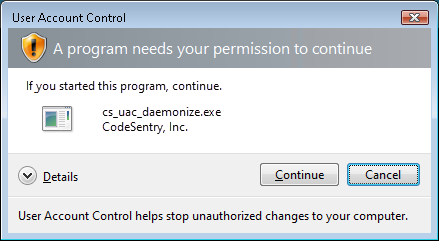
Click Continue to proceed.