JavaScript is not currently enabled, but is required for full CodeSonar manual search and browse functionality.
If you are viewing this file in your hub's Web GUI, enable JavaScript in your browser: you will also need it for GUI functionality.
If you opened this file directly from disk, your browser may be directly suppressing JavaScript functionality: certain browsers perform this suppression on local files (but not files delivered by web servers) for security reasons.
| CodeSonar® 9.2p0 | CONFIDENTIAL | CodeSecure Inc |
The CodeSonar configuration tool provides guided setup and management for operations for CodeSonar installations.
If you are interested in CodeSonar configuration files, see Configuration Files.
| Windows |
The configuration tool will run automatically when you click
Finish at the end of CodeSonar Windows installation,
provided the Run Configuration
Tool checkbox is selected. To run at any other time:
|
|---|---|
| Other Systems |
Run the following command.
codesonar config
|
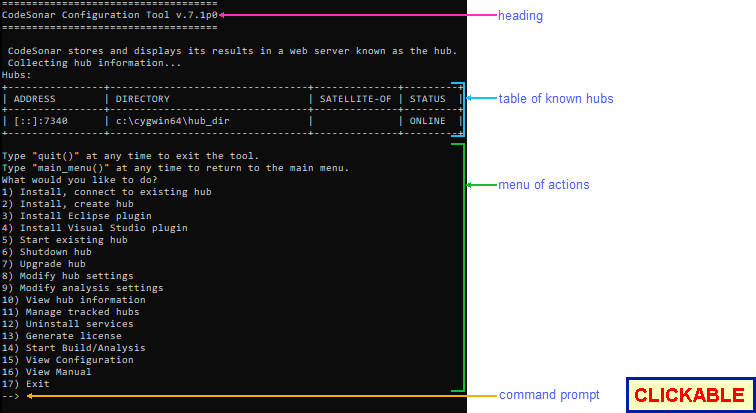
The following annotated screenshot shows the starting screen of the CodeSonar configuration tool. We refer to this as the main menu. You can return to this screen at any time by entering main_menu() at the prompt.
| Heading | The "CodeSonar Configuration Tool " heading appears at the top of the main menu. |
|---|---|
| Table of Known Hubs |
A table showing past and present hubs that are
"known" to the configuration tool. The table has four
columns.
|
| Menu of Actions |
The top-level menu options are described in Using The Tool, below. Some of these options will
entail working through a series of steps, some of which will in
turn involve menus.
To select a menu item, enter its associated number at the prompt. |
| Prompt |
Enter menu selections and requested information here.
|
The main menu items are described below. In general:
The configuration tool main menu offers the following options.
| Number | Item | Description | RBAC Permissions Needed | |
|---|---|---|---|---|
| Windows | Otherwise | |||
| 1 | 1 | Install, connect to existing hub | Specify an existing hub to use and specify how this installation should interact with the hub when you perform analyses. A launch daemon will be connected to the hub. The hub must be running in order for you to connect to it. You may need to start it (or ask its owner to start it, if you are not the owner). | Starting the launch daemon (if necessary) and connecting it to the hub: LAUNCHDGROUP_ADD_CHILD on the parent launchd group that you specify. |
| 2 | 2 | Install, create hub | Create a new hub and specify how this installation should interact with the hub when you perform analyses. A launch daemon will be connected to the hub. | Starting the hub: no RBAC permissions are required, but you
must have file system access to the hub directory you
specify. Starting the launch daemon (if necessary) and connecting it to the hub: LAUNCHDGROUP_ADD_CHILD on the parent launchd group that you specify. |
| 3 | 3 | Install Eclipse plugin | Install the CodeSonar Eclipse plug-in. | none |
| 4 | - | Install Visual Studio plugin | Install the CodeSonar Visual Studio plug-in. [Windows only] | none |
| 5 | 4 | Start existing hub | Start an existing hub (that is, one that already has a hub directory). | No RBAC permissions are required, but you must have file system access to the hub directory. |
| 6 | 5 | Shutdown hub | Shut down a currently-running hub. Depending on the hub configuration, you may be prompted for hub user account credentials to authenticate and authorize this operation. | G_HUB_SHUTDOWN |
| 7 | 6 | Upgrade hub | Upgrade an existing hub (that is, one that already has a hub directory) to the same CodeSonar version as this installation. | Shutting down the hub for restart (only if it is running):
G_HUB_SHUTDOWN. Restarting and upgrading the hub: no RBAC permissions are required, but you must have file system access to the hub directory. |
| 8 | 7 | Modify hub settings | Change the interface or port of an existing hub (that is, one that already has a hub directory). | Shutting down the hub for restart (only if it is running):
G_HUB_SHUTDOWN. Restarting the hub on the new interface/port: no RBAC permissions are required, but you must have file system access to the hub directory. |
| 9 | 8 | Modify analysis settings | Select which kinds of C/C++ warnings to detect (set default presets for all analyses). | none |
| 10 | 9 | View hub information |
Print general information about a hub. Depending on the hub
configuration, you may be prompted for hub user account
credentials to authenticate
and authorize this operation.
This functionality is also available through the codesonar hub-info command. |
G_HUB_INFO |
| 11 | 10 | Manage tracked hubs | Remove entries from the table of known hubs. | none |
| 12 | - | Uninstall services |
(Windows only) Uninstall CodeSonar services on the current
machine. See Uninstalling
Services for full details.
This functionality is also available through the codesonar uninstall-services command. |
none |
| 13 | 11 | Generate license |
Collect system information for CodeSecure to use in your
CodeSonar license key. See Installation: Hub Setup: Hub
License Key for details.
This functionality is also available through the codesonar generate-license command. |
none |
| 14 | 12 | Start Build/Analysis |
Behavior depends on the operating system:
|
none |
| 15 | 13 | View Configuration | Open the general template configuration file in a text editor. | none |
| 16 | 14 | View Manual | Display the title page of this manual in a web browser. If a web browser is already running, the manual will be displayed in a new tab. If the configuration tool cannot locate the manual, it will print a message explaining where to look for the manual title page. | none |
| 17 | 15 | Exit | Stop running the configuration tool and exit. | none |
To report problems with this documentation, please visit https://support.codesecure.com/.