JavaScript is not currently enabled, but is required for full
CodeSonar manual search and browse functionality.
If you are viewing this file in your hub's Web GUI, enable
JavaScript in your browser: you will also need it for GUI
functionality.
If you opened this file directly from disk, your browser may be
directly suppressing JavaScript functionality: certain browsers
perform this suppression on local files (but not files delivered by
web servers) for security reasons.
-
If you access the manual through the hub's Web GUI, the
functionality will not be suppressed because the hub is a web
server.
-
Alternatively, your browser may allow you to explicitly
disable the security setting that suppresses functionality. See
the CodeSonar
FAQ for more information.
Offline Build/Analysis
A CodeSonar analysis can be performed offline in the build
interval, analyze interval, or both.
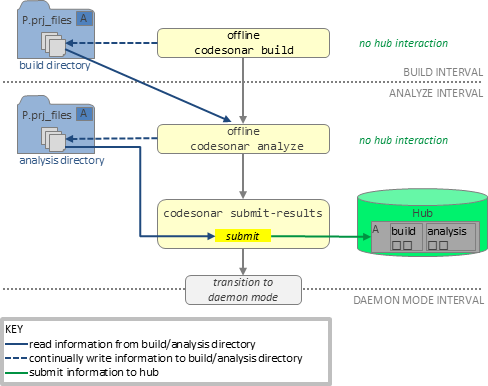
Offline build and analysis do not interact with a hub. The
information that would be continually submitted if the analysis
were online is instead stored in the analysis
directory (or build
directory, during the build interval). The stored offline
information is submitted to the hub with codesonar submit-results.
You will still require a hub to access your analysis
results.
By default, the CodeSonar build/analysis is
performed online: information is continually submitted to the
hub as the CodeSonar project is constructed and analyzed.
It is also possible to perform the operations in the build
interval and analyze interval offline. Offline build and
analysis do not interact with a hub. The information that would be
continually submitted to the hub in an online build/analysis is
instead stored in the build
directory/analysis
directory so that it can be submitted later with codesonar
submit-results. You will still require a hub to access
your analysis results.
You can instruct CodeSonar to work offline for the build
interval, analyze
interval, or both.
The situations in which offline build and analysis can be useful
include the following.
- Network outages prevent the build/analysis from connecting to
the hub.
- Some of the tools required by the underlying software build are
only available on a machine that can't access the hub, or a
machine whose load must be reduced as much as possible.
- You want to the submit same analysis to multiple hubs, or to
multiple projects on a single hub.
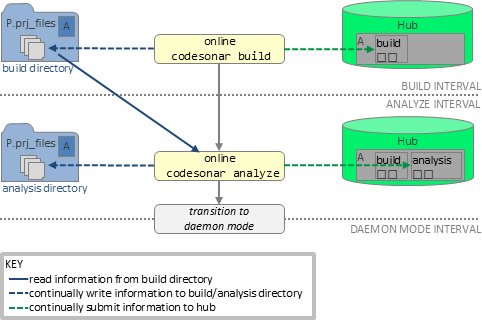
Online (standard) CodeSonar build/analysis
This is the default behavior for CodeSonar build and
analysis. This manual refers to online build and
analysis only when it is necessary to distinguish it from the
offline variant.
|
|
Offline CodeSonar build/analysis
|
|
Offline status interacts with other analysis types as follows.
There are two ways to specify offline build/analysis.
Offline analysis is not compatible with command line options or
configuration file settings that involve hub interaction. Conflicting
settings are resolved as follows.
- The -offline command line option takes
precedence over OFFLINE=No.
When both are specified, the command will proceed in offline
mode
- Offline analyses are always local-managed.
- It does not make sense to specify both -offline and -remote in the same command line.
If both are specified, CodeSonar will exit with an error.
- The -offline command line option takes
precedence over the REMOTE_ANALYSIS_LAUNCHD
configuration parameter.
When both are specified, CodeSonar will output a warning
message and the command will proceed in offline mode.
- It does not make sense to specify both OFFLINE=Yes and REMOTE_ANALYSIS_LAUNCHD in the
configuration files for a given build/analysis.
If both are specified, CodeSonar will exit with an error
unless the codesonar
build or codesonar
analyze command specifies -offline or -remote (but not both), in which case the
command line option takes precedence.
- Offline distributed analyses are always
local-requesting.
When a CodeSonar build or analysis command is executed offline,
all collected information is stored in the build directory or
analysis directory (whichever is applicable). This includes:
- Information that would have been submitted to the hub if the
command had been performed online: we refer to this as offline
information.
- Information that is always stored in the analysis directory,
regardless of whether analysis was online or offline. This
information includes source file listings and procedure-granularity
metrics.
Offline information must be submitted to the CodeSonar hub
with the codesonar
submit-results command in order to be used. Specifically,
codesonar submit-results
must be invoked:
-
After offline analysis.
- Until codesonar
submit-results is invoked, analysis results are not
available on the hub and the analysis cannot transition to
daemon
mode.
- The build directory and analysis directory cannot be used
for a new analysis while they contain accumulated offline
information from a previous analysis.
-
Between an offline build/analysis command and any subsequent
online build/analysis command using the same build
directory/analysis directory.
- If you attempt to perform online build/analysis with a
directory that contains unsubmitted offline information, the
command will fail.
For full details, see codesonar
submit-results: Submit Offline Build/Analysis
Information.
The examples below illustrate some typical operation sequences for
offline/build analysis with codesonar submit-results.
When the build interval is performed offline, you can copy or move
the build directory before performing the analysis.
This can be particularly useful when the CodeSonar-facing
build requires tools that are not available on machines with
access to the hub. For example:
- For C and C++ components, the CodeSonar-facing build requires
the normal software build tools for those components (including any
compilers).
- When the CodeSonar-facing build involves a tier 3 subcommand
(Go, Kotlin, Python, Rust, JavaScript, TypeScript components), the corresponding third party
analyzer must be available.
For example, the CodeSonar-facing build for Go components invokes
codesonar go_scan.py, which requires the
Staticcheck analyzer.
Similarly, when the analyze interval is performed offline you can
copy or move the analysis directory before submitting results to the
hub with codesonar submit-results.
Examples 4, 5, 6, and 7, below, illustrate some
typical operation sequences for moving and copying the build
directory and analysis directory.
Important: There are several
important requirements when copying or moving a build directory or
analysis directory containing offline information.
- Do not change the directory basename.
- Do not invoke codesonar
submit-results before copying. If you do:
- All accumulated offline information will be submitted to
the hub and then deleted from the directory, so there will be
no offline information to copy.
- The directory will be explicitly associated with a specific
CodeSonar project on a specific hub, and any copies you make
will also be associated with that project.
The following operation sequences illustrate typical use cases for
offline build/analysis. For more examples, see codesonar submit-results:
Examples.
- Example 1: Perform build interval and
analyze interval offline, then submit results to the hub.
- Example 2: Perform build interval offline,
then submit results to the hub, then perform analyze interval
online.
- Example 3: Perform build interval online,
then perform analyze interval offline, then submit results.
- Example 4: Perform build interval offline,
copy build directory to a new location, perform analyze interval
offline, then submit results.
- Example 5: Perform build interval offline on
machineX, copy build directory to
machineY, perform analyze interval
offline on machineY, then submit
results.
- Example 6: Perform the build interval
offline on machineX, make multiple
copies of the build directory, then analyze and submit results for
each copy separately.
- Example 7: Perform the build directory
offline on machineX, move to
machineY for the analyze interval,
then move to machineZ to submit
the results.
For all of these examples, the CodeSonar-facing
build is involved by make and
the hub location is hubmachine:7340
unless otherwise noted.
Specify the -offline option with both codesonar build and codesonar analyze, then invoke
codesonar submit-results.
codesonar build myproj -offline make
codesonar analyze myproj -offline
codesonar submit-results myproj hubmachine:7340
The execution of codesonar
submit-results causes the information accumulated by the
offline codesonar build and
offline codesonar analyze to
be submitted from the hub.
The hub has no record of the analysis until codesonar submit-results is
executed.
We could also use the following sequence, with the same
outcome.
codesonar analyze myproj -offline make
codesonar submit-results myproj hubmachine:7340
Specify the -offline option with codesonar build, then invoke
codesonar submit-results, then
perform codesonar analyze
online.
This approach is useful if a network outage occurs when you are
building the CodeSonar project, but the outage is resolved by the
time you are ready to analyze.
codesonar build myproj -offline make
codesonar submit-results myproj hubmachine:7340
codesonar analyze myproj hubmachine:7340
Perform codesonar build
online, then invoke codesonar
submit-results, then specify the -offline option with codesonar analyze.
This approach is useful if you experience a network outage partway
through the build and analysis process.
codesonar build myproj hubmachine:7340 make
codesonar analyze myproj -offline
codesonar submit-results myproj hubmachine:7340
For example, you might want to associate the accumulated build
information with multiple CodeSonar projects on the same machine.
Important: Do not change the basename
of the directory. (In this example it is myproj.prj_files throughout.)
codesonar build myproj -offline make
cp -r myproj.prj_files /new/location/
cd /new/location
codesonar analyze myproj -offline
codesonar submit-results myproj hubmachine:7340
For example, suppose machineX has
a specialized C/C++ compiler that is used in the native software
build, but is not installed on other machines. Moving to a different
machine for the analyze interval allows us to reduce the overall load
on machineX while still using it in
the build interval.
- Perform offline build on machineX.
For this example, the system user is alex and they are storing their CodeSonar
build directory under /alexfiles/Projects/.
cd /alexfiles/Projects
codesonar build myproj -offline make
- Switch to machineY for the
remaining steps.
- Copy the build directory from machineX to a suitable location on
machineY
You can use whatever system tool you usually use for copying
between different machines. This example uses scp.
Important: Do not change the
basename of the directory. (In this example it is myproj.prj_files
throughout.)
scp -r alex@machineX:/alexfiles/Projects/myproj.prj_files
/new/location/
- Perform offline analysis and submit the results.
cd /new/location
codesonar analyze myproj -offline
codesonar submit-results myproj hubmachine:7340
If multiple projects share a compilation unit, you may decide that
it is most convenient to perform a single offline codesonar build to observe the
corresponding compilation, then make multiple copies of the resulting
build directory so that there is one for each CodeSonar project you
want to build and analyze.
Important:
- Do not change the basename of the build/analysis directory. (In
this example it is myproj.prj_files throughout.)
- Do not invoke codesonar
submit-results before copying the build directory.
For this example, the system user is alex.
- Perform the offline build on machineX.
codesonar build myproj -offline make
- Copy the build directory as many times as you like.
For example, we could remain in the same machineX working directory that we used in
step 1, and make three copies.
scp -r myproj.prj_files
alex@machineY:/alexfiles/ProjectA/
scp -r myproj.prj_files
alex@machineY:/alexfiles/ProjectB/
scp -r myproj.prj_files alex@machineZ:/alexfiles/ProjectC/
- For each copy, proceed as required for that project.
For example:
- For the ProjectA copy, do no further compilations. Analyze
offline, then submit the results to project /ProjectA on the hub at hubmachine:7340.
- Switch to machineY.
- Change to the ProjectA directory (which contains a copy
of myproj.prj_files), and
invoke offline codesonar
analyze.
cd /alexfiles/ProjectA/
codesonar analyze myproj -offline
- Invoke codesonar
submit-results. to submit the results to the hub at
hubmachine:7340,
specifying -project
/ProjectA.
codesonar submit-results myproj hubmachine:7340
-project /ProjectA
- For the ProjectB copy, perform some more offline
codesonar build
commands to observe additional compilations, then submit the
accumulated offline build information to project /ProjectB on the hub at hubmachine:7340, then perform online
codesonar analyze.
- Switch to machineY.
- Change to the ProjectB directory (which contains a copy
of myproj.prj_files).
cd /alexfiles/ProjectB/
- Observe the additional compilations relevant to
ProjectB.
codesonar build myproj -offline gcc -c file1.c
codesonar build myproj -offline gcc -c file2.c
- Invoke codesonar
submit-results to submit the accumulated offline
build information to the hub at
hubmachine:7340, specifying -project /ProjectB.
codesonar submit-results myproj hubmachine:7340
-project /ProjectB
- Perform online codesonar analyze, specifying
the same hub and project.
codesonar analyze myproj hubmachine:7340 -project
/ProjectB
- For the ProjectC copy, perform some more offline
codesonar build
commands, then analyze offline, then submit results to project
/ProjectC on a different hub:
otherhub:7341.
- Switch to machineZ.
- Change to the ProjectC directory (which contains a copy
of myproj.prj_files).
cd /alexfiles/ProjectC/
- Use offline codesonar
build to observe further CodeSonar-facing build
commands specific to ProjectC.
In this example, the commands are invoked by make -f Makefile.ProjC.
codesonar build myproj -offline make -f Makefile.ProjC
- Perform offline codesonar analyze.
codesonar analyze myproj -offline
- Invoke codesonar
submit-results to submit the accumulated offline
build information to the hub at
otherhub:7341, specifying -project /ProjectC.
codesonar submit-results myproj otherhub:7341 -project
/ProjectC
- Perform offline build on machineX.
For this example, the system user is alex and they are storing their CodeSonar
build directory under /alexfiles/Projects/.
cd /alexfiles/Projects
codesonar build myproj -offline make
- Switch to machineY.
- Copy the build directory from machineX to a suitable location on
machineY
You can use whatever system tool you usually use for copying
between different machines. This example uses scp.
Important: Do not change the
basename of the directory. (In this example it is myproj.prj_files
throughout.)
scp -r alex@machineX:/alexfiles/Projects/myproj.prj_files
/machY/location/
- Perform offline analysis.
cd /machY/location
codesonar analyze myproj -offline
- Switch to machineZ.
- Copy the analysis directory from machineY to a suitable location on
machineZ.
Important: Do not change the
basename of the directory.
scp -r alex@machineY:/machX/location/myproj.prj_files
/machZ/final_location/
- Submit the results.
cd /machZ/final_location
codesonar submit-results myproj hubmachine:7340