JavaScript is not currently enabled, but is required for full CodeSonar manual search and browse functionality.

If you are viewing this file in your hub's Web GUI, enable JavaScript in your browser: you will also need it for GUI functionality.

If you opened this file directly from disk, your browser may be directly suppressing JavaScript functionality: certain browsers perform this suppression on local files (but not files delivered by web servers) for security reasons.

CodeSonar® 9.2p0 CONFIDENTIAL CodeSecure Inc

Task: Chart the Line Counts for Analyzed Files

This kind of chart provides an overview of file sizes (by number of lines) in a project.

See Charts and Chart Tables: Permissions for details of the permissions that apply to charts and charting operations.


This task will produce a chart similar to the following:

screenshot fragment: graph of lines per file

Method

  1. If the CodeSonar Web GUI is not already open, open it now.
  2. View the Project page for the project you are interested in.
  3. Click the Charts and Tables link under the page heading.

    screenshot fragment: project page with Charts And Tables section marked

    The page will expand to show the available chart and table shortcuts.
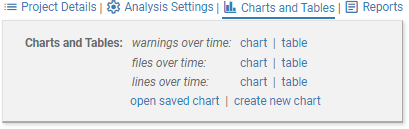
    screenshot fragment: expanded Charts and Tables section

  4. Click the create new chart link to open the chart wizard.
  5. Select column from the chart type tab.

    Screenshot: CHART TYPE tab with COLUMN selected

  6. Click next > to go on to the data tab.
  7. Select Files from the X-Axis menu; select Total Lines from the Y-Axis menu.

    Screenshot: DATA TYPE tab with TOTAL LINES selected

  8. Click Create Chart.
  9. Your chart will be displayed in a Chart page. It will look (something) like the first example above.
  10. There are a number of things you can do with this chart, including:

Links


To report problems with this documentation, please visit https://support.codesecure.com/.