JavaScript is not currently enabled, but is required for full
CodeSonar manual search and browse functionality.
If you are viewing this file in your hub's Web GUI, enable
JavaScript in your browser: you will also need it for GUI
functionality.
If you opened this file directly from disk, your browser may be
directly suppressing JavaScript functionality: certain browsers
perform this suppression on local files (but not files delivered by
web servers) for security reasons.
-
If you access the manual through the hub's Web GUI, the
functionality will not be suppressed because the hub is a web
server.
-
Alternatively, your browser may allow you to explicitly
disable the security setting that suppresses functionality. See
the CodeSonar
FAQ for more information.
Source Files
On occasion, you may want to see a source file in its entirety.
- You may want to see a warning in a wider context than is
provided by the warning report.
- You may be interested in seeing all of the file's
warnings at once.
The CodeSonar analysis caches copies of project source files for
the most recent analysis of each project. The GUI
Source Listing pages
display source files with syntax coloring, hyperlinks, and
highlighted endpoints.
Viewing a Source File
There are several ways to navigate to project source files. Since
you are currently viewing a warning report, it will be most
convenient to navigate from there.
- Do one of the following.
- Click the source file name, your\save\directory\BasicProj.c,
at the top of the source excerpt. This will take you to the top
of the Source Listing page. (On Windows systems, the file name
will be downcased to basicproj.c.)
- Click any line number in the source excerpt. This will take
you to the corresponding line of the Source Listing page.
- If necessary, scroll up to the top of the page you have
navigated to.
Source File Page
You should see a page that looks (something) like this:

Summary Information
- Click File Details at the top
of the Source Listing to view additional information about the
file.
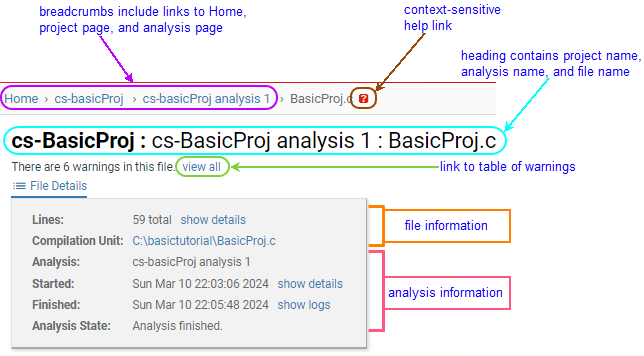
- The page breadcrumbs provide links to the main pages
for the current analysis and the project.
- A context-sensitive help link opens the Source Listing reference
page in this manual.
- The page heading contains the names of the file, the
analysis in which it was analyzed, and the project to which it
belongs.
- Below the heading is a line specifying how many warnings
are present in the file, with a link to a Warning Search
Results page listing those warnings.
- Some basic information about the analysis is displayed: its
name, start and finish times, and current state.
- Basic information about the file is also displayed:
the compilation unit it belongs to, and the number of lines in the file.
The Lines field can be expanded
by clicking on its show details
link.
- Click show details next to the
Lines count to view more detailed
line count figures.

- The line directly under the page heading includes a link to a
Warning Search Results page listing all warnings issued in the
file.
Click view all to view the list of
warnings.
- Use your browser's Back
button to return to the BasicProj.c file listing.
Source Code Navigation
There is extensive navigation functionality within the file
listing. For a full description of the kinds of hyperlinks available
in CodeSonar output, see section Source Coloring and
Interaction.
The names of included files are interactive.
- Find the #include directive at
the top of the BasicProj.c file
listing.
- Position the mouse over <stdlib.h>.
This will open an information
window displaying information about stdlib.h.
- Click <stdlib.h> and select the
 icon
next to Go to this file in the
menu that opens.
icon
next to Go to this file in the
menu that opens.
This will open the Source Listing for stdlib.h in a new tab.
Usually we are more interested in source files created for a
project than headers for standard libraries, so we won't look
further at this listing.
- Close the new tab and return to the tab containing the
BasicProj.c file listing.
Names of macros have special MACRONAME coloring. Macro names
are interactive.
- Position the mouse over NULL on line 16 to view its
cross-referencing information and definition in the information
window.
- Click NULL and
select Expand macro definition
from the menu that opens.
A box will expand inside the listing, showing the definition
of macro NULL and
giving the name of the file in which it can be found.

(The definition of NULL may be different on your machine, as
may the name of the library file that defines it.)
- You can do any of the following with the newly expanded box, if
you wish.
- Click the file name to navigate to the file listing for
stdlib.h.
- Click the X link in the top-right corner to collapse
the box.
- Click the
 and
and  links to show more lines from stdlib.h in the box.
- Leave the box where it is and continue your examination of
the source file.
Every warning location in the file is indicated with a warning
annotation specifying how many warnings were issued at that
location, and listing the classes and ID numbers of those warnings
with links to the corresponding warning reports.

- Click on a link in a warning annotation to navigate to the
associated warning report.
This is the end of the Basic Tutorial. If you like, you can
go to the tutorial index and
choose another tutorial exercise.