JavaScript is not currently enabled, but is required for full CodeSonar manual search and browse functionality.

If you are viewing this file in your hub's Web GUI, enable JavaScript in your browser: you will also need it for GUI functionality.

If you opened this file directly from disk, your browser may be directly suppressing JavaScript functionality: certain browsers perform this suppression on local files (but not files delivered by web servers) for security reasons.

CodeSonar® 9.2p0 CONFIDENTIAL CodeSecure Inc

Task: Sort a Warning Table

From time to time you will probably encounter large warning tables.

Sorting these tables by the values in different columns allows you to group related warnings and bring the warnings you are most interested in to the top of the table.


Method

  1. View the warning table you are interested in: either
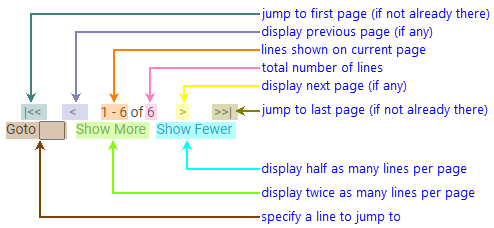
  2. If the table doesn't fit on a single page, use the table pagination controls to navigate through the table. The controls are located at the top and bottom of the table:

    Screenshot fragment: location of pagination controls at top and bottom right of table

  3. The following annotated screenshot shows the different parts of the pagination controls.

    annotated Screenshot fragment: pagination controls

  4. Choose a column to sort on. For example, you can sort by warning class in ascending order. This will group all the Buffer Overrun warnings at the top of the table, followed by all the Buffer Underrun warnings, and so on down to the Varargs Function Cast warnings at the bottom of the table.
    1. Click on the heading of your chosen column to open a table menu.

      screenshot fragment: table menu

    2. Select Sort Ascending from the menu to sort the column in ascending order (or select Sort Descending to sort in descending order).
  5. Once the table is sorted, you can impose further orderings on it. For example, if you now sorted the table by File in ascending order, the warnings for each file would be grouped together in the table, ordered alphabetically by file name. Furthermore, the warnings within each file would be ordered alphabetically by warning class, because of the earlier sorting.
  6. If the table is showing columns you aren't interested in, hide them:
    1. Click on the heading of the column you don't want to see.
    2. Select Hide from the table menu.

Links

Related tasks

Using CodeSonar


To report problems with this documentation, please visit https://support.codesecure.com/.