JavaScript is not currently enabled, but is required for full
CodeSonar manual search and browse functionality.
If you are viewing this file in your hub's Web GUI, enable
JavaScript in your browser: you will also need it for GUI
functionality.
If you opened this file directly from disk, your browser may be
directly suppressing JavaScript functionality: certain browsers
perform this suppression on local files (but not files delivered by
web servers) for security reasons.
-
If you access the manual through the hub's Web GUI, the
functionality will not be suppressed because the hub is a web
server.
-
Alternatively, your browser may allow you to explicitly
disable the security setting that suppresses functionality. See
the CodeSonar
FAQ for more information.
Tutorial: Hub Orientation
Work through this page to familiarize yourself with the role of a
CodeSonar hub and determine whether there is a hub ready for you to
use or you will need to start one yourself.
Hub Overview
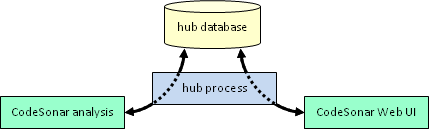
The CodeSonar hub is a web server that manages CodeSonar analysis
results.
- Every CodeSonar analysis must submit its results to a hub.
- Analysis results and supporting information can be viewed with
ordinary web browsers through a hub Web GUI.
An organization will often run a single hub, so that all analysis
results for all projects can be managed in one location.
CodeSonar license keys typically restrict the number of hubs you
can run and the machines on which you can run them, so you will
generally not be able to keep starting new hubs if existing hubs are
already present. Doing so would also mean that some of your analyses
are on different hubs to others, which reduces your ability to
observe trends over time and may make it harder to find a particular
set of analysis results.
The remainder of this page is structured as a checklist that
allows you to determine whether or not a suitable hub is already
running and link to a suitable next step.
For more information about hubs, see the manual section on
The CodeSonar Hub.
- Have you been notified that there is a hub available for you to
use?
- YES: Use this hub for the tutorial.
- NO: Go on to the next question.
- Did you start a hub when you installed CodeSonar?
In particular, did you run the configuration tool and select
"Install, create hub"? If you're not sure, you may
wish to check the corresponding
installation instructions to see if they are familiar.
- YES: Do you recall where you started it (location
host:port)?
- NO: Go on to the next question.
- Have you used CodeSonar before?
- YES: Work through the steps on this page to try to locate
the hub. Start with A. Check
Configuration Tool "Known Hubs".
- NO: The most straightforward way to obtain the hub's
location is to ask the owner. You probably will not need to
work through the steps on this page.
First, check to see if the hub is being tracked by the CodeSonar configuration
tool.
- Run the following command to start the configuration tool.
codesonar config
If the configuration tool has any "known hubs", they
will be listed in a table above the main menu.
- Does the hub you are looking for appear in the table? Note that
certain addresses are interfaces on your machine (including IPv6
addresses [::] and [::1] and IPv4 addresses 0.0.0.0 and 127.0.0.1).
- YES: You have located the hub.
- Make a note of the hub ADDRESS: this is the location
information you will provide when you build the CodeSonar
project later.
- Is the hub marked ONLINE?
- YES: The hub is ready to use.
Go on to Ready to Build/Analyze.
- NO: You will need to restart the hub before you use
it.
- Enter 4
("Start existing hub") at the
configuration tool prompt.
- Work through the steps presented by the
tool.
Once the hub has started, it will be marked
ONLINE in the
table.
Go on to Ready to Build/Analyze.
- NO: Go on to B. Identify the hub
machine.
Do you know which machine the hub is (or might be) running on?
- YES: Make sure you are working on that machine, then go on to
3. Run codesonar
hub-info.
- NO: Narrow your search to a single machine:
- Identify the set of candidate machines: those that might be
running the hub.
- For each machine in the candidate set, inspect the set of
running processes with the top
command . Hub processes are named cshub.
- Have you found a machine running a hub process?
On the hub machine, try the following codesonar
hub-info command lines.
If a hub is running, CodeSonar will print a table of hub
information in response to a codesonar
hub-info command. You can read the hub location from this
table. (In some cases you will also have cited the location in the
command itself.) If a hub is not running (or has other problems)
CodeSonar will print a message saying that it could not connect to
the hub.
Once you have obtained the hub location, you can go on to
Ready to Build/Analyze.
- Do you know the hub directory?
- Check whether a hub is running at the default
location determined by CodeSonar.
codesonar hub-info -force
If a hub is running, CodeSonar will print a table of hub
information. Make a note of the hub interface and port.
- If you have any other candidate host:port
locations that you want to check, run codesonar
hub-info commands citing those locations.
codesonar hub-info -force host:port
Have you located your hub?
- YES: You are ready to build and analyze a project on the hub.
- NO: The hub is probably not running.