JavaScript is not currently enabled, but is required for full
CodeSonar manual search and browse functionality.
If you are viewing this file in your hub's Web GUI, enable
JavaScript in your browser: you will also need it for GUI
functionality.
If you opened this file directly from disk, your browser may be
directly suppressing JavaScript functionality: certain browsers
perform this suppression on local files (but not files delivered by
web servers) for security reasons.
-
If you access the manual through the hub's Web GUI, the
functionality will not be suppressed because the hub is a web
server.
-
Alternatively, your browser may allow you to explicitly
disable the security setting that suppresses functionality. See
the CodeSonar
FAQ for more information.
Anonymous Usage Statistics
CodeSonar collects a range of anonymized statistics
about usage and performance.
This section explains how to enable and disable uploading these
statistics to CodeSecure and describes the measures taken to
protect your privacy.
CodeSonar collects a range of anonymized statistics about
usage and performance.
You can opt in or out of uploading
the collected statistics to CodeSecure. If you opt in, the uploaded statistics are aggregated with all usage
statistics collected from other sources.
In this section (and throughout
this manual), $CSONAR indicates the
CodeSonar
installation directory.
- If you have defined environment variable CSONAR to the
location of the CodeSonar installation
directory, you can use $CSONAR directly in
your command lines. On Windows systems, use
%CSONAR% in
place of $CSONAR.
- If you don't want to use environment variables,
replace $CSONAR with the
path to your CodeSonar
installation directory before using the command
lines.
When you first install CodeSonar you will be asked to
specify whether or not anonymous usage statistics should be uploaded
to CodeSecure. At any point thereafter you can change your selection,
as many times as you wish.
The collection of usage statistics is always active. If you
have opted out of uploading the statistics to CodeSecure, they will
be temporarily stored on your local system. This allows you to
inspect them as needed; it also provides the option of sending
manually-selected data to CodeSecure if it is ever required to
resolve a question you have about CodeSonar usage or
operation.
| Windows Systems |
The third screen of the Windows installer will ask whether or
not you want to submit anonymous usage statistics to
CodeSecure. |
| All other systems |
Run the following command immediately after installing, as the
same user who performed the installation.
codesonar activate
You will be prompted with two yes/no questions.
- First, you will be asked to accept the End User License
Agreement (EULA).
- If you accept the EULA, you will be asked "Send
anonymous usage statistics to CodeSecure?".
|
If you change your mind about whether or not you want to submit
usage statistics, you can opt in or out at any time.
There are several mechanisms available for opting in and out.
CodeSonar checks each of these in turn in order to determine
whether or not to submit statistics to CodeSecure. Once
CodeSonar has made a concrete determination
("enabled" or "disabled"), it stops checking.
Checking Order
(i.e. Priority) |
Check |
If "yes" upload is...
(otherwise go on to next check) |
| Windows |
Other Systems |
| 1
|
n/a
|
Does registry value HKEY_LOCAL_MACHINE\SOFTWARE\CodeSecure\TelemetryEnabled
exist and have type DWORD? |
disabled if TelemetryEnabled==0
enabled if TelemetryEnabled≠0 |
| n/a
|
1
|
Does system user gt_telemetry_disabled_user
exist? |
disabled |
| n/a
|
2 |
Does system user gt_telemetry_enabled_user
exist? |
enabled |
| n/a
|
3 |
Is the user executing the process a member of group
gt_telemetry_disabled? |
disabled |
| n/a
|
4 |
Is the user executing the process a member of group
gt_telemetry_enabled? |
enabled |
| n/a
|
5 |
Does file /etc/GT_TELEMETRY_DISABLED
exist? |
disabled |
| n/a
|
6 |
Does file /etc/GT_TELEMETRY_ENABLED
exist? |
enabled |
| 2 |
7 |
Does file $CSONAR/TELEMETRY_DISABLED
exist?
Note: CodeSonar creates this file automatically if you
disable result submission
at installation time. |
disabled |
| 3 |
8 |
Does file $CSONAR/TELEMETRY_ENABLED
exist?
Note: CodeSonar creates this file automatically if you
enable result submission
at installation time. |
enabled |
| 4 |
9 |
otherwise: disabled |
To protect your privacy, only the following information is
collected.
- Operating system (including version).
- Compiler basename.
- Numeric information about occurrences of CodeSonar
events from a fixed, predefined set.
Note that this means measures like "number of events" and
"duration of an event". It does not include any
private information from within an event, numerical or
otherwise.
In particular, the following are NOT collected.
- Company names.
- User names.
- IP addresses.
- Absolute paths.
- Any code whatsoever.
- Unique identifiers for coordinating multiple submissions from
the same site.
- Warning
notes.
- Names of custom warning classes (that is, any warning classes
not shipped with CodeSonar).
- Custom values for warning Priority,
Finding
and State.
- Misspelled or misplaced command line flags.
- Any information unrelated to CodeSonar operations.
If you would like to inspect the collected information before
enabling submission to CodeSecure, or are simply interested in seeing
what the collected data looks like, do the following.
- Disable upload of anonymous
statistics, if it is not not already disabled.
- Spend some time performing your regular CodeSonar tasks
so that some statistics are generated. For example:
- Start a hub.
- Perform an analysis.
- Visit some pages in the hub GUI.
- Run the following command.
| Windows |
%CSONAR%\gtr\bin\telemetry_force_submissions.exe
|
| Otherwise |
$CSONAR/gtr/bin/telemetry_force_submissions
|
- Inspect the output from telemetry_force_submissions.
- Observe that the output states that result submission is
currently disabled.
- Take note of the reported file name: this is where your
statistics are stored.
- Open the file whose name you obtained in the previous step to
examine the recorded statistics.
Sample Data File
File aggregated1.csv contains real CodeSonar
data collected at CodeSecure. If you inspect it you will notice the
following.
- Line 1 contains column headers.
Product,Version,Host Platform,OS,Metric,Time,Mean,Variance,Count,Min,Low Quartile,Median,High Quartile,Max,Sum
- Line 2 describes the settings of configuration parameter
MAX_PERCENT_F_CHARACTERS across 10
instances of codesonar: this is
the CodeSonar analysis process, running in either
analysis mode or daemon
mode. The MAX_PERCENT_F_CHARACTERS parameter was set
to 309 every time (Count=10, Min=309, Max=309).
Because this happens to be the first statistic reported for its
<Product,Version,Host
Platform,OS> tuple, all of those values are included as
well. Lines 3 through 804 start with 4 empty fields: this should
be read as indicating that Product, Version, Host
Platform, and OS are the
same as those for the previous line.
codesonar,codesonar-5.3p0,x86_64-pc-linux-gnu,Linux:4.15.0-76-generic:#86-Ubuntu SMP Fri Jan 17 17:24:28 UTC 2020:x86_64:glibc2.27,cso.analysis.preferences.MAX_PERCENT_F_CHARACTERS.as_integer,85953,309,0,10,309,309,309,309,309,3090
- Line 3 specifies that the Unused
Parameter warning class was enabled for zero (0) of six
analyses (or equivalently, that it was disabled for all of them).
,,,,cso.analysis.warningclasses.Unused Parameter.enabled,,0,0,6,0,0,0,0,0,0
- Line 6 specifies that zero (0) Free Non-Heap Variable
warnings were reported across six analyses.
,,,,cso.analysis.warningclasses.Free Non-Heap Variable.count,,0,0,6,0,0,0,0,0,0
- Line 7 contains timing statistics for the "Transforming
PDG_VERTEX_SETs" analysis phase (a subphase of Linking)
across ten analyses. The mean time spent in this phase was 0.8
milliseconds.
,,,,cso.analysis.phases.Transforming PDG_VERTEX_SETs.elapsed.milliseconds,,0.8,2.56,10,0,0,0.133333333,0.666666667,4,8
- Line 22 specifies that zero (0) lines of Java were analyzed
across ten analyses.
,,,,cso.analysis.langs.java.lines_with_code,,0,0,10,0,0,0,0,0,0
- Line 241 specifies that there were zero (0) C++ parse errors
across ten analyses.
,,,,cso.analysis.langs.C++.parse_errors,,0,0,10,0,0,0,0,0,0
- Line 805 reports that zero (0) parse errors were encountered
across six invocations of the C/C++ front end (Product=cprocess)
for C compilation units compiled using gcc 7.4.0.
Lines 106-812 report other parse error and success statistics for
the various compiler/language combinations encountered during the
statistics collection period.
cprocess,codesonar-5.3p0,x86_64-pc-linux-gnu,Linux:4.15.0-76-generic:#86-Ubuntu SMP Fri Jan 17 17:24:28 UTC 2020:x86_64:glibc2.27,cso.front_ends.cprocess.TU.C.gcc.gcc.gcc.(7.4.0).parse_errors,,0,0,6,0,0,0,0,0,0
- Line 814 begins a section of statistics about the hub process
(Product=cshub). The first statistic is that requests for pages
with URL scheme ^/spawncs/(?P<analysis_id>[^/]+)/entry/$
had HTTP response 200 ("OK") 1584 times. Requests with
this URL scheme are part of the submission process for analysis
logs.
Note that no information about hub location is included.
cshub,codesonar-5.3p0,x86_64-pc-linux-gnu,Linux:4.15.0-76-generic:#86-Ubuntu SMP Fri Jan 17 17:24:28 UTC 2020:x86_64:glibc2.27,cso.hub.responses.^/spawncs/(?P<analysis_id>[^/]+)/entry/$.code.200 OK.count,,1,0,1584,1,1,1,1,1,1584
- Line 815 reports that the size of standard hub database table
cs_failedlogin was checked four
(4) times and was 81920 bytes each time.
,,,,cso.hub.db.tables.cs_failedlogin.bytes,,81920,0,4,81920,81920,81920,81920,81920,327680
- Line 816 reports that the C/C++ Normalized
AST Classes: Hierarchical Index manual page was requested one
(1) time with a response size of 211 bytes. Other statistics
associated with serving this manual page are at lines 875, 1109,
and 1123.
,,,,cso.hub.responses./install/codesonar/doc/html/C_Module/API/AST/csaf_c_normalized_tree.html.size,,211,0,1,211,211,211,211,211,211
- Line 837 reports that there were 14 requests for an Undefined Functions
Report GUI page, with a request size of 36 bytes each time (for
a total of 36×14=504 bytes expended across all requests). Other
statistics associated with serving this type of GUI page are at
lines 881, 1290, and 1318. Note that these statistics are not
broken down by analysis or by format.
,,,,cso.hub.requests.^/undef_funcs/(?P<analysis_id>[0-9]+)[.](?P<format>html|txt|csv|xml)$.size,,36,0,14,36,36,36,36,36,504
| Windows |
The third screen of the Windows installer will ask "Send
anonymous usage statistic to CodeSecure?".
- Select Don't submit statistics.
- Click Next.
|
| Other systems |
Run the following command immediately after installing, as the
same user who performed the installation.
codesonar activate
- You will be asked if you wish to accept the End User
License Agreement (EULA). Enter y if you wish to accept the EULA and
proceed.
- You will be asked "Send anonymous usage statistics
to CodeSecure?". Enter n.
|
Note that in both these cases, the result is that
CodeSonar creates file $CSONAR/TELEMETRY_DISABLED.
Once this has been done, CodeSonar will do the following every time it
needs to determine whether to submit statistics.
| Windows Systems |
Other Systems |
- Check: does registry value HKEY_LOCAL_MACHINE\SOFTWARE\CodeSecure\TelemetryEnabled
exist and have type DWORD?
→NO, so CodeSonar goes on to the next check.
- Check: does file $CSONAR/TELEMETRY_DISABLED
exist?
→ YES, so CodeSonar concludes that submission is
disabled and does not submit the recorded statistics.
|
- Check: does system user gt_telemetry_disabled_user
exist?
→NO, so CodeSonar goes on to the next check.
- Check: does system user gt_telemetry_enabled_user
exist?
→NO, so CodeSonar goes on to the next check.
- Check: is the current user is a member of group
gt_telemetry_disabled?.
→ NO, so CodeSonar goes on to the next check.
- Check: is the current user is a member of group
gt_telemetry_enabled?
→ NO, so CodeSonar goes on to the next check.
- Check: does file /etc/GT_TELEMETRY_DISABLED
exist?
→ NO, so CodeSonar goes on to the next check.
- Check: does file /etc/GT_TELEMETRY_ENABLED
exist?
→ NO, so CodeSonar goes on to the next check.
- Check: does file $CSONAR/TELEMETRY_DISABLED
exist?
→ YES, so CodeSonar concludes that submission is
disabled and does not submit the recorded statistics.
|
The process is the same for both Windows and non-Windows
systems.
- Sign in as the user who performed the installation.
- Remove file $CSONAR/TELEMETRY_ENABLED,
if it exists.
- Create new, empty file $CSONAR/TELEMETRY_DISABLED.
Once this has been done, CodeSonar will perform the same checking procedure as in Example 1 (and
with the same results) every time it needs to determine whether to
submit statistics.
To disable result submission for all users on a non-Windows system
with one or more CodeSonar installations, a system
administrator should create system user gt_telemetry_disabled_user.
To deploy the setting organization-wide, the user gt_telemetry_disabled_user should be
created on every machine within the organization. For example, if the
organization uses LDAP or NIS to manage users, then the user should
be created on the LDAP or NIS server.
Once this has been done, CodeSonar will do the following
every time it needs to determine whether to submit statistics:
- Check : does system user gt_telemetry_disabled_user
exist?
(As noted in the table above, this is the first
feature that CodeSonar checks for on non-Windows
systems.)
→YES, so CodeSonar concludes that submission is
disabled.
Suppose you have the following sets of users.
| set A |
Users for whom statistics should never be
submitted. |
| set B |
Users for whom statistics should always be
submitted. |
| set C |
Users for whom you wish to decide whether or not to submit
statistics on a day-by-day basis. |
Then do the following.
- Ensure that system users gt_telemetry_disabled_user and
gt_telemetry_enabled_user
do not exist.
If either or both exist, the remaining steps will have no
effect.
- Create group gt_telemetry_disabled. Add the users
in set A to this group. Do not add any other users to the
group.
- Create group gt_telemetry_enabled. Add the users in
set B to this group. Do not add any other users to the group.
- Manage submission for set C as follows.
- If you currently want to submit statistics, make sure that
file /etc/GT_TELEMETRY_ENABLED exists
and file /etc/GT_TELEMETRY_DISABLED does
not exist.
- If you don't currently want to submit statistics, make
sure that file /etc/GT_TELEMETRY_DISABLED exists
and file /etc/GT_TELEMETRY_ENABLED does not
exist.
Once this has been done, CodeSonar will do the following
every time it needs to determine whether to submit statistics:
- Check: does system user gt_telemetry_disabled_user
exist?
→NO, so CodeSonar goes on to the next check.
- Check: does system user gt_telemetry_enabled_user
exist?
→NO, so CodeSonar goes on to the next check.
- Check: is the current user is a member of group gt_telemetry_disabled?.
→ YES for users in set A, NO for users in sets B and C.
→ For users in set A, CodeSonar concludes that submission
is disabled. For users in sets B and C, it goes on to the next
check.
- Check: is the current user is a member of group gt_telemetry_enabled?
→ YES for users in set B, NO for users in set C.
→ For users in set B, CodeSonar concludes that submission
is enabled. For users in set C, it goes on to the next check.
- Check: does file /etc/GT_TELEMETRY_DISABLED
exist?
→ If YES, CodeSonar concludes that submission is disabled
and statistics are not submitted for users in set C. If NO, it goes
on to the next check.
- Check: does file /etc/GT_TELEMETRY_ENABLED
exist?
→ If CodeSonar has reached this point the answer must be
YES, so CodeSonar concludes that submission is enabled and
statistics are submitted for users in set C.
Whenever you add a new user, decide whether they are in set A, set
B, or set C.
- If they are in set A, add them to group gt_telemetry_disabled (and do not add
them to gt_telemetry_enabled).
- If they are in set B, add them to group gt_telemetry_enabled (and do not add
them to gt_telemetry_disabled).
- If they are in set C, do not add them to either group.
A Microsoft Windows System Administrator can use Windows Group
Policy to enable or disable submission of anonymous statistics for a
large user base. The following instructions describe the process for
disabling submission on Windows Server 2016.
- The process for enabling submission is almost exactly the same,
except that the Registry value for "Value data" will be 1
(not 0).
- Earlier versions of Windows Server, starting with 2012, should
follow the same workflow.
Note that this approach will override any local configurations of
existing CodeSonar installations.
- Hold down the Windows key and press R.
A Run dialog will open.
- Enter the following command in the Open field of the
Run dialog, and click OK.
gpmc.msc
The Group Policy Management Console will open.
- In the panel at the left of the console, create a new Group
Policy Object (GPO) as follows.
- Expand Forest > Domains.
- Under Domains, select the Organizational Unit (OU)
you want to use and expand it.
- Under your expanded OU, right-click Group Policy
Objects and select New from the menu that pops
up.
The New GPO dialog will open.
- In the Name field, enter a meaningful name for your
new GPO, such as "Disable CodeSonar Telemetry".
- Click OK.
Your new GPO will now be listed under Group Policy
Objects.
- Right click the GPO you just created and select Edit
from the menu that pops up.
The Group Policy Management Editor will open.
- Open the Registry Properties dialog as follows.
- In the left panel, expand Computer Configuration
> Preferences.
- Under Preferences, click Windows Settings to
select it.
- In the main panel, click Registry to select it.
- Click the + icon in the menu bar.
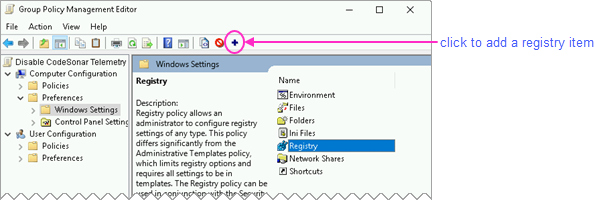
The Registry Properties dialog will open.
- Enter the following information in the dialog.
| Action
|
Update (this will create
the item if it doesn't exist) |
| Hive
|
HKEY_LOCAL_MACHINE
|
| Key Path
|
SOFTWARE\CodeSecure
|
| Value name
|
TelemetryEnabled
|
| Value type
|
REG_DWORD
|
| Value data
|
00000000
|
| Base
|
either Hexadecimal or
Decimal (00000000 has the same meaning in
both) |

- Click OK.
- Go back to the Group Policy Management Console.
- Right-click your preferred OU and select Link an Existing
GPO from the menu that pops up.
The Select GPO dialog will open.
- Click your new GPO to select it, then click OK.
The Registry update will be propagated to the OU you selected in
the previous step.
Once this has been done, CodeSonar will do the following
every time it needs to determine whether to submit statistics:
- Check: does registry value HKEY_LOCAL_MACHINE\SOFTWARE\CodeSecure\TelemetryEnabled
exist and have type DWORD?
→YES, so CodeSonar inspects the value of HKEY_LOCAL_MACHINE\SOFTWARE\CodeSecure\TelemetryEnabled.
→It's 0, so CodeSonar concludes that submission is
disabled and does not submit the recorded statistics.
Note: group policy is refreshed on a domain member computer:
- when it is restarted, and
- when a user logs in, and
- periodically (with configurable frequency), and
- when forced via the Group Policy Management Console
(subject to a scheduling delay).