JavaScript is not currently enabled, but is required for full CodeSonar manual search and browse functionality.
If you are viewing this file in your hub's Web GUI, enable JavaScript in your browser: you will also need it for GUI functionality.
If you opened this file directly from disk, your browser may be directly suppressing JavaScript functionality: certain browsers perform this suppression on local files (but not files delivered by web servers) for security reasons.
| CodeSonar® 9.2p0 | CONFIDENTIAL | CodeSecure Inc |
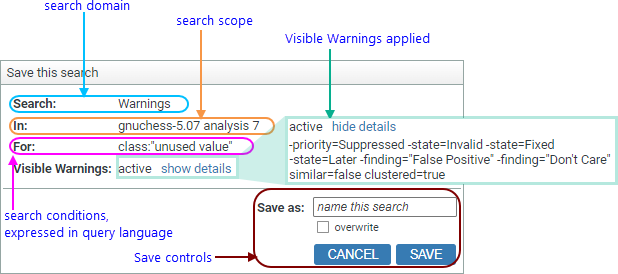
CodeSonar allows you to save search criteria for your frequently-executed searches with a name of your choosing. Once a named search is saved, it is available in the Visible Warnings selector.
If you frequently want to ignore all warnings except those that have been assigned to you, it is useful to have a named search that finds only warnings with your name in the Owner field. To do this:
Related tasks
Using CodeSonar
To report problems with this documentation, please visit https://support.codesecure.com/.