JavaScript is not currently enabled, but is required for full CodeSonar manual search and browse functionality.
If you are viewing this file in your hub's Web GUI, enable JavaScript in your browser: you will also need it for GUI functionality.
If you opened this file directly from disk, your browser may be directly suppressing JavaScript functionality: certain browsers perform this suppression on local files (but not files delivered by web servers) for security reasons.
| CodeSonar® 9.2p0 | CONFIDENTIAL | CodeSecure Inc |
If your CodeWarrior installation uses DLLs (see Using CodeSonar: Which Approach? for details), the methods CodeSonar will use to observe the software build process differ slightly from those used in observing other tools. In particular, there is no specific compiler model that is invoked. Instead, CodeSonar observes the CodeWarrior build process from the perspective of the DLLs called.
Important: If you have a 32-bit version of CodeWarrior, you will need to install a 32-bit version of CodeSonar in order to use the CodeSonar DLLs for CodeWarrior.
Use the approach described in this section if your CodeWarrior installation uses DLLs. See Using CodeSonar With CodeWarrior: Which Approach? if you are not sure.
If your CodeWarrior installation uses compiler executables rather than DLLs, do not use the approach described in this section. Instead, use the standard approach.
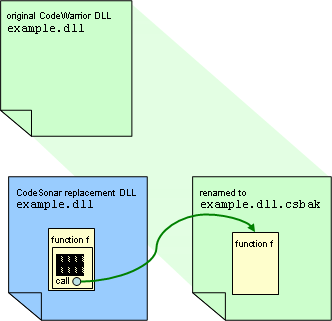
CodeSonar has its own versions of the DLLs used by CodeWarrior. In general, the CodeSonar version of a specific CodeWarrior DLL consists of references to that DLL, plus additional code that supports the CodeSonar build. This approach is used to ensure that the CodeSonar build captures everything that happens when a CodeWarrior project is built. There is no effect on the underlying software project.
When you install the CodeSonar DLLs, they will be stored with the same names and locations as the original CodeWarrior DLLs, which will in turn be renamed from fname.dll to fname.dll.csbak.
You can install the CodeSonar DLLs for CodeWarrior when you install CodeSonar, or wait until you want to build a CodeSonar project based on a CodeWarrior build. If installing the DLLs will require special privileges then they should be installed by an administrator as part of the CodeSonar installation process. Otherwise, the choice depends only on user preference.
The DLLs for CodeWarrior are installed by the Windows installer for CodeSonar.
Important: If you have a 32-bit version of CodeWarrior, you will need to install a 32-bit version of CodeSonar in order to use the CodeSonar DLLs for CodeWarrior.
Follow the installer instructions, making sure you do the following.

The dialog has the following components.
| Plugin Path field |
A list of all plugin DLLs that CodeSonar knows
about, with a checkbox next to each. On OK, CodeSonar will
Warning: do not unselect your compiler executable, or CodeSonar will not be able to properly observe the project build. |
|---|---|
| Delete button |
If there are listed plugins that you do not want
CodeSonar to replace, select them and click
Delete to remove their
names from the list.
Warning: do not delete your compiler executable from the list, or CodeSonar will not be able to properly observe the project build. |
| Add Files... button | To add individual files to the list of plugins, click Add Files... and use the dialog that opens to browse to and select the desired files. |
| Add Directory... button | To add all plugins for a CodeWarrior installation, click Add Directory... and use the dialog that opens to browse to and select the top-level installation directory. For selected directory CW_dir, CodeSonar will add all plugins stored in CW_dir\bin\plugins\compiler to the list. |
| Activate All button | Click to select all plugins in the list. |
| Disable All button | Click to deselect all plugins in the list. |
| OK button | Click when you are satisfied with the plugin list and selections. The listed plugins will be replaced with CodeSonar versions, and the selected plugins will be configured to be hooked during the CodeSonar build. |
| Cancel button | Click to cancel plugin setup and return to the CodeSonar installation. No plugins will be replaced. |
The Windows build wizard provides a mechanism for specifying DLL installation and use. Once the CodeSonar versions of the DLLs have been installed they remain installed (unless CodeSonar is uninstalled), but the build wizard can still be used to specify whether or not the CodeSonar-specific parts of the DLLs should be activated for a particular build.
Use the build wizard to set up and perform the build, with the following additional steps on screen 2.
If unselected DLLs have previously been replaced by CodeSonar versions, they will be configured so that they pass calls through to the original DLLs without performing any additional work in support of the CodeSonar build.
CodeSonar has CodeWarrior-specific configuration file parameters for controlling DLL installation and activation during command line builds (these parameters are ignored by the Windows build wizard).
| CODEWARRIOR_INSTALLS | Intercept all compiler IDE plug-in invocations from specified CodeWarrior install directories. |
|---|---|
| CODEWARRIOR_PLUGINS | Intercept specified compiler IDE plug-in invocations. |
CodeSonar project builds can be based on CodeWarrior builds using the standard command line or Windows build wizard procedures. There are a few points to note, however.
| IDE settings |
CodeSonar cannot access the flags set through the
CodeWarrior IDE Settings
dialog.
Use the appropriate front end options to the CodeSonar build to provide CodeSonar with the equivalent information, or edit the configuration file. |
|---|---|
| compiler macros |
CodeSonar cannot access the compiler macros declared in
the CodeWarrior IDE Settings
dialog or those predefined by the compiler.
Use the --define_macro front end option to provide CodeSonar with these macro definitions. |
| include path |
CodeSonar cannot access the include path set in the
CodeWarrior IDE, although it can access the include path used
by the compiler.
Use the -I front end option to inform CodeSonar of the include path , or add a -I directive to the CFLAGS_PREPEND or CFLAGS_APPEND list in the configuration file . |
| DLLs | Make sure the DLLs used in your build are installed and hooked, as described above. |
To report problems with this documentation, please visit https://support.codesecure.com/.